- All of Microsoft
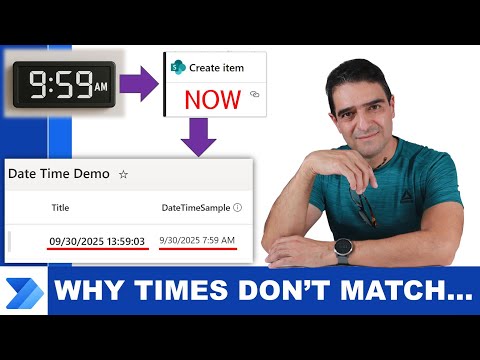
SharePoint Time Fix: Power Automate Tips
Online Course Creator (79,000 students and counting)
Microsoft expert reveals Power Automate flow fix for SharePoint time zone errors with utcNow and site zone tips
Key insights
- Problem and fix:
SharePoint often shows wrong local times because datetime values are stored as UTC. Use Power Automate with the Convert time zone action to convert times before saving or displaying them. - Key terms:
Understand UTC, the Convert time zone action, the convertTimeZone() expression, and the format string used to shape output. - How to apply:
In a flow provide the base time (trigger or field), set the source time zone, choose the destination time zone, and use a format string if needed. - Common traps:
SharePoint site regional settings can mask issues. SharePoint may auto-adjust display times, so always convert times in your flow before writing them to list fields. - Best practices:
Explicitly set source and destination time zones, prefer the built-in Convert time zone step over custom code, and test with users in different locales. - Benefits:
This approach gives consistent timestamps across global users, prevents off-by-hours errors, and improves reporting and notifications in SharePoint workflows.
In a recent YouTube video, author Alireza Aliabadi demonstrates a practical fix for a frequent annoyance: wrong times shown in SharePoint when items are created by flows. The video walks viewers through the problem, explains underlying causes, and proposes a flow-based remedy using Power Automate. Consequently, the presentation balances explanation and hands-on steps so that both administrators and power users can follow along. As a result, readers can adopt the technique to ensure timestamps display correctly across time zones.
Video overview and key themes
The video begins by laying out the basics, including a brief timeline of topics and an explicit demonstration that a flow creates a SharePoint item with a date and time field. Next, the narrator explains how the default timestamps often come from UTC and how the apparent mismatch arises when SharePoint renders those values in site or user-local settings. Then, the author shows the use of the Current time action and visualizes the utcNow() expression to expose where the conversion is needed. Finally, the video highlights the central tool for resolving the issue: the Convert time zone action inside Power Automate.
Why SharePoint often shows the wrong time
SharePoint stores dates as universal timestamps, which means that values are commonly recorded in UTC to preserve consistency across regions. However, when users view or edit those dates, SharePoint applies site or browser time zone rules that sometimes produce unexpected offsets, particularly for multi-region teams. Moreover, these automatic adjustments can hide the source of the problem, so users may misinterpret converted times as incorrect data entry. Therefore, understanding both storage format and display logic is essential before attempting a fix.
In addition, built-in SharePoint regional settings are limited because they typically apply at the site or tenant level rather than per user or per item. Consequently, environments with distributed teams face more frequent inconsistencies, especially when flows or external services insert timestamps without conversion. Furthermore, automated processes that do not explicitly set a time zone risk creating repeated errors that complicate reporting and auditing. For this reason, the video’s emphasis on explicit conversion is timely and practical.
How Power Automate addresses the mismatch
The core recommendation is to use the Convert time zone action or the equivalent convertTimeZone() expression in flows to translate datetimes from the source zone, commonly UTC, to the desired target zone. By doing so explicitly, the flow can write the correct localized timestamp into the SharePoint column, preventing the platform from applying an unexpected second conversion later. Also, the video explains how format strings let creators control the output appearance, ensuring that downstream consumers see times consistently. Thus, conversion at the flow level becomes a clear and replicable pattern.
Moreover, the author points out that you can define both source and destination time zones, which gives you precise control when flows ingest dates from various systems such as Outlook, forms, or external APIs. This flexibility matters because some sources already provide local time while others always return UTC, and the wrong assumption can introduce off-by-hours errors. Therefore, documenting the assumed source zone in your flow reduces the likelihood of mistakes. In short, the Convert time zone action simplifies a frequent but subtle problem when used deliberately.
Implementation steps and common pitfalls
Alireza demonstrates a stepwise approach: capture the incoming datetime, use Current time or the original field as the base, apply Convert time zone with the correct source and destination settings, and then write the converted value to the SharePoint date/time column. Importantly, he warns that relying solely on SharePoint site settings is risky, so conversion inside the flow is safer for automation scenarios. Equally, format mismatches and daylight saving adjustments are frequent traps that require you to choose robust time zone identifiers rather than ad hoc offsets. Therefore, testing across representative user locales is indispensable before rolling out at scale.
Another common pitfall is failing to handle time-only or nullable date fields consistently, which can lead to empty values or incorrect default timestamps. As a result, the video recommends adding conditional logic to flows to manage empty inputs or to preserve user expectations for time precision. Additionally, the author suggests monitoring flows after deployment because ongoing platform updates or tenant-wide setting changes can alter behavior. Consequently, maintenance and periodic reviews become part of a healthy automation lifecycle.
Tradeoffs, challenges, and practical recommendations
While the flow-based conversion approach improves accuracy, it adds extra steps and slightly more complexity to your automation, so teams must weigh simplicity against correctness. For instance, lightweight flows without many integrations might forgo conversion and accept site-level display differences, whereas enterprise scenarios typically require precise timestamps for legal, reporting, or coordination reasons. Moreover, implementing conversions everywhere can increase maintenance overhead because every flow touching timestamps must be kept consistent over time. Therefore, organizations should document a clear time-handling policy and centralize common conversion logic where possible.
Finally, the author recommends pairing the flow fix with clear documentation, consistent column settings in SharePoint, and testing across daylight saving transitions to reduce surprises. Accordingly, appointing a time zone steward or establishing templates for common flows can reduce errors and speed deployment. In conclusion, Alireza’s video provides a practical, reproducible path to eliminate wrong times in SharePoint while also highlighting the tradeoffs and ongoing responsibilities that teams must accept to keep their data trustworthy.

Keywords
SharePoint time zone fix, Power Automate time zone, SharePoint wrong time, Power Automate convert time zone, fix SharePoint datetime, SharePoint timezone daylight savings, Power Automate UTC to local, SharePoint regional settings