- All of Microsoft
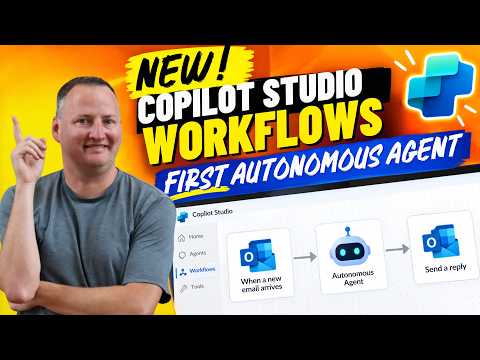
Copilot Studio: Create Autonomous Agents
SharePoint & PowerApps MVP - SharePoint, O365, Flow, Power Apps consulting & Training
Microsoft expert on Copilot Studio workflows: build an autonomous email agent with Power Automate and Power Platform
Key insights
- Copilot Studio Workflows extend Copilot Studio to run event-driven automations and build autonomous agents that act without constant user input.
They let you combine automated steps and AI reasoning to complete multi-step business tasks. - Trigger starts a workflow when something happens, such as a new email, a record update, a file change, or a scheduled time.
Triggers make workflows run in the background so actions begin automatically. - Deterministic actions use connectors to perform predictable tasks like updating records, sending messages, or creating tasks.
These actions give the workflow a reliable structure around the agent’s work. - Agent node adds AI reasoning to a workflow so the agent can decide next steps, use tools, and handle judgement-based tasks like scheduling meetings.
This lets the workflow hand flexible work to the agent instead of only following fixed rules. - Tools and Dataverse provide the agent with access to Outlook, Microsoft 365, connectors, and organizational data; workflows can also extract values and tables from documents for later steps.
Grounding agents in real data helps them act accurately and use enterprise resources. - Testing, human review, and monitoring let you validate agent behavior, pause for approvals, and track run history and outcomes.
Workflows feel familiar to Power Automate and Agent Flows users but add inline agents; remember to check licensing and credit requirements before scaling.
Shane Young [MVP] published a clear, practical YouTube video that walks viewers through the new Copilot Studio Workflows experience and shows how to create a simple autonomous agent that responds to email. In this report, we summarize his demonstration and highlight the main ideas for readers who want a quick, actionable overview. Shane frames the feature as an evolution of event-driven automation, and he shows both the builder interface and a working example to make the concepts concrete.
First, Shane describes what makes the new workflow experience different from past tools. He positions Workflows as a system that combines triggers, deterministic actions, and an embedded reasoning unit called an agent node. Consequently, workflows can react to events while delegating judgment-requiring tasks to the agent, enabling more flexible end-to-end processes than fixed-action pipelines.
What the Video Covers
Shane lists the key features he explores, including the new workflow builder, triggers, connectors, actions, and the process of adding an inline autonomous agent. He then moves to practical topics such as dynamic content, tool integrations, human review options, testing, and run history. Therefore, the video serves both as a tour and as a step-by-step demo for first-time builders.
He also notes when the new experience will feel familiar to existing users of Power Automate and Agent Flows. However, he stresses that Workflows include fresh capabilities that change how automation can reason and act. As a result, viewers can judge which platform fits their needs by watching the comparisons Shane makes throughout the presentation.
Core Components and How They Work
Shane breaks a workflow into four practical parts: the trigger, workflow actions, the agent node, and tools or knowledge sources. The trigger starts the flow, which then executes predictable steps through connectors; when judgment is required, the flow hands control to the agent node. This hybrid approach lets teams combine repeatable operations with flexible reasoning in one end-to-end process.
For tools, Shane shows agents accessing services such as Outlook, Microsoft 365 resources, and Dataverse, as well as using extracted data from documents like invoices. Therefore, agents can use both structured data and live services to complete tasks. He emphasizes that grounding agents in internal data reduces hallucination and increases reliability when the agent must take action.
Building an Email-Triggered Autonomous Agent
Shane demonstrates an example where a new email triggers a workflow that passes details to an inline agent for follow-up. He configures triggers, maps dynamic content into the agent’s context, and shows how the agent calls tools to check calendars and create tasks. Consequently, the demo illustrates a common business scenario: receive an email, reason about it, and then perform multi-step actions without manual handoffs.
Additionally, Shane walks through testing and human review features so developers can validate behavior before full rollout. He shows how the workflow captures run history and how monitoring differs from traditional automations. Therefore, teams gain visibility into agent decisions and can intervene when necessary, balancing automation speed with human oversight.
Tradeoffs: Comparing Platforms and Decisions
Shane compares Workflows to Power Automate and older Agent Flows, noting both similarities and tradeoffs. On one hand, Workflows bring richer reasoning and inline agent capabilities that reduce the need for separate agent components. On the other hand, this added flexibility introduces complexity in design, testing, and governance that teams must manage.
Moreover, licensing and credit models present practical constraints that Shane flags during the video. For example, organizations should weigh the cost of agent compute and connector usage against the operational gains. Thus, leaders must balance faster automation and fewer manual steps with the budget and governance implications involved in wider rollout.
Finally, Shane acknowledges that monitoring and debugging autonomous agents can be trickier than tracing deterministic flows. While the workflow structure preserves logs and run history, reasoning steps may require additional auditing and human review to ensure consistent outcomes. Consequently, teams should plan for observability, approval gates, and fallback paths to maintain control.
Challenges and Best Practices
Shane highlights several challenges viewers should expect, including data grounding, permission management for connectors, and designing safe tool access for agents. He recommends grounding agents in trusted data sources and enabling human review when consequences are significant. In addition, he suggests iterative testing and small pilots to uncover edge cases early.
For best results, Shane advises developers to use deterministic actions for predictable tasks and reserve the agent node for judgment or planning steps. He also encourages teams to monitor runs closely and to document expected behaviors so reviewers can approve or block actions as needed. By following these steps, organizations can adopt autonomous agents while keeping risks manageable.
In summary, Shane Young’s video offers a practical introduction to the new Copilot Studio Workflows experience and a workable pattern for building an email-driven autonomous agent. The demo clarifies features, surfaces tradeoffs, and outlines steps for testing and governance, giving practitioners a solid starting point for exploring these capabilities in their own environments.

Keywords
Copilot Studio workflows, Microsoft Copilot Studio, create autonomous agent, build your first autonomous agent, Copilot automation tutorial, autonomous agent demo, Copilot Studio workflow tutorial, AI agent development guide