Power BI + Power Automate: Email Reports
Power Automate sends personalized emails from Excel and Power BI using Outlook, automating reporting in Microsoft cloud
Key insights
- Overview: The video shows a Power Automate flow that removes manual work by combining Power Automate, Power BI, Excel, and Outlook to automatically generate and send personalized business emails.
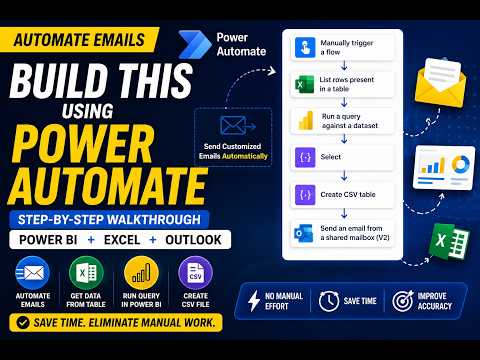
- Flow steps: The flow is manually triggered, reads rows from an Excel table, processes each record, runs a query against a Power BI dataset, transforms results with Select, builds a dynamic CSV table, and sends customized emails from a shared mailbox.
- Key benefits: Automating this process reduces repetitive tasks, improves consistency, speeds response to KPI changes, and lowers the risk of missed notifications for sales, finance, inventory, and operations teams.
- Architecture: Core parts include a Power BI data source, an alert or trigger, the Power Automate flow, dynamic content and HTML formatting in the email, and an optional report export step for full-report distribution.
- Export and templates: You can use the Export to File for Power BI Reports action to attach PDFs or PowerPoint files to emails, and use built-in templates to send messages when a Power BI data-driven alert fires.
- Practical tips: Run flows with a shared mailbox for consistent sender identity, test with sample data, add clear dynamic text in the email body, monitor API and dataset limits, and confirm permissions for Power BI and Excel connections.
Video summary and context
In a recent YouTube demonstration, author Naval Singh walks through a practical automation that sends customized business emails by combining Power Automate, Power BI, Excel, and Outlook. The video shows a triggered flow that reads an Excel table, runs queries against a Power BI dataset, transforms results, builds a CSV dynamically, and then sends tailored messages from a shared mailbox. Consequently, the example highlights how common Microsoft tools can reduce manual reporting and improve consistency across teams.
Singh frames the solution as a real-world pattern for recurring communications, rather than a theoretical recipe. He manually triggers the flow in the demo to reveal each step, which helps viewers understand how data moves through the system. Therefore, the video is both instructional and practical for administrators and power users seeking to automate routine email tasks.
How the flow works
The flow begins with a manual trigger that reads records from an Excel table and then iterates over each row automatically. Next, the automation runs a Power BI query, where DAX or query logic extracts the contextual data needed for each recipient, and the output is transformed using the Select action. After that, the flow creates a dynamic CSV table and uses an Outlook action to send personalized emails from a shared mailbox, with both subject and HTML body populated by the flow’s dynamic content.
Singh takes care to demonstrate how each component hands off data to the next, showing the path from raw table rows to a formatted email. He explains the role of dynamic content and formatting so viewers can see how variables, query results, and formatting actions combine to produce business-ready messages. As a result, the end-to-end picture becomes clear: a data-driven alert or manual trigger leads to automated, customized communication that would otherwise be repetitive to produce by hand.
Advantages and tradeoffs
The video emphasizes speed and consistency as clear advantages: the automation removes repetitive manual steps and reduces the risk of missed notifications. At the same time, there are tradeoffs to consider, because designing an end-to-end flow raises questions about complexity versus maintainability. More complex flows give you finer control and richer personalization, but they also require more testing, documentation, and ongoing support.
Moreover, Singh’s approach balances flexibility with performance constraints. For instance, querying large Power BI datasets for each record improves personalization but can increase run time and consumption of API resources. Conversely, batching or pre-aggregating data reduces calls but limits how granular an email can be. Thus, teams must weigh the need for detailed personalization against operational costs like run duration, throttling, and dataset refresh cadence.
Challenges and operational considerations
Singh’s demonstration highlights several practical challenges that teams should anticipate, such as managing permissions for shared mailboxes and ensuring the flow has appropriate service account rights. Error handling also requires attention: flows should retry transient failures and surface non-recoverable issues to an administrator. If not handled carefully, failures can lead to duplicate messages or missed recipients, which undermines the automation’s purpose.
Data freshness and query complexity are additional concerns. For example, tight reporting windows and long-running DAX queries may produce stale or incomplete results if the underlying dataset is not refreshed frequently. Similarly, CSV encoding, localization, and attachment size limits can introduce edge cases that require testing across sample datasets. Therefore, adopting robust monitoring and logging practices is essential before scaling the solution across production workloads.
Practical takeaways and next steps
For organizations exploring this pattern, the video offers several actionable steps: start with a minimal proof of concept, validate permission and connector configurations, and then iterate toward richer personalization. Singh’s stepwise manual trigger helps teams validate each part of the flow before automating triggers or scheduling runs. Consequently, this staged approach lowers risk and makes troubleshooting faster when issues arise.
Finally, teams should document tradeoffs and establish guardrails around dataset size, refresh schedules, and API usage. In addition, considering alternatives—such as exporting full reports for distribution versus per-recipient personalized emails—can help determine the right balance of automation, cost, and complexity. Ultimately, the video by Naval Singh serves as a useful starting point for IT and data teams that want to connect Power BI signals to practical communications through Power Automate and Microsoft 365 tools.
Technologies highlighted
- Power Automate
- Power BI
- Excel
- Outlook
- DAX / Power BI queries
- CSV

Keywords
power bi email automation, send custom emails power bi, power automate power bi emails, dynamic email content power bi, power bi email subscriptions, power automate email templates, schedule power bi report email, automate emails from power bi dataset