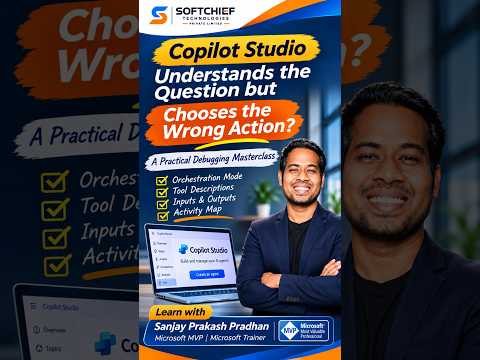
Copilot Studio: Debug wrong action selection
Learn how to take advantage of your business data with Microsoft Dynamics 365 & Power Platform & Cross Technologies. My name is Sanjaya Prakash Pradhan and I am a Microsoft Certified Trainer (MCT) and
Copilot Studio makers can trace wrong action choices by checking orchestration mode, action descriptions, parameter mappings, and the activity map.
Key insights
- Classic orchestration routes through topic matching and trigger phrases; generative orchestration uses available tools, context, and descriptions.
- Make action descriptions specific about the task, when to use the action, required information, and what it returns.
- Use the test pane's activity map to review the selected topic or tool, execution sequence, and available rationale.
- Check input and output mappings even when the agent selected the intended action.
- Retest with positive, ambiguous, and negative prompts after changing descriptions or instructions.
Copilot Studio makers can diagnose an agent that understands a request but chooses the wrong action by tracing orchestration and checking the action definitions and mappings. This matters to people building or maintaining agents with actions that have similar business purposes. Softchief Learn demonstrates this troubleshooting approach with an order-status scenario in a YouTube Short.
What it does
Action selection depends partly on how the agent is configured to handle a request. With classic orchestration, topic matching and trigger phrases drive routing; with generative orchestration, the agent plans among available tools, topics, and actions using descriptions, inputs, and conversation context.
That distinction helps narrow the investigation. In the example, a request to check an order's status leads to a cancellation action instead of the order-details action. A vague description such as “handles customer orders” does not clearly distinguish retrieving information from canceling an order.
Who it is for and what you need
This workflow is for Copilot Studio makers and developers troubleshooting an agent whose selected action does not match the user's intent. Start with a test conversation that reproduces the problem and identify the action the agent should have chosen.
Keep the action definitions and their expected inputs and outputs in view. In the example, the order-details action needs an order ID and should return order status and shipment details. The same checks apply to the actions in your own agent: clarify what each one does and what information it needs.
How it works
- Identify whether the agent uses classic or generative orchestration. Consider how that mode determines routing before changing instructions.
- Compare the descriptions of the selected action and the intended action. Give each a distinct responsibility, specify when it should run, and avoid overlapping or broad wording.
- Check parameter configuration and mapping. Confirm that the required value reaches the intended action and that its result is mapped correctly for the agent to use.
- Reproduce the issue in the test pane and inspect the activity map. Review the selected topic or tool, the execution sequence, and any available details about why the action was chosen.
- Fix the underlying ambiguity, then retest with direct, ambiguous, and negative requests. Do not treat one successful prompt as proof that routing is reliable.
Limitations and alternatives
Choosing the right action is only one part of successful execution: incorrect or missing input and output mappings can still produce the wrong result. The activity map helps locate the decision in the execution path, but the example does not provide a universal menu path or a complete list of diagnostic fields.
For consequential operations such as canceling an order, test the agent with varied prompts and check that the action boundary is clear before relying on the behavior. Avoid changing instructions at random; use the trace to identify what needs correction.
Sources
Frequently asked questions
How do I debug a Copilot Studio agent that selects the wrong action?
Reproduce the request in the test pane and inspect the activity map for the selected topic or tool and execution sequence. Then check orchestration mode, action descriptions, and parameter mappings.
Why does Copilot Studio choose the wrong action?
Broad or overlapping action descriptions can make it harder to distinguish actions. Generative orchestration also considers available tools, inputs, and conversation context.
What should I test after changing an action description?
Retest with positive, ambiguous, and negative prompts rather than relying on one request. Also verify the required inputs and returned outputs.
How does classic orchestration differ from generative orchestration?
Classic orchestration uses topic matching and trigger phrases to route conversations. Generative orchestration lets the model plan among available topics, tools, and actions using descriptions, inputs, and context.