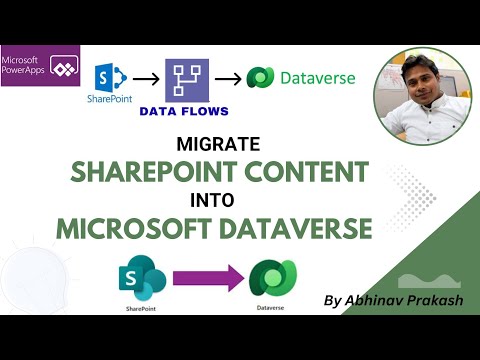
Dataverse: Migrate SharePoint Lists Fast
Migrate SharePoint lists to Microsoft Dataverse using Dataflows and Power Query in PowerApps for synced data
Key insights
- SharePoint Lists to Dataverse: Use dataflows to move list content into Dataverse for one-time migrations or ongoing syncs, keeping business data in a structured, app-ready table.
- Dataflow setup steps: In Power Apps go to Data > Dataflows, create a new dataflow, choose the SharePoint Online List connector, select lists, transform data, pick or create Dataverse tables, then publish and run.
- Power Query and column mapping: Use Power Query inside the dataflow to clean and transform fields, convert types (text, numbers, dates), handle choice, person/group, lookup and attachment columns, and fix naming before loading.
- delete rows that no longer exist in query output: Enable this sync option to remove records in Dataverse that are deleted from SharePoint, keeping the two sources aligned; test carefully to avoid accidental data loss.
- scalability and security: Dataverse scales better than large SharePoint lists, supports relational models and role-based access, and improves app, automation, and reporting reliability across the Power Platform.
- best practices and refresh settings: Validate schema, map primary keys and lookups (use staging tables if needed), test with sample data, schedule regular refreshes, and monitor dataflow runs for errors before full cutover.
Overview
The YouTube video by LearnPowerPlatformWithAbhinav walks viewers through migrating content from SharePoint lists into Microsoft Dataverse using Dataflows. First, the presenter explains why teams might move list data into Dataverse and when a migration makes sense for apps and reporting. Then, he outlines the core steps that use the SharePoint Online List connector, Power Query transformations, and publishing into Dataverse tables. Overall, the demonstration aims to show a practical, low-code migration and how to keep data synchronized.
What the Video Demonstrates
Early in the video, the author sets up sample SharePoint lists and explains the Dataflows workspace inside Power Apps, so viewers can follow along. Next, he performs a live migration of lists that contain basic data types and later shows a second demo that handles more complex column types and relationships. Importantly, he highlights the option to enable the delete rows that no longer exist in query output checkbox to maintain synchronization between the list and Dataverse. Finally, timestamps guide the audience through each stage, which helps when revisiting specific steps.
Transformation and Mapping with Power Query
During the migration, the presenter uses Power Query inside Dataflows to clean and shape data before it lands in Dataverse. Consequently, viewers learn how to rename columns, change data types, and address common mismatches such as choice fields, person or group columns, and date formats. Additionally, he demonstrates handling lookup relationships by preparing keys or staging tables so Dataverse can enforce referential integrity. Therefore, shaping data early reduces errors later and makes the destination tables ready for apps and automations.
Tradeoffs and Practical Challenges
Moving from SharePoint to Dataverse brings clear benefits like better relational modeling, enterprise security, and tighter Power Platform integration, yet it also requires tradeoffs. For example, Dataverse adds capacity and licensing considerations that organizations must plan for, and large attachments or binary files may need separate handling because storage models differ. Moreover, enabling the delete-rows option simplifies two-way sync but raises the risk of accidental data loss if queries or filters are misconfigured. As a result, teams must balance synchronization convenience against the operational risk of deleting records.
More Technical Constraints and Risks
In addition, some SharePoint column types do not map one-to-one with Dataverse types, so manual review and column rework are often necessary before publishing the dataflow. Consequently, person/group fields, lookups, and attachments require extra attention; otherwise, relationships can break or create duplicates. Also, performance can suffer when migrating very large lists, which makes batching, filtering, and incremental refresh important strategies to consider. Thus, the migration design should include testing at scale and staged runs to surface mapping or performance issues early.
Recommendations and Best Practices
First, the presenter recommends starting with a pilot that migrates a representative set of lists to validate mappings, security, and app behavior in Dataverse. Next, he advises using Power Query transforms to normalize values, create surrogate keys for lookups, and handle choice fields consistently so the destination schema remains clean. Additionally, backup or archive the original SharePoint lists and test the delete rows that no longer exist in query output option in a non-production environment to avoid unintended deletions. Finally, plan for capacity, governance, and ongoing refresh schedules so the new system remains reliable and maintainable.
Conclusion
LearnPowerPlatformWithAbhinav presents a clear, hands-on guide to using Dataflows for migrating SharePoint lists into Microsoft Dataverse, and he balances practical steps with cautions about common pitfalls. While Dataverse delivers stronger relational capability and security for application development, the video makes plain that migration requires careful mapping, performance testing, and governance decisions. Therefore, following the recommended pilot approach and validating transformations in Power Query can reduce migration risk while unlocking better integrations with Power Apps and Power Automate. Overall, the tutorial serves as a useful roadmap for teams considering a move from list-based data to a robust, enterprise-ready platform.

Keywords
SharePoint to Dataverse migration, Migrate SharePoint lists to Dataverse, Power Platform Dataflows SharePoint, Dataverse migration best practices, Dataflows for Power Apps migration, Automate SharePoint list migration, Abhinav Prakash SharePoint Dataverse, Move SharePoint data to Dataverse