- All of Microsoft
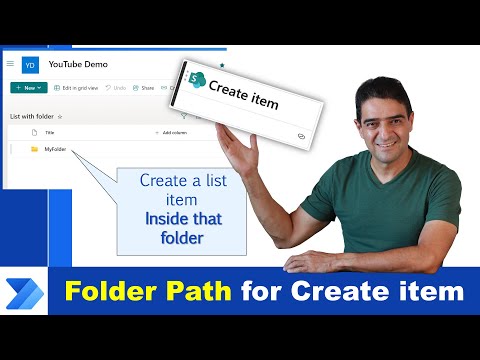
Power Automate: Add to SharePoint Folder
Online Course Creator (79,000 students and counting)
Microsoft expert: Power Automate and SharePoint REST API to create or move list items into SharePoint folders
Key insights
- Power Automate: The video demonstrates two practical workarounds to add list items inside a SharePoint folder using Power Automate, addressing past flow limitations and making folder-based automation more reliable.
- REST API: One approach uses SharePoint REST calls to create an item directly inside a folder; you must send proper headers (Accept and Content-Type) and include folder path or metadata in the JSON body so SharePoint places the item in the target folder.
- SP.MoveCopyUtil.MoveFileByPath: The second approach posts to the MoveFileByPath endpoint (overwrite=true) to move an item from a source path to a destination folder, using srcPath.decodedUrl and destPath.decodedUrl in the request payload.
- Create in root then move: If direct creation in a folder fails, create the item in the list root first and then call the move API to place it in the folder—this reliably avoids folder-path issues in some environments.
- Folder path: Common failures come from incorrect or URL-encoded folder paths, wrong metadata type, or missing headers; validate the decoded URLs, test with a sample item, and inspect flow run details to debug.
- Best practices: Use explicit folder IDs or clean decoded paths, include required fields in the API payload, set overwrite only when safe, test flows step-by-step, and review run history for errors before wide deployment.
Alireza Aliabadi’s YouTube video tackles a persistent Power Automate problem: how to add a list item directly into a SharePoint folder. The video presents two practical workarounds and walks through examples, API details, and common pitfalls. In this report, we summarize the key steps, explain tradeoffs, and highlight challenges to help teams decide which approach suits their needs.
Video overview and goals
The video opens by explaining why adding list items to a SharePoint folder can be tricky, because lists and folders behave differently than document libraries. Aliabadi shows live flow configurations and timestamps each section to help viewers follow along. He frames the problem as a common automation gap that many Power Automate users encounter when targeting folder-scoped list items.
Next, the presenter outlines two main strategies: call the SharePoint REST API to create or move items directly into a folder, or create the item at the root and then move it into the folder. He summarizes the benefits of each approach before diving into code and flow setup. This helps viewers weigh complexity against reliability early on.
REST API approach explained
Aliabadi demonstrates how to use a POST call to the SharePoint endpoint to place an item inside a folder, and he highlights the importance of correct path formatting. The example uses headers like Accept: application/json;odata=nometadata and Content-Type: application/json;odata=verbose, and builds srcPath and destPath objects to target resources. He cautions that URL encoding and accurate resource paths are essential to avoid errors.
The presenter then shows how to add fields to the API request payload so the created item includes metadata beyond the title. He walks through mapping flow outputs into the JSON structure, which improves automation accuracy. While the REST method gives granular control, he notes it requires familiarity with SharePoint resource paths and error handling.
Finally, Aliabadi emphasizes testing and response checks when you call the API from Power Automate, since a failed request can leave partial data or require retries. He also points out that permissions matter: the account running the flow needs rights to move or create items inside the target folder. Therefore, teams must plan for security and error recovery when using this method.
Create-then-move workaround
The second workaround shown is simpler conceptually: create the list item in the root folder and then move it into the target folder with a follow-up API call or built-in move action. Aliabadi demonstrates how flows can capture the new item’s path and then call SP.MoveCopyUtil.MoveFileByPath to relocate the item. This two-step process avoids some direct folder-creation pitfalls.
This pattern reduces the need to craft complex creation payloads, and it often works when direct creation inside a folder fails. However, it introduces an extra operation and therefore adds latency and a higher chance of transient failure. In addition, the move step must handle naming collisions and may need explicit overwrite logic when items share titles.
Aliabadi also points out practical checks to implement after the move, such as verifying destination existence and handling retries for intermittent API throttling. He recommends logging outcomes and adding conditional branches for error states, which increases flow complexity but improves robustness. These measures help keep automations predictable in production.
Tradeoffs and common challenges
Each approach balances complexity, reliability, and maintainability differently. The direct REST approach gives precise control and fewer steps, but it demands more technical skill and careful handling of paths and headers. Conversely, the create-then-move workaround is easier to set up for many users yet adds steps, time, and potential points of failure.
Other challenges include permission scope, API rate limits, and handling duplicate names or versioning in lists. Aliabadi stresses the need to plan for overwrite behavior and to ensure flows have clear retry and error handling. Teams must also weigh long-term maintenance: complex custom JSON in flows can be harder to update than simpler multi-step flows.
Finally, testing across environments matters because tenant settings, list custom columns, and site paths vary. The video recommends staging flows in a test site and validating with representative data before deploying to production. This reduces the chance of disruption when folders contain many items or when lists have unique column constraints.
Practical takeaways and recommendations
For most teams, start by trying the simpler create-then-move pattern and add verification and retry logic to handle failures. If you need tighter control or must set many fields at creation time, invest time in the REST API approach and document the JSON payloads and path rules. In both cases, ensure the flow account has the right permissions and add logging to catch and recover from errors.
Overall, Aliabadi’s video offers clear, actionable techniques to resolve a long-standing pain point in Power Automate. By explaining tradeoffs and showing real examples, the presentation helps automation owners choose the right method for their environment while preparing for common challenges.

Keywords
Power Automate add list item to SharePoint folder, Add SharePoint list items to folder with Power Automate, Power Automate create items in SharePoint folder, Fix Power Automate add item to SharePoint folder, Power Automate SharePoint folder path dynamic content, Power Automate create list item in document library folder, Power Automate add item to folder SharePoint list, Power Automate SharePoint folder troubleshooting