Power Platform CI/CD: Azure DevOps Steps
Deploy Power Platform solutions with Azure DevOps CI/CD and Copilot Studio for automated Power Apps and Power Automate release
Key insights
- CI/CD fundamentals
Use YAML-based, multi-stage pipelines to automate moving Power Platform solutions from development to test and production.
Automate validation, packaging, artifact creation, and approvals to reduce manual errors. - Prerequisites
Set up an Azure DevOps organization, project and a repository that holds unpacked solution files and pipeline definitions.
Prepare Power Platform environments, a build agent (self-hosted or hosted), and install Power Platform Build Tools or equivalent tasks. - Build and deployment workflow
Unpack solutions into source control, run a build pipeline to validate and pack the solution, then publish a versioned artifact.
Use a release or deployment pipeline to import artifacts into Test/UAT and Production with approval gates and scheduled releases. - Authentication and service connection
Register an Azure App or use workload identity federation to create a secure service connection to Dataverse; avoid personal accounts for automation.
Use the service connection in pipeline tasks to authenticate, export/import solutions, and run environment-specific commands. - Environment strategy
Keep development, test, pre-production and production separate and deploy managed solutions downstream for control and consistency.
Use environment variables and connection references instead of hard-coded values to make deployments repeatable across environments. - Benefits and best practices
Store source in Azure Repos or Git to enable version history, pull requests, and traceability; integrate pipelines with work items and code reviews.
Adopt YAML pipeline-as-code, keep templates in source control, monitor logs and quality gates, and use approvals to improve auditability and reliability.
Overview
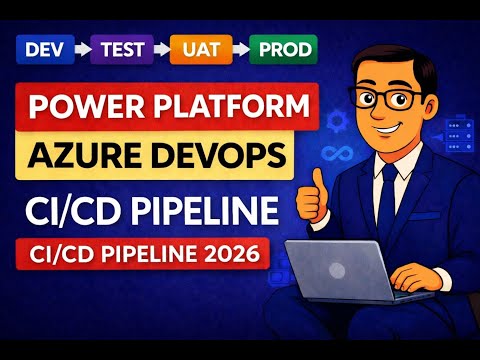
The YouTube video from Microsoft Techy Tips walks viewers through deploying a Power Platform solution using an Azure DevOps CI/CD pipeline, demonstrating a full Dev-to-Prod flow. The presenter shows a beginner-friendly, real-world demo that replaces manual exports with an automated pipeline and includes a run using Copilot Studio. As a result, teams can see how to move solutions from development into Test/UAT and then into Production with consistent steps. The video also points viewers to a companion blog that provides downloadable pipeline templates and configuration notes for follow-up reading.
CI/CD Fundamentals Explained
The video clarifies the core idea: automate solution export, validation, packaging, and deployment so releases become repeatable and auditable. It highlights the role of source control in storing unpacked solution files and explains how a build pipeline produces a versioned artifact for later deployment. Furthermore, the presenter contrasts classic manual processes with modern YAML-based, multi-stage pipelines that support approvals, scheduled releases, and stronger authentication. These practices align with common enterprise DevOps expectations and reduce manual errors while improving traceability.
Pipeline Architecture and Setup
The demo outlines a typical end-to-end architecture that includes development environments, an Azure Repos or Git-based repository, a build pipeline, an artifact store, and release stages for Test and Production. It covers prerequisites such as registering an Azure app for authentication, configuring the Power Platform Admin Center for environment variables and connection references, and setting up a service connection from Azure DevOps to Dataverse. The narrator walks through specific pipeline tasks using the Power Platform Build Tools for packing, unpacking, exporting, importing, and validating solutions. Finally, the video shows how to automate deployments of Copilot Studio related components as part of the same pipeline.
Comparing Approaches and Tradeoffs
The presenter compares using Azure DevOps pipelines with the alternative Power Platform Pipelines toolset, noting that each has strengths depending on team needs. For example, Azure DevOps integrates tightly into enterprise workflows, enabling branch policies, pull requests, and strong release governance, whereas Power Platform Pipelines may offer simpler setup for makers who prefer a UI-driven flow. However, this power comes with tradeoffs: teams must manage pipeline complexity, maintain agent environments, and configure secure service connections. Consequently, organizations should weigh integration benefits against the added operational overhead and training required for robust pipeline maintenance.
Challenges in Implementation
The video signals several practical challenges that teams face when adopting automated deployments. Managing environment-specific settings without hard-coding values requires environment variables or configuration files, and unpacking solutions into source control can lead to merge conflicts, especially when multiple makers change the same components. Additionally, large solutions or frequent changes can slow builds and complicate quality checks, while insufficient test automation and missing approval gates raise the risk of faulty releases. The presenter advises planning for these issues by using small, modular solutions where possible and introducing automated validation steps early in the pipeline.
Operational Decisions: Agents and Authentication
Two operational choices stand out: whether to use self-hosted agents or Microsoft-hosted agents, and whether to authenticate via Azure App Registration or newer workload identity methods. Self-hosted agents let teams run environment-specific tooling and access internal resources, but they require maintenance, patching, and scaling considerations. On the other hand, hosted agents simplify upkeep but may not be suitable for all enterprise network requirements. Similarly, choosing between app registrations and federated identity affects security posture and ongoing credential management, so teams must balance ease of setup against long-term security needs.
Practical Takeaways for Teams
To apply the lessons in the video, start small and use the provided templates to reduce initial friction. Next, add validation gates and quality checks progressively so each pipeline stage builds confidence without overwhelming developers. Also, document environment configuration and maintain a clear branching strategy to minimize merge conflicts and improve traceability. Finally, invest in governance and training so the team can maintain pipelines, manage authentication securely, and scale automated deployments across the organization.
Conclusion
Overall, the Microsoft Techy Tips video gives a clear, step-by-step roadmap for automating Power Platform deployments through Azure DevOps. It balances practical demos with guidance about prerequisites, architecture, and common pitfalls, while noting tradeoffs around complexity, security, and maintenance. For teams implementing enterprise-grade CI/CD, the demo and its accompanying blog templates offer a pragmatic starting point that can be adapted to local policies and toolchains. In short, the video is a useful resource for developers and DevOps practitioners aiming to replace manual exports with a repeatable, auditable pipeline.
Related resources
Keywords
Power Platform CI/CD, Azure DevOps Power Platform, Deploy Power Platform solutions, Power Platform deployment pipeline, CI/CD for Power Apps and Power Automate, Power Platform ALM with Azure DevOps, Azure DevOps pipeline tutorial Power Platform, Power Platform automated deployment