- All of Microsoft
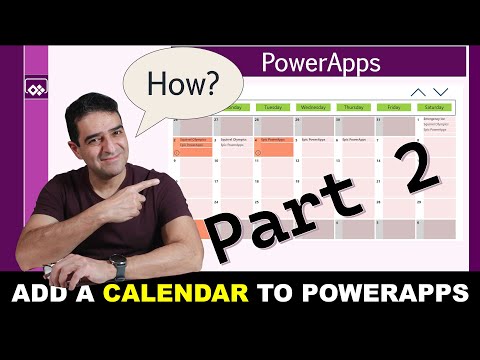
Power Apps: Add a Calendar Fast (Part 1)
Online Course Creator (79,000 students and counting)
Microsoft expert Power Apps calendar with SharePoint and Power Platform to highlight events and optimize performance
Key insights
- Dynamic monthly calendar
The video demonstrates how to build a full monthly calendar UI inside a Power Apps canvas app without external data sources. It focuses on creating a polished, interactive grid that users can navigate month-to-month. - Gallery and Power Fx
The calendar uses a gallery control plus Power Fx formulas to generate and render date cells. This approach creates a 6x7 grid of days by calculating dates in a table and binding them to the gallery. - Month logic
The tutorial shows how to set a selectedMonth variable (usually Today()) and compute the grid start date by finding the first day of the month and adjusting with the Weekday function. These steps ensure correct padding with previous- and next-month days. - Event display and highlighting
Part 1 covers visual features like highlighting special days and styling day cells; Part 2 will show how to surface events inside the calendar. The video explains conditional formatting patterns you can reuse in business apps. - Performance and large data
While Part 1 builds a standalone UI, the series flags performance considerations when connecting to large SharePoint lists. Part 2 will address strategies to avoid slow queries and scale to thousands of records. - Business value and best practices
Building the calendar with core controls gives full customization and avoids deprecated features, improving maintainability. The patterns shown are reusable for booking, scheduling, and other business scenarios.
Introduction
In a recent tutorial video by Alireza Aliabadi, viewers are shown how to create a monthly calendar inside a Power Apps canvas app without relying on external data sources. First, the author demonstrates building the calendar UI using galleries, date functions, and named formulas to produce a 6x7 grid. Next, he explains basic navigation and formatting so the calendar reacts to user input like month changes. Finally, the video sets the stage for a follow-up that will convert the design into a data-driven, scalable solution.
Overall, the tutorial emphasizes practical patterns that app makers can reuse in real business apps, and it aims to be accessible for people familiar with low-code platforms. Moreover, the presenter carefully walks through the formulas used to derive the first visible date and the sequence of days that populate the grid. Consequently, the method gives designers tight control over layout and styling without custom controls. However, the approach also creates choices about where to store and how to surface event data.
Building the Calendar UI
To construct the calendar, the video uses a gallery as the core layout and a variable such as Today() to initialize the current month. Then, Power Fx formulas generate the table of dates and calculate row and column placement for each day, allowing the grid to include leading or trailing days from adjacent months. As a result, the calendar behaves like familiar month views and supports next/previous navigation. The tutorial also covers simple visual refinements like highlighting the current day and showing month labels.
While this method offers full customization, it requires careful formula management to remain readable and maintainable as features are added. Therefore, naming conventions and comments become useful, especially for teams who will extend the calendar later. In addition, building the calendar from primitives gives designers flexibility to add conditional styling and interactions that built-in controls might not allow. On the other hand, more customization increases initial development time and test needs.
Adding Events and Highlighting Special Days
Aliabadi demonstrates how to visually mark special dates and includes guidance for embedding event summaries into day cells, creating a richer user experience. He shows how to filter and display event text in the calendar grid so users can get quick context without leaving the month view. Moreover, the tutorial explains conditional formatting to emphasize holidays or other notable days, which improves clarity for scheduling scenarios. Consequently, designers can craft a compact view that still communicates key information.
Yet adding event display raises tradeoffs between information density and readability, particularly on small screens or mobile layouts. Therefore, designers must decide whether to show a single concise summary per day or to provide an expandable detail view on demand. Additionally, the video points out that the static, formula-driven calendar is easy to prototype, but a production-ready app generally needs a data-driven source to store and sync event details across users. Those choices affect complexity, sync behavior, and user expectations.
Performance and Data Integration Challenges
Importantly, the tutorial previews common performance bottlenecks when integrating with large data sources such as SharePoint lists that contain thousands of records. Aliabadi outlines patterns for limiting client-side processing and reducing roundtrips, and he signals that the second part of the series will cover concrete fixes. For instance, filtering events to the visible month server-side and loading only necessary fields can dramatically cut load times. Consequently, applications scale better when queries and aggregation happen close to the data.
However, balancing responsiveness with data accuracy creates tradeoffs: aggressive caching improves UI speed but risks showing stale data, while always querying the server ensures freshness at the cost of latency. Therefore, teams must decide on refresh strategies that match business expectations, such as periodic syncs, manual refresh buttons, or push notifications for critical updates. Moreover, integrating with different backends introduces additional patterns and limits that developers must test under real-world load.
Tradeoffs, Best Practices, and Conclusion
Overall, the video offers a pragmatic path for teams that want a tailored calendar UI in Power Apps, and it balances simplicity with extensibility. For rapid prototyping, building the calendar with native controls and formulas minimizes setup time and keeps the app self-contained. Conversely, when the calendar must serve multiple users with frequent updates, moving to a data-driven design and optimizing queries becomes essential to maintain performance and correctness.
In conclusion, the tutorial provides clear, step-by-step guidance for a custom calendar UI and highlights the important considerations for production deployment. Furthermore, the promised follow-up will address the hardest part: making the calendar resilient and performant with large data sets. Therefore, app makers should be able to follow this series to progress from a visual mock-up to a scalable, maintainable calendar used in real business scenarios.
Keywords
Power Apps calendar, add calendar to Power Apps, Power Apps calendar tutorial, Power Apps calendar control, integrate SharePoint calendar with Power Apps, Power Apps Outlook calendar integration, Power Apps calendar component framework, Power Apps appointment calendar