- All of Microsoft
Copilot Memory: Make It Sound Like You
Evangelist at Barhead Solutions | Microsoft Business Applications MVP | Content Creator
Copilot Memory in Microsoft three sixty five and Copilot Chat personalizes your email tone and protects privacy
Key insights
- Copilot Memory: Microsoft 365 Copilot can remember your preferences, tone, location, and ongoing projects to make responses sound more like you.
It works in both the paid Microsoft 365 Copilot and the free Copilot Chat. - How it learns: Memory updates either automatically from your conversations or when you explicitly tell Copilot what to remember.
Use direct statements like "Remember I prefer bullet points" to add facts immediately. - How to teach it: You can give direct instructions, ask Copilot to run a short questionnaire, or set defaults in Custom Instructions to shape its behavior.
A quick hack: ask Copilot to mimic a specific email sample or short paragraph to match your voice in future messages. - Where data is kept: Personal memories are scoped to your account and are typically stored in your Microsoft environment (for example, Exchange Online mailboxes).
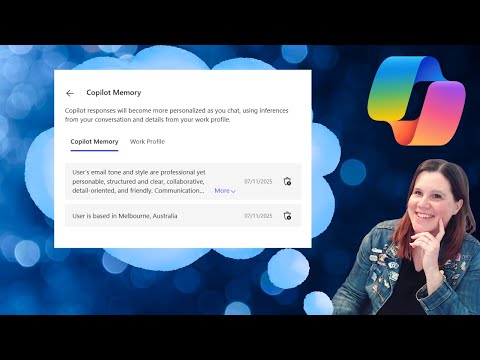
Access follows existing permissions and sensitivity labels to limit exposure. - Manage and control: Open Settings → Personalization → Copilot Memory to view, edit, or delete saved memories, or toggle Memory off entirely.
Use Temporary Chat (incognito-style) when you don’t want a conversation to be remembered. - Transparency and safety: Copilot shows a small "memory updated" signal when it saves new information, and Microsoft applies data-minimization and access controls to protect your data.
You stay in control: remove any memory at any time and review what Copilot knows about you.
Video overview and key claims
In a recent YouTube walkthrough, Lisa Crosbie [MVP] explains how to use Copilot Memory to make Microsoft’s assistant reflect your personal style. The video shows features available in both the paid Microsoft 365 Copilot and the free Copilot Chat experiences, and it promises practical steps to get more human-sounding output. Furthermore, Crosbie demonstrates specific tricks for email tone and explains how to review what the assistant remembers.
She frames the capability as both helpful and controllable, which is important for users who want convenience without losing privacy. For example, the walkthrough highlights options to turn memory off or use a temporary chat mode similar to an incognito window. Therefore, the video aims to balance personalization with user choice.
How Copilot Memory works
Crosbie outlines that Copilot Memory operates by combining automatic learning with explicit instructions you give in chat. On one hand, the assistant can pick up on recurring preferences and topics from conversation history; on the other hand, you can explicitly tell it to remember details like tone or format preferences. Moreover, when the assistant records a new detail, you may see a small memory updated indicator to signal that it has stored a fact.
The video also touches on the underlying scope and storage model, noting that memories are personal to each user and likely tied into Exchange Online and the Microsoft Graph. Consequently, the design tries to keep memories scoped to individuals while integrating with enterprise controls. However, Crosbie emphasizes that users should understand how their organization’s policies affect what the assistant can access.
Teaching Copilot: practical steps shown
Crosbie demonstrates a few approachable techniques for teaching Copilot to match your voice, starting with direct instructions like "remember I prefer concise bullet points." She then shows how question-based learning works, where Copilot asks follow-up questions to build a richer profile of your writing style and preferences. Additionally, she recommends using Custom Instructions in settings to set default behaviors such as tone and length limits.
For email-specific help, the video presents a simple hack: paste a sample paragraph or set of sentences that represent your typical tone and ask Copilot to mimic it. This practical example helps the assistant learn a pattern quickly and produce more consistent drafts. Therefore, the steps are approachable for both casual users and professionals who want consistent outputs.
Managing memories and privacy controls
Importantly, Crosbie stresses that users retain control over stored memories and can review, edit, or delete entries from the personalization menu. She shows how to open settings, go to personalization, and access the Copilot Memory panel where stored items appear. In addition, the video highlights a master toggle for disabling memory entirely and a Temporary Chat option for one-off, non-persistent interactions.
From a compliance standpoint, the walkthrough points out that organizations can apply access controls and sensitivity labels to limit exposure. While the feature aims to respect privacy through personal scoping and permission checks, Crosbie warns that users should confirm organizational policies if they work with sensitive data. Consequently, the balance between personalization and governance becomes a practical concern.
Tradeoffs, challenges, and newsroom implications
The video also addresses important tradeoffs between richer personalization and the risks that come with storing user preferences. For instance, more memory can make outputs feel natural and save time, but it also increases the surface for accidental disclosure if controls are weak. Furthermore, the dual model of automatic learning and explicit saves can create user confusion about what is actually stored, which raises usability and trust challenges.
For editorial teams and knowledge workers, the potential productivity gains are clear, yet the newsroom must weigh them against editorial standards and data handling rules. In particular, teams should plan how to manage shared accounts, set clear guidelines for what Copilot should remember, and train staff on using temporary chat for sensitive edits. Therefore, careful policy design and user training prove essential to realizing benefits safely.
Takeaways
Lisa Crosbie’s walkthrough offers a concise and practical guide to making Copilot sound more like you by using Copilot Memory and related personalization settings. The video makes clear that the feature is powerful, but it also requires deliberate decisions about what to store and when to use temporary modes. In short, users can gain productivity and a consistent voice while still managing privacy and compliance risks with the right controls and habits.
Overall, the demonstration provides useful, step-by-step advice for everyday users and teams alike, and it highlights the ongoing need to balance convenience with safeguards. As adoption grows, organizations and individuals should monitor settings and put clear policies in place so the assistant helps rather than hinders professional work. Consequently, this video serves as a practical starting point for anyone who wants a more personalized Copilot experience.

Keywords
how to use Copilot Memory, Copilot Memory tutorial, make Copilot sound like you, personalize Microsoft Copilot, Copilot Memory settings, Copilot voice personalization, enable Copilot Memory, Copilot Memory tips