- All of Microsoft
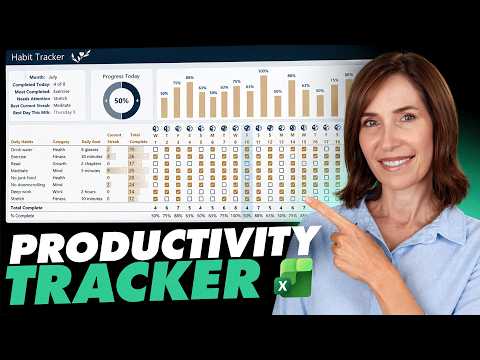
Excel Habit Tracker: Free Template
Microsoft Excel habit tracker free template automates streaks, KPIs, monthly dates and charts to boost productivity.
Key insights
- YouTube tutorial: A step-by-step video shows how to build a dynamic habit tracker in Excel from a blank workbook.
It focuses on checkboxes, linked cells, automatic calculations, and a simple dashboard that updates by month. - Core layout: Set a clear habit list in rows and a date grid across the top to record daily completion.
This layout makes the sheet easy to scan and keeps data ready for formulas and visuals. - Input and formulas: Use checkboxes or TRUE/FALSE cells for entries and formulas like COUNTIF and SUM to total completions.
Those formulas power daily progress, totals, and percentage calculations automatically. - Automation: Implement dynamic dates and a month selector so the calendar rebuilds when you change months.
The tracker can also calculate current streak length and highlight your best day of the month without manual updates. - Visuals and KPIs: Apply conditional formatting, progress bars, and simple charts to show trends and what needs attention.
Dashboards display key metrics like progress today, best day, and underperforming habits at a glance. - Benefits and reuse: Excel is highly customizable and lets you save a template to reuse or adapt across months and goals.
The sheet is low-cost, portable, and easy to modify for personal routines or team tracking.
Overview: a practical Excel habit tracker
Mynda Treacy (MyOnlineTrainingHub) [MVP] presents a clear tutorial-style YouTube video that walks viewers through creating a habit tracker in Excel from scratch. The video packages a free template-and-tutorial ecosystem and shows how to build a dynamic sheet that tracks daily completion, streaks, and the best day of the month automatically. Consequently, the tracker upgrades simple tick-box calendars into a live dashboard with KPIs, charts, and styling so users can monitor progress at a glance.
Moreover, Treacy emphasizes usability by using a month selector so that dates, day names, and the grid rebuild themselves when you change months. As a result, users avoid manual date entry and get an instantly reusable workbook for each month. The tutorial balances step-by-step instruction with visual examples, making it approachable for intermediate Excel users who want a polished outcome.
How the tracker works: building blocks and automation
The core structure places habits in rows and dates across the top, with checkboxes or linked cells recording completion. Then, formulas such as COUNTIF and SUM compute daily and monthly totals, while conditional formatting applies color for quick scanning. Treacy also demonstrates how to calculate the current streak and identify the habit that needs the most attention, which turns raw checks into meaningful metrics.
In addition, the video shows how to add checkboxes, create automatic percentages, and build progress bars that feed a compact dashboard summary. Consequently, the tracker not only stores entries but also visualizes trends through charts and data bars. These elements provide immediate feedback and motivate continued habit formation.
Design tradeoffs: flexibility versus simplicity
The tutorial highlights several tradeoffs between a powerful, flexible workbook and something simple and low-friction. On one hand, a multi-sheet workbook with calculations, monthly tabs, and dashboard panels offers strong reporting and reusability, but it increases complexity and the learning curve for new users. On the other hand, a single-sheet checklist is easy to build and fast to update, yet it lacks advanced KPIs and long-term insight.
Therefore, choosing an approach depends on priorities: if customization matters, invest time in formulas and layout; if speed matters, opt for a minimal grid. The video nudges users toward a middle path by offering a ready-made free template that can be simplified or expanded. Thus, users gain a head start while retaining the option to scale features as they grow more comfortable with Excel mechanics.
Technical challenges and compatibility
Treacy’s tutorial covers a few practical hurdles that creators and users commonly face, such as linking checkboxes to cells and managing conditional formatting across many cells. These techniques can slow performance when sheets grow large, and they may behave differently across desktop, web, and mobile versions of Excel. Consequently, users should test the workbook on the devices they use most to ensure the interactive elements perform reliably.
Additionally, some formulas and form controls require care when copying months or sharing the file across versions of Excel. As a result, maintainability matters: document the workbook structure, label key ranges, and keep complex calculations on a separate sheet. This approach reduces accidental edits and helps collaborators understand the logic without breaking links or conditional rules.
Practical tips for customization and use
Treacy demonstrates several smart touches that improve daily use, such as highlighting today’s date, using data bars for visual progress, and applying one-click recoloring to match personal style. For users who want more, she explains how to add charts that bring the tracker to life and how to surface the habit that most needs attention. These small design choices make the tool both prettier and more actionable.
However, customization introduces maintenance work, so keep a backup and record the changes you make. Furthermore, consider simplifying conditional formatting rules and avoiding volatile formulas if performance drops. By balancing aesthetics with lean formulas, you can keep the file responsive while enjoying a dashboard-style tracker.
Conclusion: who benefits and next steps
Overall, Mynda Treacy’s video offers a practical blueprint for turning Excel into a habit-tracking dashboard that goes beyond simple tick boxes. It suits users who want a free, reusable template with metrics like streaks, best day, and the habit needing attention, while also providing a clear path to customize the build. Therefore, Excel users seeking a middle ground between manual journals and full-blown apps will find the tutorial especially helpful.
For those starting out, follow the step-by-step sections but keep your first version small and test across devices. Conversely, power users can expand automation and dashboarding, but they should plan for compatibility and performance tradeoffs. In short, Treacy’s guide makes it straightforward to create a motivating habit tracker while highlighting the practical decisions that affect usability and long-term maintenance.

Keywords
habit tracker Excel, Excel habit tracker template, free habit tracker template Excel, create habit tracker in Excel, build habit tracker in Excel from scratch, daily habit tracker Excel, customizable Excel habit tracker template, printable habit tracker Excel