- All of Microsoft
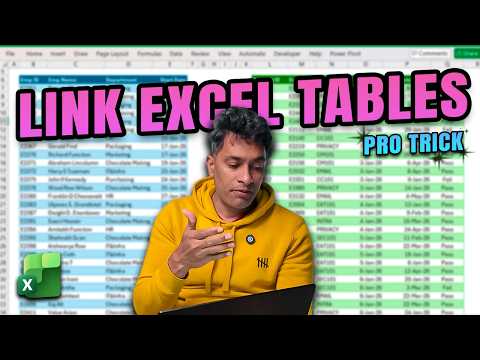
Excel shortcut saves hours on MIS
Microsoft Excel tips for MIS reporting and compliance using COUNTIFS and Power BI to build dashboards and dept reports
Key insights
- Use COUNTIFS to answer compliance questions quickly: count employees who completed all mandatory trainings, those who completed at least one, and those with no attempts.
- Prepare clean training data and employee data with matching IDs so formulas can join records reliably and avoid manual lookups.
- Build simple checks for the core questions: who completed every required course, who did any required course, and who attempted none; add a department column for group summaries.
- Speed up data entry with Flash Fill and AutoFill to standardize names, IDs, and repeated patterns without manual typing.
- Use Formula Auditing tools (Trace Precedents/Dependents, Ctrl+[ and Ctrl+]) to track where values come from and to debug inherited MIS reports fast.
- Keep layout tidy with the Format Painter (double-click to apply repeatedly) and verify totals with AutoSum for quick footing and cross-footing checks.
Overview
In a recent YouTube video, Excel expert Chandoo walks viewers through a practical approach to solving compliance questions using everyday spreadsheet tools. The video focuses on two datasets — training records and employee lists — and shows how to answer key questions about mandatory trainings. Importantly, the presenter frames the work as the kind of behind-the-scenes data analysis that many analysts do for Management Information System reports. As a result, the video serves both as a tutorial and as a window into real workplace reporting challenges.
What the Video Shows
First, Chandoo outlines the business questions: who completed all mandatory trainings, who completed at least one, who attempted none, and how completion looks by department. Then, he demonstrates how to merge and compare the training and employee data to generate clear, answerable outputs. He keeps the approach approachable by using built-in Excel formulas and standard worksheet layouts, showing the step-by-step logic rather than hiding it behind complex automation. This makes the method easy to replicate for teams that rely on simple, auditable solutions.
The video emphasizes the use of the COUNTIFS function to compute compliance metrics across multiple conditions. By applying this formula to training and employee records, the presenter shows how to count employees who meet combined criteria efficiently. He then builds department-level summaries that managers can use to prioritize follow-up actions. Viewers get a clear example of how a few well-placed formulas can turn raw records into a decision-ready report.
Alongside formulas, the video highlights workflow techniques that save time in routine reporting. These include using pattern-based fills and quick formatting tools to standardize sheets before analysis. The narrator also shows how small layout choices make subsequent calculations simpler and less error-prone. Overall, the presentation keeps technical depth balanced with practical accessibility so both novice and experienced users benefit.
Key Techniques Demonstrated
Among the tools featured, Flash Fill and AutoFill get attention for rapidly shaping and extending patterns in text and numeric sequences. The presenter explains how these tools reduce repetitive typing and speed up data preparation without complex scripting. He also demonstrates visual troubleshooting techniques like Formula Auditing and using arrows to trace precedents and dependents, which clarify how formulas relate across a workbook. These features help users verify logic and find errors before they propagate to final reports.
The video covers formatting tricks that improve readability and consistency, such as the double-click method for locking the Format Painter to apply styles across many cells. For quick reconciliation, the presenter recommends using AutoSum to add row and column totals and to validate footing and cross-footing in financial-style tables. Throughout, the focus remains on simple, reproducible steps that teams can adopt without advanced training. Consequently, the examples remain relevant to daily MIS maintenance and periodic audits.
While the video centers on worksheet formulas, it also hints at when to consider other tools for larger projects. For instance, when datasets grow or need repeated joins, solutions like query tools can reduce manual work. Yet the presenter intentionally shows what can be achieved inside Excel alone, because many organizations still rely on spreadsheets for quick answers. This pragmatic balance guides viewers on choosing the right tool for the job rather than defaulting to complexity.
Tradeoffs and Challenges
Chandoo discusses tradeoffs between speed and maintainability, noting that faster spreadsheet hacks sometimes make workbooks harder to understand later. Simple formulas can save hours today, but overusing nested or hard-coded logic can create pain for colleagues who inherit the files. In contrast, more robust approaches such as using standardized queries or small macros improve repeatability but require setup time and governance. Therefore, teams must weigh immediate time savings against long-term clarity and control.
Data quality also poses a frequent challenge in compliance reporting, and the video does not shy away from that reality. Missing employee IDs, inconsistent naming, or duplicate training entries can skew counts unless cleaned first. While Excel tools help detect and fix many issues, the presenter notes that some problems call for stricter data governance upstream. Thus, analysts should watch for root causes rather than rely solely on spreadsheet fixes.
Practical Takeaways for MIS Reporting
For newsroom and corporate teams alike, the video delivers a clear takeaway: start with simple, auditable formulas like COUNTIFS and combine them with basic Excel utilities to answer urgent business questions quickly. Document the logic, keep sheet layouts logical, and use formula auditing to make the work transparent for others. By doing so, teams can create reports that are both fast to produce and reliable enough for managerial decisions.
Finally, the video encourages experimentation while urging caution about scale and maintainability. When work becomes routine, consider migrating repeatable tasks to query tools or dashboards to reduce manual effort. Until then, the pragmatic techniques shown by Chandoo give analysts a powerful, low-friction way to turn training and employee data into actionable compliance reports.

Keywords
Excel trick for MIS reports, Excel automation for MIS, Time-saving Excel tips, Excel macros for MIS reports, VBA for MIS reporting, Excel pivot tables MIS reports, MIS report automation Excel, Excel dashboard for MIS reporting