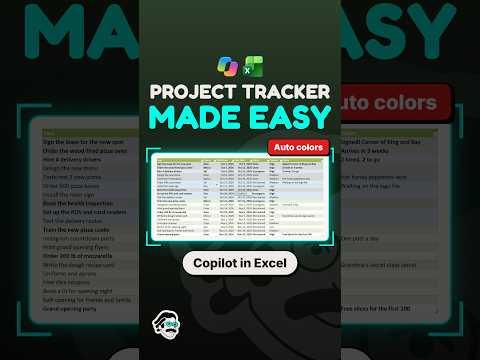
Excel: create conditional formatting with Copilot
Excel users can ask Copilot in plain language to highlight values, outliers, or rows that meet a condition.
Key insights
- Ask Copilot to highlight values, identify outliers, or emphasize rows that meet a condition.
- A prompt can specify the range or column, threshold, comparison, and formatting color.
- Select a cell in the relevant table or data range to give Copilot context.
- Review the resulting range and rule; Copilot's interpretation may need refinement.
- Copilot in Excel does not work with charts or PivotTables in the same way as supported table and data ranges.
Copilot in Excel can create conditional formatting from a natural-language request, helping users highlight values, outliers, or rows that meet a condition. This approach is useful for spreadsheet users who want to surface patterns without manually setting up every rule or formula. Piggy Bank Accountant is the publisher of a YouTube Short associated with this Excel task.
What it does
Conditional formatting changes how cells look when they meet specified conditions. It can make high or low figures, critical statuses, duplicates, or performance against a target easier to spot in a worksheet.
With Copilot, users can describe the outcome they want instead of starting by choosing a rule type and building the rule themselves. For example, a request could ask Excel to highlight the top 10 values in a Sales column in green, or to mark rows with a Critical priority in red.
This conversational approach works alongside Excel's traditional conditional-formatting controls. It can help users get started or translate a business goal into a formatting rule, while leaving the result available for review and adjustment.
Who it is for and what you need
The feature is aimed at people working with tables or data ranges in Excel, including users who are not familiar with conditional-formatting formulas. A clear request can name a column, threshold, comparison, and color to make the intended result more specific.
Copilot needs usable data context. The data should be arranged so Excel can interpret it, and selecting a cell within the relevant table or range helps identify what the request applies to. Clear headers and consistent values can make the task easier to interpret.
How it works
- Open the workbook and select a cell in the relevant table or data range.
- Open Copilot from the Excel ribbon.
- Describe the conditional formatting you want, including the target values or rows and the visual treatment.
- Review the suggested or applied change. If it needs adjustment, ask Copilot to refine it or undo it and try a different instruction.
For example, a prompt could ask Excel to highlight sales below a monthly target in red and values at or above the target in green. You can also ask Copilot to suggest formatting for a table rather than specifying a rule in advance.
Limitations and alternatives
Copilot's output depends on its interpretation of the data and the request. Check that the intended range, threshold, and formatting are correct, especially in workbooks used for business decisions. Excel's standard conditional-formatting controls remain an alternative for inspecting or editing rules directly.
Copilot in Excel does not work with charts or PivotTables in the same way it works with supported table and data ranges. If the relevant information is in one of those objects, use a supported data range or Excel's standard formatting tools instead.
Explore more Excel tips and coverage.
Sources
Frequently asked questions
How do I ask Copilot to add conditional formatting in Excel?
Select a cell in the relevant table or data range, open Copilot from the Excel ribbon, and describe the formatting you want. Review the change and refine the request if needed.
Can Copilot highlight rows based on a status in Excel?
Yes. A request can specify a condition such as highlighting rows where Priority is Critical in red.
Does Copilot in Excel work with PivotTables and charts?
It does not work with charts or PivotTables in the same way it works with supported table and data ranges.