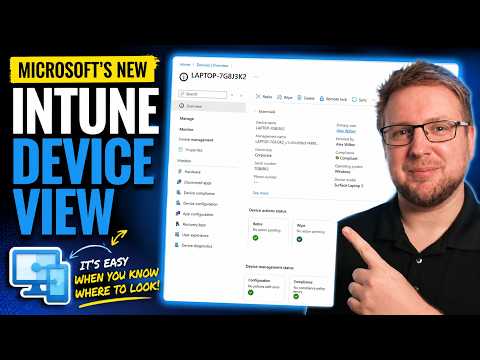
Microsoft Intune: New Device View Tips
Microsoft MVP (Enterprise Mobility, Security) - MCT
Microsoft Intune device view shows UI updates, confusion and decisively improved device management in Endpoint Manager
Key insights
- Intune Device View is a redesigned single-device details page in the Intune admin center that brings status, actions, reports, and properties into one place.
It helps admins see the full device context without jumping between pages. - How to enable: open Devices > All devices, select a device, and turn on the Preview new device view toggle.
Note: the new view appears only when you open a device from Devices > All devices. - Main tabs include Device action status, Tools and reports (formerly Overview), Properties, and Device details, with an always-visible Essentials section.
Each tab groups related tools and data so you can act faster. - The key change is a workflow redesign that puts device actions, monitoring, and settings on a single page.
This creates a clearer layout, better navigation, and more direct access to operational tools. - Benefits for admins: faster troubleshooting by reducing clicks, less context switching, and immediate visibility of requested or in-progress actions in the Device action status tab.
These improvements speed common support tasks. - Practical tips and caveats: the experience is in preview, so features and availability may change.
Use the search, sort, filter options in Device action status and edit scope tags in Properties to streamline work; if you don’t see the new view, open the device from Devices > All devices.
Overview of the video
In a clear walkthrough, Dean Ellerby [MVP] presents a hands-on look at Microsoft Intune’s redesigned device details page in a YouTube video. He explains what confused him at first, what works smoothly, and where the real improvements appear once you locate them. Consequently, the video gives administrators a practical view of a feature that is still in preview and subject to change.
What the walkthrough covers
The video opens with a short timeline, guiding viewers through interface updates, a trial run of the new page, a moment of confusion, and the final discovery that resolves the issue. For example, Ellerby notes timestamps for key moments so watchers can jump to specific parts of the demo. Therefore, the clip serves both as an introduction and a quick reference for admins who want to test the experience themselves.
Throughout the demo, he moves between tabs, calls out labels, and highlights how details and tools are now consolidated on one page. Moreover, Ellerby emphasizes the practical benefit of seeing actions, reports, and properties in a single, device-centric layout. As a result, viewers can immediately gauge how the new layout changes daily troubleshooting and device management tasks.
Key features and workflow changes
The new device view brings several notable changes, such as a consolidated layout where admins can access action status, tools and reports, properties, and device details from one place. In particular, the Device action status tab shows requested and in-progress commands while the Tools and reports area gathers monitoring and remediation items that used to be scattered. Consequently, the updated design reduces clicks and helps admins spot problems faster.
Additionally, the page includes an Essentials strip that remains visible across tabs so critical information is always available. The properties area now supports editing with visible scope tags and a clearer edit flow, which simplifies routine updates. Furthermore, the new structure aligns with broader Intune UX updates, so the interface feels more consistent across different lists and views.
How to enable and a notable limitation
Ellerby points out that the new view appears when you open a device from Devices > All devices and toggle on Preview new device view. This straightforward enable path makes it easy for admins to test the preview without changing global settings. However, a key limitation is that the new view does not always appear when a device is opened from other locations, such as reports, which can create inconsistent experiences.
Because the experience is still in preview, Microsoft may change availability and behavior over time, and admins should expect updates. Therefore, teams should test the new page with a few devices first and verify whether their common workflows open the new view consistently. In doing so, they can avoid surprises and prepare documentation for their help desks.
Tradeoffs and operational challenges
While consolidating information reduces context switching, it also risks creating a denser page that may feel overwhelming for some users at first. For instance, bringing reports, actions, and editable properties onto one tab saves clicks but requires careful layout choices to keep the interface scannable. Thus, designers must balance information density with clarity so admins can find what they need quickly.
Another challenge is discoverability: the video shows how easy it is to miss improvements until you know where to look, which means training and clear release notes are essential. Additionally, behavior differences depending on how the device is opened may disrupt automated playbooks or documentation that assume a consistent UI. Therefore, organizations should update runbooks and test automation to reflect the new navigation paths and any API changes that accompany the preview.
Recommendations for administrators
Administrators should pilot the preview on a representative set of devices, and then compare task completion times against the old view to validate real gains. Moreover, teams should capture short how-to notes for common operations and share them with support staff so everyone learns the new layout quickly. Ultimately, a staged rollout combined with targeted training will reduce friction and reveal where the new design needs refinement.
In summary, Dean Ellerby’s video provides a practical and honest look at Microsoft Intune’s new device view, showing both immediate wins and discoverability issues. As Microsoft continues to modernize Intune, the single-device page points toward faster troubleshooting and less context switching, but it also introduces tradeoffs that require testing and user guidance. Therefore, IT teams should approach the preview with cautious optimism and clear rollout plans.

Keywords
Microsoft Intune device view, Intune device management, Intune device inventory, Microsoft Endpoint Manager device view, Intune new features, Intune admin console tips, Intune device view tutorial, Intune device troubleshooting