What the video shows
The YouTube video from Presentation Process YouTube takes viewers behind the scenes of how visuals for training videos are created. First, the presenters explain why they prioritize storytelling and a clear script before any image generation begins, and then they walk through the full process. Overall, the video combines practical demonstration with a narrated explanation to show how ideas move from concept to animated slide.
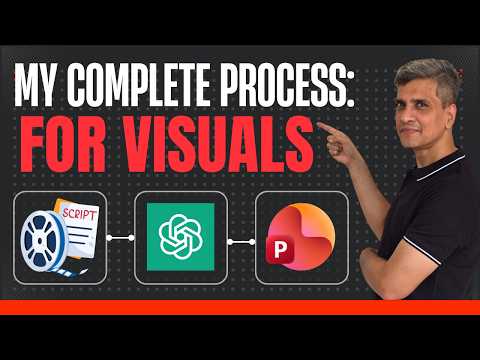
Moreover, the authors break the workflow into clear chapters, covering script writing, character definition, image generation, and final editing in PowerPoint. As a result, viewers can follow a single example from the initial outline through to a finished visual. The approach balances explanation with examples so that creators can apply the steps to their own training projects.
Step-by-step visual workflow
Initially, the presenters emphasize starting with a concise script and a simple storyboard to guide visual choices. Next, they define characters and scene goals so that image generation serves the teaching purpose rather than distracting from it. By planning first, they ensure visuals reinforce the message and reduce wasted design iterations.
After planning, the video shows how the authors use iterative prompts and revisions to generate images that match the script and characters. Then, they import those images into slides, where timing, scale, and animation are adjusted to create clear scene transitions. This stepwise method highlights that visuals are built to support learning objectives, not just to decorate slides.
Three types of training visuals
Importantly, the presenters classify visuals into three functional types: scene-setting, concept explanation, and text-based slides, and they explain when to use each. Scene visuals establish context and mood, concept visuals illustrate ideas or processes, and text-based visuals highlight key phrases or instructions for learners. With this structure, they show how mixing these formats keeps viewers engaged while reinforcing the teaching points.
Furthermore, the video demonstrates how each visual type follows different creation rules, such as simpler compositions for text slides and more detailed images for concepts. Consequently, creators must decide how much visual detail supports comprehension without overwhelming the learner. In practice, that balance influences pacing and how much animation or motion the presenter adds in PowerPoint.
Tools and techniques used
The authors combine conversational AI prompts with slide design to speed up production and maintain consistency, most notably using ChatGPT for image prompts and PowerPoint for editing and animation. In addition, they show practical techniques like defining character attributes up front so the generated images appear coherent across scenes. Therefore, a modest amount of planning plus prompt iteration yields more reliable visual results than ad-hoc image generation.
While the video centers on a prompt-driven workflow, it also acknowledges complementary tools such as Copilot and Designer for creators who prefer integrated options in other ecosystems. Meanwhile, the final video assembly remains in PowerPoint in their demo, where slide timing and simple animations complete the visual narrative. This approach keeps production accessible to many users without heavy video-editing software.
Tradeoffs and practical challenges
However, the presenters are clear about tradeoffs: AI image generation speeds creation but can reduce fine control over style and consistency unless you invest time in prompt engineering. As a result, teams must weigh the speed gains against the effort required to iterate until images match the required look. Moreover, maintaining the same character across many scenes often requires repeated adjustments and visual checks.
Another challenge is balancing polish with efficiency: overly complex edits in PowerPoint can slow production and complicate updates, while minimal edits may leave visuals that are functional but less engaging. In addition, creators should consider potential legal and ethical issues with generated images and ensure that visuals align with organizational branding and accessibility needs. Ultimately, the best approach depends on project scale, audience expectations, and available time.
Key takeaways for creators
In conclusion, the video from Presentation Process YouTube promotes a practical, storyboard-first workflow where script, character design, and iterative image generation come before final animation. By following this order, creators reduce rework and produce visuals that clearly support learning goals. At the same time, the presenters encourage testing and revision so visuals remain consistent across a series of training videos.
Therefore, creators should start with a clear learning objective, choose visual types deliberately, and accept that prompt refinement and slide-level editing are part of the process. Finally, while AI tools accelerate many tasks, they require human judgment to manage tradeoffs between speed, style, and accuracy. As a result, this video provides a useful, practical roadmap for teams looking to produce sharper, more effective training visuals.