Microsoft Copilot: Solving the Search UI
Modern Work Mentor, Change Consultant, Content Creator, Community Conduit.
Microsoft three sixty five Copilot UI reshuffles hurt productivity; search can fix AI-first friction
Key insights
- Copilot interface evolving: A recent video compares Copilot’s shifting UI to car dashboards that hid controls until users pushed back.
Microsoft continues to change the Copilot layout, and some users report missing controls, lost chats, or confusing navigation. - Edge/Bing workaround: Many users can still access the older Copilot layout by opening Copilot via Edge or the Bing web entry.
Installing the Copilot web page as an app in Edge often restores the previous interface for affected users. - Troubleshooting steps: If Copilot acts unstable, repair or reset the app, update Windows, Edge, and WebView2, and try a clean browser or different network.
Disable VPNs or security filters that may block features and use Esc, reopen tabs, or reset zoom when controls disappear. - Feedback channels: Microsoft advises filing bugs through Send Feedback, Feedback Hub, or community support instead of expecting a permanent legacy mode.
Reporting problems helps Microsoft find and fix UI regressions faster. - Search as a solution: The video argues that stronger search and navigation can reduce friction in a chat-first Copilot UI.
Good search keeps core features discoverable when menus and controls move. - Why Microsoft is changing Copilot: The redesign aims for a unified Copilot across web, Windows, and mobile with tighter AI features and faster server-side fixes.
However, frequent UI shifts still disrupt users who depend on stable workflows.
Video overview
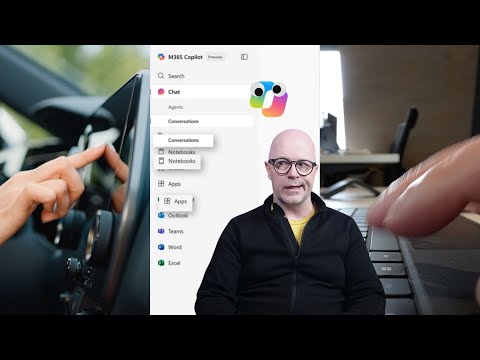
In a recent YouTube video, Darrell Webster, who posts as Modern Work Mentor, examines the user interface shifts happening in Microsoft 365 Copilot. He compares these changes to the automotive industry's move toward touchscreen dashboards, arguing that burying important controls can frustrate users and slow productivity. Consequently, Webster frames the Copilot redesign as an experiment that risks prioritizing new AI features over everyday work tasks.
Moreover, the video pulls together community reports and practical examples to show how the interface has changed for some users, including lost chat history and missing controls. Webster does not claim to speak for Microsoft; rather, he synthesizes user feedback and shows workarounds that many in the community are sharing. Therefore, his goal is to help viewers understand the problem and find immediate ways to keep working.
The dashboard analogy
Webster uses the car dashboard analogy to make a clear point: when automakers moved many functions into touchscreens, drivers lost easy access to essential controls until they pushed back. Likewise, he suggests that when Copilot surfaces AI features prominently, it can unintentionally hide core Microsoft 365 functionality. As a result, everyday tasks may take longer and create friction for people who rely on predictable app behavior.
Furthermore, the analogy helps explain why users react strongly to visible changes. People develop muscle memory for their tools, so sudden UI shifts cause confusion and reduce efficiency. Thus, Webster emphasizes that design choices must balance innovation with the need for stable, discoverable controls.
How Microsoft is responding and common workarounds
Webster notes that Microsoft has not issued a single, definitive public announcement that reverses the redesign, and support guidance largely points to feedback channels and troubleshooting steps. Consequently, community-sourced workarounds have emerged, such as opening Copilot via the Edge browser or using the Bing web entry to reach an older interface, or installing the web experience as a browser app. These methods are not formal fixes, but they can restore familiar layouts for some users while Microsoft iterates.
In addition, Webster reviews common troubleshooting advice: repair or reset the Copilot app, update Windows and browser components like WebView2, disable interfering network filters temporarily, and test in a clean browser session. He also covers quick keyboard or reopen tricks when controls disappear, stressing that these steps are practical but imperfect. Therefore, users should file official feedback so Microsoft tracks the issues while using workarounds to maintain productivity.
Tradeoffs and challenges
Webster balances praise for the new direction with clear warnings about tradeoffs. On one hand, a unified AI-first interface promises tighter integration across web, Windows, and mobile surfaces and faster rollout of AI features. On the other hand, this approach can reduce discoverability of basic functions and introduce instability during transitions, which harms users who need consistent workflows.
Moreover, the video highlights organizational challenges: IT teams must weigh the benefit of early AI features against the cost of support overhead, retraining, and potential productivity loss. For some businesses, a slower, more controlled rollout with an opt-in legacy mode would lower risk, while others may accept short-term disruption to gain early access to advanced capabilities. Consequently, Webster calls for clearer communication and rollback options so teams can balance innovation with operational stability.
Practical takeaways and recommendations
Webster offers pragmatic steps for users and IT leaders who face the Copilot UI changes. First, try opening Copilot in Edge or via the Bing web entry if the app appears broken, and use the browser’s app-install flow as a temporary measure. Second, keep Windows, browsers, and WebView2 updated, and file feedback through official channels so Microsoft has data on the impact. These actions help reduce immediate friction while signaling problems to the vendor.
Finally, Webster argues that improved search and discoverability could make a chat-first AI surface more workable in the long term. In other words, better search and navigation would let users find core features that a redesign might otherwise hide, thereby bridging innovation with usability. Overall, his video is a call to balance ambition with practicality, and to make sure that AI advances do not come at the cost of everyday productivity.

Keywords
Microsoft Copilot UI fix, Copilot search interface solution, Copilot UX improvements, Copilot interface redesign, Microsoft Copilot search usability, Copilot user experience fixes, Copilot UI troubleshooting tips, Copilot for Microsoft 365 interface