- All of Microsoft
OneNote: Complete Capture Guide
This channel is about productivity and project management. New videos will be uploaded weekly, so check back regularly!
Microsoft OneNote guide to capture notes, handwriting, scans, audio and web clips with Web Clipper and OneDrive
Key insights
- OneNote overview:
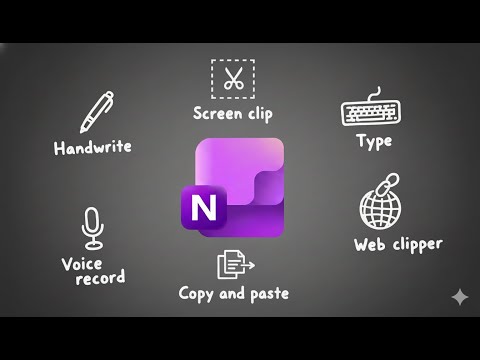
This YouTube video presents OneNote as a single workspace for notes, images, audio, scans, and clipped web content.
It shows how to use OneNote as a reliable place to capture and organize ideas from meetings, lectures, and research. - Multimodal capture:
Use typed notes, handwriting, drawings, images, and scans to record different kinds of information.
Combine formats on the same page so context and visuals stay together. - Audio recording and navigation:
Record meetings or lectures directly in OneNote and add typed markers while you record.
Timestamps let you jump to specific moments later for fast review. - Web Clipper and embedded files:
Clip web pages or take screenshots to add instantly to pages, and embed PDFs, spreadsheets, or emails by dragging them into a notebook.
This keeps source material and annotations in one place. - OneDrive sync and mobile scanning:
Notebooks sync across devices so your latest notes are available on phone, tablet, and PC.
Use the mobile app to scan documents or share content directly from your phone into OneNote. - Microsoft 365, Copilot and organization tools:
Integrate meeting details from Outlook or Teams and use Copilot to generate summaries, outlines, and ideas from your notes.
Apply Tags & search, restore earlier edits with version history, and protect sensitive sections with passwords to stay organized and secure.
Overview of Andy Park’s OneNote Guide
Andy Park’s video, titled "How to Capture Everything in OneNote (Complete Guide)," offers a practical walkthrough for using OneNote as a central capture system. He demonstrates many of the app’s input methods and explains how they fit into a personal productivity workflow. Consequently, the video aims to help viewers consolidate typed notes, handwriting, images, audio, and web clippings into one place. In addition, Park positions OneNote as a “second brain” for research, meetings, and everyday ideas.
Core Capture Methods Explained
Park begins with the fundamentals, showing how to use typed notes, checklists, and the native tools for screenshots and screen clipping. He highlights the value of simple, repeatable capture habits, and he demonstrates how keyboard shortcuts speed up entry. Moreover, the video explains how audio recording can be paired with typed notes so users can mark timestamps while they record. This approach helps when reviewing long meetings or lectures, since it links audio to relevant text.
Next, Park covers how to insert files and embed content directly into pages, which preserves context and attachments together with the notes. He also shows how dragging emails or documents into notebooks keeps project records intact for later search and review. As a result, users can build rich pages that combine reference files, annotated images, and action items. Thus, OneNote becomes more than a notebook: it is a place to store both evidence and decisions.
Advanced Capture Tools and Web Content
Park spends time on web clipping and browser integration, demonstrating how the Web Clipper captures article text and screenshots for offline review. He explains that clipping saves the original context while allowing users to annotate and tag items inside OneNote. Additionally, Park walks through OCR capabilities that extract searchable text from images and scanned documents, which improves retrieval later. Consequently, this makes OneNote useful for research where sources must be kept and queried quickly.
At the same time, he notes practical limits: OCR quality varies by image clarity and language, and web clippers sometimes capture extra formatting that requires cleanup. Therefore, Park advises a balance between quick capture and periodic organization. He recommends routine triage to move clipped material into structured notebooks or the user’s preferred project system. In this way, capture stays fast without turning into clutter.
Mobile Capture and Synchronization
Park also demonstrates mobile workflows, showing how smartphone scans and shared content can be sent straight into OneNote. He highlights that scanning is fast for receipts, whiteboards, and printed pages, and that handwriting recognition helps convert sketches and notes into searchable text. Meanwhile, automatic syncing via OneDrive ensures that captures appear across devices quickly, supporting work on phones, tablets, and desktops. This cross-device flow lets users capture on the go and follow up later on a larger screen.
However, he warns that intermittent connectivity or large attachments can delay sync and cause version conflicts when multiple devices edit the same page. Thus, Park suggests pausing large uploads on cellular data and waiting for a stable Wi‑Fi connection for heavy file transfers. He also recommends checking version history when edits seem to vanish. These practices reduce the risk of lost changes and keep notebooks consistent across platforms.
Integration, AI Assistance, and Security
Integration with other Microsoft tools forms a central theme of the video, and Park shows how OneNote links with Outlook and Teams to import meeting details and emails. Moreover, he demonstrates how embedded files and direct links to calendars save context for follow-up work. He also explores AI features such as Copilot, which helps summarize notes and suggest outlines, saving time on synthesis and reporting. As a result, users can shift from raw capture to structured outputs more rapidly.
At the same time, he stresses the importance of security and versioning: OneNote supports section passwords and keeps page history so users can restore earlier versions. Yet, this introduces tradeoffs around convenience versus control; stronger protection can slow collaboration and complicate sharing. Therefore, Park recommends defining clear access rules for shared notebooks and using version history when multiple contributors work on the same project. This balance protects sensitive content while preserving teamwork.
Tradeoffs, Challenges, and Practical Tips
Park’s guide is practical, but he is candid about tradeoffs. While OneNote centralizes many input types, it can also become a dumping ground if users rely solely on capture without regular organization. Consequently, he recommends adopting a lightweight filing routine or pairing OneNote with a system like the PARA Method to sort tasks, projects, areas, and archives. This approach reduces clutter while keeping the capture habit intact.
Finally, he offers simple tips to improve long-term value: use tags consistently, name pages with searchable keywords, and set aside time weekly to clean and file. He also points out that reliance on any single platform involves risks around account access and cloud storage limits, so periodic exports of critical notebooks are prudent. In summary, Park’s video provides a clear, actionable manual for capturing everything in OneNote while highlighting the tradeoffs and steps needed to keep the system usable over time.

Keywords
OneNote capture everything, how to capture in OneNote, OneNote web clipper tutorial, screen capture to OneNote, save emails to OneNote, OneNote mobile capture tips, OneNote OCR search, complete OneNote guide