- All of Microsoft
Aptos: Update Your Microsoft 365 Fonts
Microsoft expert: Master Themes and Aptos fonts in Word Excel PowerPoint templates to enforce brand consistency
Key insights
- Themes — Themes set coordinated fonts, colors, shapes, charts and table styles across Word, Excel and PowerPoint, and Word styles depend on the active theme; use a master theme to create on‑brand templates that keep documents consistent.
- Aptos — Microsoft replaced Calibri with Aptos inside the new Office document theme; Aptos applies to new files as the rollout reaches users and offers multiple styles and variants for headings, body text and compact layouts.
- Customize and Save — Edit the font theme and color theme, then save the theme and build templates from it; saved themes/templates let authors reuse approved fonts, palettes and formatting across documents.
- Org-wide distribution — Share and deploy templates and themes via central template libraries or policy to ensure team-wide branding; pair distribution with a simple style guide so users apply the theme correctly.
- Theme vs Standard Colors — Use theme colors for flexible, brand-consistent files that adapt across apps; choose standard (fixed) colors only when you need exact RGB matches or to handle specific Excel/PowerPoint mismatches, and document the choice in your style guide.
- Best practices and accessibility — Enforce themes and styles, check color contrast and font sizes, and train authors to apply themes rather than changing defaults; existing documents won’t change automatically, so update templates and provide clear conversion steps when needed.
Introduction
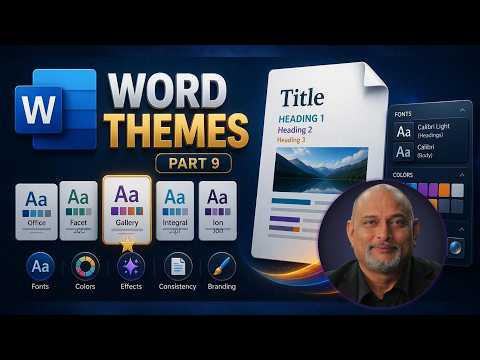
The YouTube video by Efficiency 365 by Dr Nitin offers a focused guide on using document themes in Microsoft 365, with special attention to the new default font and color system. In clear steps, the presenter explains how themes control fonts and colors across Word, Excel, and PowerPoint, and he includes a timestamped roadmap to each topic for quick reference. Consequently, the video serves both beginners and IT administrators who need to craft on-brand templates and distribute them across organizations. Overall, the presentation emphasizes practical steps while highlighting common pitfalls that teams should avoid.
What is Aptos and the New Office Theme?
First, the video explains that Aptos is Microsoft’s new default typeface, replacing Calibri as part of a coordinated update to the Office document theme. Moreover, this change is presented not as a simple font swap but as one component of a broader visual system that includes updated theme colors, shapes, chart styles, and table formatting. The presenter notes that documents created under the updated theme will default to these new settings, while existing files generally keep their original formatting unless the user applies a new theme. Therefore, understanding the theme concept is essential when rolling out corporate templates or updating brand guidelines.
Second, the video clarifies that the updated theme aims to modernize appearance and improve accessibility by offering a refreshed color palette and more font variants. For instance, Aptos is available in multiple styles that suit headings, compact layouts, and technical content, which gives organizations flexibility while maintaining cohesion. However, the presenter warns that the theme’s visual defaults do not automatically change legacy documents, so conversion or manual updates may be required when uniformity is essential. In this way, the change balances modern defaults with backward compatibility.
How Themes Work Across Microsoft 365
The tutorial walks viewers through how themes apply consistently across Word, Excel, PowerPoint, and Outlook so that headings and body text follow the same rules across file types. In addition to typography, themes also coordinate colors for shapes, charts, and tables, which helps maintain visual alignment in multi-file reports and slide decks. The presenter emphasizes the difference between theme colors and standard colors, explaining that theme colors adapt when you switch themes while standard colors remain fixed. As a result, choosing between theme and standard colors affects how well files match after moving content between applications or templates.
Furthermore, the video demonstrates that the theme system affects mostly new content; existing files created with older defaults retain their fonts and palettes unless a user applies a theme change. Therefore, administrators should plan migrations thoughtfully, because blanket changes may require manual review of layouts and chart formatting. Finally, the speaker points out that consistent use of theme elements simplifies updates: changing a single theme definition can ripple across many documents, which is both powerful and potentially risky if not managed carefully.
Creating, Saving, and Distributing Templates
Dr Nitin explains practical steps to customize font and color themes, save them, and turn them into templates that teams can reuse. He shows how to set separate heading and body fonts, define a color palette that meets accessibility standards, and then save those settings as an Office theme that can be applied to new documents. Subsequently, the tutorial covers how to save templates in shared locations and offers guidance on naming conventions so colleagues can find and apply the correct templates quickly. These steps help organizations enforce brand consistency without requiring every user to configure settings manually.
The video also addresses distribution at scale, demonstrating options to share templates across an organization and suggesting best practices for governance. For example, keeping an official template in a centrally managed document library reduces version drift, and documenting theme usage within an office style guide helps authors make consistent choices. Nevertheless, the presenter notes that distribution mechanisms vary by tenant setup and permissions, so IT teams should test their chosen approach before rolling it out broadly to avoid confusion.
Tradeoffs and Implementation Challenges
The presenter balances enthusiasm for unified themes with a realistic assessment of tradeoffs, such as the tension between strict brand control and individual user needs. On one hand, themes and templates streamline consistency and simplify mass updates; on the other hand, they can limit creative flexibility or require users to relearn formatting habits. Therefore, organizations must decide how much enforcement they need versus how much autonomy they will allow content creators.
Additionally, the video highlights technical challenges like Excel–PowerPoint mismatches and the choice between theme and standard colors. In particular, charts and tables exported between apps can appear different if one uses theme-aware colors while another relies on fixed color values, which complicates cross-application consistency. Finally, the rollout pace and version differences across users can create temporary inconsistencies, and accessibility depends on how designers apply contrast and sizing, not just the theme defaults. Consequently, careful planning, testing, and user training remain essential parts of any successful implementation.
Conclusion and Practical Takeaways
In summary, the video by Efficiency 365 by Dr Nitin serves as a concise, practical guide to Microsoft 365 themes and the introduction of Aptos, offering actionable steps for customizing fonts and colors and distributing templates organization-wide. Moreover, it underlines the importance of style guides, central template storage, and thoughtful governance to manage tradeoffs between consistency and flexibility. Ultimately, teams that combine policy, testing, and user training will achieve the most reliable results when adopting the new theme system across Word, Excel, and PowerPoint.
Keywords
Aptos font Microsoft 365, Aptos Word update, Theme fonts Office 365, Change default font Microsoft 365, Customize theme fonts Word, Aptos font Outlook and Teams, Office Aptos rollout guide, Microsoft 365 font settings