- All of Microsoft
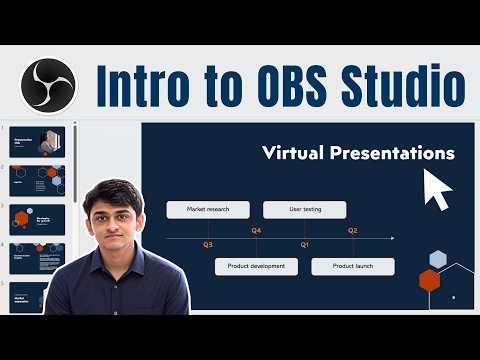
OBS Studio: Pro Virtual Presentations
Microsoft expert guides OBS Studio with PowerPoint on Microsoft cloud, webcam and audio for pro virtual presentations
Key insights
- Summary based on a tutorial video; I am not the video’s author.
OBS Studio is a free, open-source app for recording, streaming, and scene-based presentation control.
It lets you combine webcam, slides, audio, overlays, and video into a single polished output for professional virtual presentations. - Core setup steps:
Build themed Scenes (intro, main, Q&A), start the OBS Virtual Camera, then choose that camera inside Microsoft Teams.
For external streaming, configure your service and stream key in OBS. - Combine sources and layouts:
Use Picture-in-Picture to overlay your webcam on slides, and add browser windows, logos, or video clips as Sources.
Switch scenes live to keep the presentation smooth and professional. - Recording and performance tips:
Set the canvas to 1920×1080 for full HD or 1280×720 to reduce CPU and bandwidth use.
Prefer modern formats like Hybrid MP4/MOV and use hardware encoding (NVENC or QuickSync) for heavy workloads. - Notable recent updates:
OBS now includes a redesigned audio mixer, WebRTC simulcast support, and a built-in plugin manager.
It also improves source creation with preview thumbnails and enhances NVIDIA effect support. - Best practices for Microsoft Teams and live events:
Test audio, transitions, and camera selection before you go live, and rehearse scene switches.
Verify OBS Virtual Camera is selected in Teams, use multiple scenes, and plan layouts for webinars, training, or branded presentations.
The latest tutorial from Presentation Process YouTube walks viewers through using OBS Studio to produce polished virtual presentations, and this article summarizes that video for readers who prefer a concise, objective news-style briefing. The video focuses on combining PowerPoint slides, webcam feeds, and audio into a single, broadcast-style output suitable for meetings and streams. Importantly, the presenter demonstrates how to send that output into meeting tools via OBS Virtual Camera, with practical steps and time-stamped guidance for each stage of setup.
Overview of the tutorial
The video opens with a clear interface tour of OBS Studio, followed by a demonstration of a picture-in-picture scene that overlays a webcam on top of slides. Then the presenter shows how to capture PowerPoint, configure audio sources, and begin recording or streaming, so viewers can see the entire production flow from setup to output. Consequently, the tutorial serves both beginners and intermediate users who want quick, actionable instruction on building a multi-source presentation.
Setting up scenes and sources
In practice, the presenter emphasizes creating multiple scenes for different presentation moments, such as an intro, main slides, and Q&A. This approach allows seamless scene switching without interrupting the audience experience, and it highlights the advantage of controlling composition, overlays, and transitions in advance. Moreover, the tutorial demonstrates how to add slide capture, webcam input, and branded graphics so presenters can deliver a more engaging and professional layout.
Integrating with Microsoft meeting tools
The video explains how OBS Virtual Camera enables meeting applications like Microsoft Teams to accept the OBS output as a camera feed, which replaces a plain webcam with a composed scene. The presenter walks through the necessary selection steps in Teams and advises testing the virtual camera before joining a live meeting to avoid surprises. As a result, presenters can maintain control over what attendees see while keeping the meeting app simple and familiar for participants.
Technical tradeoffs and recording settings
The tutorial discusses resolution and format choices and recommends setting the canvas to 1920×1080 for best visual quality, while noting that 1280×720 can reduce CPU and bandwidth demands. This tradeoff matters because higher resolution improves slide legibility and brand fidelity, yet it may strain older machines or cause network issues for live streaming. Therefore, presenters must balance visual clarity with system capability and audience bandwidth when choosing output settings.
Furthermore, the video highlights codec and encoder choices, comparing software options like x264 with hardware options such as NVENC and QuickSync, and it outlines the core tradeoffs involved. Hardware encoders often free CPU cycles and reduce dropped frames, but they can introduce compatibility constraints or slight differences in quality under certain settings. Conversely, software encoding remains flexible and widely compatible, yet it demands more processing power, so the presenter recommends testing both approaches on a representative setup before a live event.
Practical use cases and common challenges
The tutorial identifies clear use cases including branded Teams presentations, webinars, and training where mixing slides and speaker video improves engagement and information retention. However, the video also addresses common challenges such as audio synchronization, scene latency, and the learning curve of managing multiple sources in real time. To mitigate these issues, the presenter suggests rehearsals, dedicated test meetings, and a checklist to confirm audio, transition cues, and virtual camera selection before going live.
Best practices and next steps
Finally, the presenter offers concise best-practice tips: use multiple scenes, verify audio and camera selection, and prefer hardware encoding when producing larger events to reduce CPU load. Additionally, the video encourages creators to start simple and add complexity only after they master the basic capture and scene-switching workflow, because adding too many live elements increases the risk of technical errors. As an outcome, viewers leave with a clear path to improve their virtual presentation quality while understanding the tradeoffs involved.
In conclusion, Presentation Process YouTube delivers a practical, step-by-step guide to using OBS Studio for professional virtual presentations that integrates well with Microsoft Teams and other meeting platforms. The tutorial balances actionable setup instructions with discussions of tradeoffs around resolution, encoding, and workflow complexity, and it stresses testing and rehearsal to reduce live risks. Therefore, professionals aiming to raise production value in remote presentations will find the video a useful starting point for controlled, broadcast-style delivery.

Keywords
OBS Studio tutorial, OBS Studio virtual presentations, OBS settings for presenters, OBS scenes and overlays, OBS audio and video setup, OBS green screen tutorial, live streaming presentations, OBS for webinars