- All of Microsoft
SharePoint Button Web Part: AI in Flow
M365 Adoption Lead | 2X Microsoft MVP |Copilot | SharePoint Online | Microsoft Teams |Microsoft 365| at CloudEdge
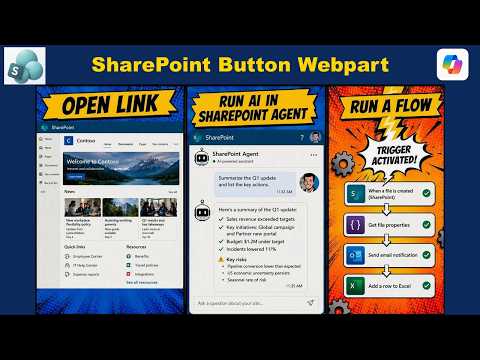
SharePoint Button is an action hub to open links, launch Copilot and trigger Power Automate workflows for AI productivity
Key insights
- Microsoft turned the SharePoint Button web part into an action hub that links page content to information, AI, and business processes.
- A single button can open a link, launch Copilot with a predefined prompt, or run a Power Automate flow, letting users act without leaving the page.
- The Copilot in SharePoint option runs a preset prompt grounded in the current page content and respects existing access rights, so AI output stays contextual.
- The Power Automate flow option triggers workflows under standard permissions and sharing rules and does not require a Copilot license.
- This approach helps users stay on the page, reach information faster, and boost productivity by combining content, AI, and automation in one click.
- Site authors configure the button in the modern page model by choosing link, Copilot prompt, or flow and supplying the prompt text or flow identifier during setup.
Overview: A concise look at the video and the author
The newsroom reviewed a YouTube video by Ami Diamond [MVP], who is a man, that demonstrates new capabilities for the SharePoint Button web part. In the video, Ami presents step-by-step examples showing how a single button can now open links, launch Copilot in SharePoint with a predefined prompt, or run a Power Automate flow directly from a page. Consequently, the feature shifts the button from a simple navigation control to an actionable hub that ties content, AI, and automation together. Overall, Ami’s walkthrough emphasizes practical uses and configuration notes for site authors and administrators.
What the new Button web part can do
First, the video highlights three core actions the enhanced button supports: open a URL or resource, launch a contextual Copilot prompt grounded in the current page, and trigger a Power Automate workflow by referencing a flow identifier. Moreover, Ami demonstrates that authors can keep the familiar link behavior or choose either of the newer action types without changing the page layout. As a result, users can start an AI interaction or a business process without leaving the SharePoint context, which improves flow and reduces friction.
Furthermore, Ami shows how the Copilot option uses the page and site content as grounding for the prompt while respecting established permissions, so the responses align with what users can access. Meanwhile, the flow option follows normal Power Automate sharing and permission rules, so activation requires appropriate authorizations but does not require a Copilot license. Therefore, teams can choose the right action type depending on licensing and governance constraints.
How it works in practice: configuration and permissions
Ami walks through the configuration steps for site authors, explaining how to edit a modern SharePoint page, add the Button web part, and select the desired action. Then, he shows where to enter a Copilot prompt or a flow identifier and how to test the button in edit and view modes. Consequently, the setup remains familiar for editors while offering new choices that connect pages directly to broader Microsoft 365 services.
Importantly, the video clarifies the permission and licensing tradeoffs: launching Copilot requires users to have the appropriate Microsoft 365 Copilot license and access to Copilot in SharePoint, whereas running a Power Automate flow follows standard flow permissions and does not require Copilot. Thus, administrators must consider user licenses, flow ownership, and sharing settings when planning deployments, and they should test how the button behaves across different user roles to avoid unexpected access issues.
Benefits and tradeoffs for organizations
On the positive side, the updated button brings immediacy: teams can access information faster, invoke AI help rooted in the page context, and start automated processes without switching apps. Additionally, this reduces clicks and improves user productivity, especially for common tasks like approvals, content generation, or navigation to key resources. Consequently, SharePoint pages can evolve from static displays into interactive work surfaces.
However, Ami also notes tradeoffs that organizations must weigh. For example, centralizing actions on a page increases surface area for governance: administrators need to manage who can add buttons, which flows are exposed, and how Copilot prompts are shaped to avoid inappropriate or risky outputs. Furthermore, licensing costs for Copilot and the potential complexity of maintaining many flows introduce ongoing operational overhead. Therefore, teams should balance convenience against control and cost.
Challenges and practical considerations
The video discusses several challenges that arise when adopting this feature. Security and auditing are primary concerns since invoking flows or AI from a page can trigger sensitive operations; as a result, organizations should ensure flows use least-privilege accounts and that auditing captures who initiated actions. Moreover, debugging flows triggered from the UI can be harder if inputs vary by page context, so thorough testing and clear logging are essential.
Additionally, Ami points out user experience and accessibility considerations: designers must ensure buttons remain discoverable, labeled clearly, and usable on mobile, while authors should provide fallback behavior if a user lacks a required license or permission. Finally, AI outputs also pose quality risks such as inaccurate summaries or hallucinations, so teams should design review processes and guardrails when Copilot is used to create or modify content.
Recommendations and next steps for adopters
Based on the demonstration, organizations should pilot the feature in a controlled environment and document governance rules that cover who can add action buttons, which flows are allowed, and how Copilot prompts are reviewed. Furthermore, administrators should map licensing needs and ensure that run-time permission checks are properly configured so users encounter predictable outcomes. Consequently, early pilots help expose integration issues and inform a phased rollout strategy.
In closing, Ami Diamond’s video provides a clear, hands-on view of how the SharePoint Button web part can become an entry point for both AI and automation. While the benefits for productivity and interactivity are compelling, the tradeoffs around governance, licensing, and reliability require careful planning. Therefore, teams should test thoroughly, apply governance, and balance usability with control before scaling the feature broadly.
.jpeg?w=700&output=webp)
Keywords
SharePoint button web part, Run AI in SharePoint, AI in SharePoint, Power Automate flow AI, SharePoint Power Automate integration, SharePoint custom webpart tutorial, Modern SharePoint webpart, Automate SharePoint actions with AI