- All of Microsoft
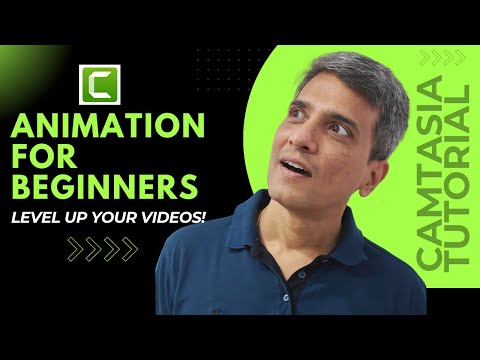
Camtasia Animation for Beginners
Camtasia animation basics with PowerPoint and Microsoft Office tips to craft promo videos, thumbnails and presentations
Key insights
- Before & After State: Set an object's starting and ending positions to define the full animation.
Place the playhead before the animation to set the start, and after it to set the end so Camtasia fills the motion between. - Duration & Timeline Control: Use the animation arrow on the timeline to set when an animation starts and ends.
Drag either end of the arrow to speed up or slow down motion and watch the playhead trigger the animation. - Animations & Keyframes: Choose premade animations or create custom ones with keyframes that mark the first and last states.
Camtasia auto-generates the in-between frames so you get smooth movement from one keyframe to the next. - Adding, Duplicating & Reusing Effects: Stack multiple animations on one object for complex motion and duplicate effects to save time.
Copy and paste animations between clips to keep a consistent look across your video. - Zoom, Pan & SmartFocus: Use zoom and pan to highlight details and guide viewer attention.
Apply SmartFocus to auto-detect cursor activity and create automatic zooms you can tweak afterward. - Easing & Motion Effects: Turn on easing for smoother starts and stops, and add motion blur or other visual effects for realism.
Adjust intensity in the visual effects menu to match the pace and style of your video.
Overview of the Video
The YouTube video by Presentation Process YouTube offers a practical, step-by-step introduction to animation in Camtasia aimed at beginners. The creators, Arte and Ramgopal, walk viewers through a short, clearly marked sequence of topics using timecodes, and they explicitly note the video is not sponsored. Consequently, the tutorial focuses on hands-on techniques rather than product promotion, which helps viewers learn without marketing distractions.
Throughout the video, the hosts demonstrate real examples such as before-and-after states, animation duration, and how to add or duplicate effects on the timeline. They use screen recordings and on-screen elements to show how animations guide attention and improve clarity in tutorials and promo videos. As a result, viewers get both conceptual explanations and practical steps to replicate the effects themselves.
Core Techniques Explained
At the heart of the tutorial is a clear explanation of Keyframes and how they control movement in Camtasia. The instructors show that each animation needs a starting and ending state, and that the software interpolates the frames in between to create smooth motion, while an animation arrow on the timeline represents duration and timing. Therefore, understanding keyframes gives beginners essential control over where and how motion happens.
Moreover, the video covers the Animations menu and the process of dragging a Custom animation onto objects, photos, or video clips. The hosts also demonstrate copying and pasting animations across clips to speed up repetitive tasks, and they show how duplicating effects can maintain consistency across a project. However, they warn that overuse of identical animations can make a video feel mechanical rather than polished.
Automation and Smart Tools
The tutorial highlights the SmartFocus feature as a time-saving tool that uses cursor movement and on-screen actions to suggest zoom and pan points. This automation helps creators quickly direct viewer attention, and the presenters emphasize that SmartFocus remains editable, so you can accept the suggestion and then fine-tune it. Thus, users can balance speed and precision by combining automated suggestions with manual adjustments.
In addition, the hosts show visual enhancements such as motion blur to make movement feel more natural, and they demonstrate how to enable these effects in the visual effects menu. They suggest moderate use so animations stay readable, noting that high motion blur can reduce clarity for fast-moving or small elements. Consequently, adding motion blur involves a tradeoff between cinematic smoothness and on-screen legibility.
Workflow Tradeoffs and Challenges
The video does a good job of explaining the tradeoffs between presets and custom work: presets and automation speed up production, while manual keyframing gives precise control. For Teams under tight deadlines, presets and copy-paste techniques offer a clear productivity gain, but that convenience may come at the cost of unique motion that matches a brand’s style. Therefore, creators should choose the approach that best fits their time, skill, and quality goals.
Practical challenges also appear, including timing mismatches when multiple animations overlap and the CPU load required for complex sequences on less powerful machines. The presenters recommend testing animations on the timeline and previewing at different zoom levels to catch awkward transitions or jitter. In short, troubleshooting animation issues requires patience and a methodical approach to timing, easing, and layering.
Practical Takeaways for Beginners
For those new to Camtasia, the video encourages starting small: apply a single custom animation, adjust its duration using the timeline arrow, and then test playback before adding more effects. Next, use SmartFocus when you need to save time, and copy animations selectively to keep coherence without making every scene feel identical. Over time, builders can blend presets with tailored keyframes to reach a consistent, professional look.
Ultimately, the tutorial by Presentation Process YouTube provides a balanced, hands-on introduction that helps beginners understand both the mechanics and the decisions behind animation choices. While automation speeds work, manual controls let creators refine timing and emphasis, so the best results often come from mixing both approaches. The channel’s steady posting schedule makes it a useful resource for anyone who wants to learn animation techniques in bite-sized daily lessons.
-on-screen-in-front-of-webpage.-focus-on-phone-display.-unmodified-photo..jpeg?w=700&output=webp)
Keywords
how to animate in Camtasia, Camtasia animation tutorial for beginners, Camtasia keyframe animation, Camtasia animated text effects, Camtasia motion and transitions, Camtasia beginner editing tips, Camtasia screen recording animation, Camtasia effects and animations