Pro User
- All of Microsoft
Zeitspanne
explore our new search
Teams
8. Nov 2025 19:07
Microsoft Teams: Voice Isolation How-To
von HubSite 365 über Mike Tholfsen
Principal Group Product Manager - Microsoft Education
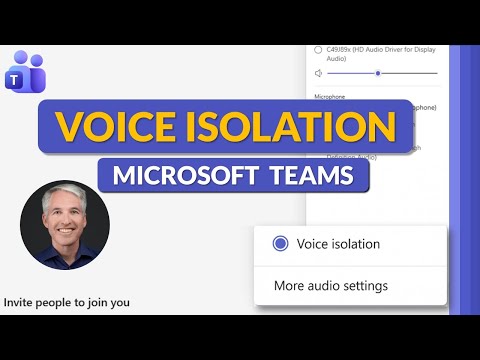
Microsoft Teams Voice Isolation tutorial for crystal clear meeting audio and noise reduction, pro guide and short video
Key insights
- Voice Isolation is an AI-powered audio feature in Microsoft Teams that isolates your voice and suppresses background sounds.
It uses speech models to keep meetings clear even in noisy places. - To enable on your device, open Teams Settings, go to Recognition, then Create voice profile.
Pick your microphone, record the sample, and Voice Isolation activates automatically during calls with a small indicator. - Admins control access via meeting policies and can enable or disable enrollment with the enrollUserOverride policy.
They can also manage biometric profiles and use PowerShell to apply restrictions to users or groups. - Privacy rules: Microsoft does not use enrolled voice profiles to train its core AI models.
Data retention notes: inactive profiles delete after one year; profiles from deleted or unlicensed accounts remove after 90 days; exports are allowed until November 2025. - Benefits include clearer calls, better speech recognition, and improved meeting focus in cafés, open offices, or home environments.
The feature delivers more than basic noise reduction by isolating your unique voice. - Availability is broad as of late 2025 and it is enabled by default for many tenants, but admins may restrict it.
Ensure your Teams app and microphone drivers are up to date to get the best results.
Keywords
Microsoft Teams voice isolation,Enable Voice Isolation Teams,How to enable voice isolation in Teams,Teams voice isolation settings,Teams noise suppression vs voice isolation,Turn on voice isolation Microsoft Teams,Improve call clarity Teams voice isolation,Voice isolation tutorial Microsoft Teams