- All of Microsoft
Microsoft 365 Message Center Updates
Message Center prep: SharePoint toolbar moves, Teams image search, Windows eleven Copilot Studio, Power Automate AI
Key insights
-
SharePoint document library user experience is changing; toolbar buttons have moved and the layout works differently.
Prepare your organization by testing key library actions, updating training materials, and checking any custom scripts or integrations. -
Image Search in Microsoft Teams (MC1174858) lets users find images inside Teams content, but it is not an image generator.
Review message and retention policies and inform users how to search images so results stay accurate and compliant. -
Windows 11 + Copilot integration brings deeper desktop Copilot features for productivity and context-aware assistance.
Plan pilot deployments and track Microsoft’s enterprise timing, because broad business rollout dates may differ from consumer releases. -
GPT-5 as the default Copilot model increases Copilot capabilities across Microsoft 365 (MC1176368).
Reassess governance, data controls, and licensing impacts before enabling new Copilot features for users. -
Copilot Studio and agent portability now let you copy an agent from the lite experience into the full experience (MC1176363).
Use this to standardize agents, test behavior in full mode, and document any changes for support teams. -
Power Automate – “Retry with AI vision” updates affect desktop flows (MC1177141).
Test impacted flows, confirm prerequisites, and update runbooks so automation recovers predictably when vision-based steps fail.
Intro: What the Episode Covers
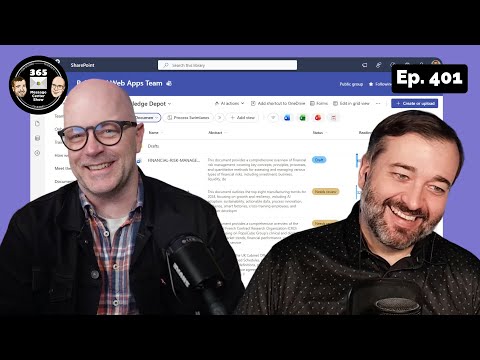
The YouTube episode "What's new in the Microsoft 365 Message Center? | Ep 401" from 365 Message Center Show walks viewers through a set of practical updates across Microsoft 365, with a special focus on AI and user experience changes. The hosts demonstrate new features for Microsoft 365 Copilot, Teams, SharePoint, and Windows 11, and they ask an important question about when enterprises will receive these updates. Overall, the video frames these improvements as productivity enablers while noting the administrative and governance work required to adopt them. Consequently, the episode serves as both a tour of features and a call-to-action for IT teams to prepare.
Episode Timeline and Quick Topics
The presenters guide the audience through specific items and timestamps, making it easy to skip to sections that matter most. They balance demos with messaging about rollout windows and management considerations, so viewers can assess impact quickly. Below are the episode markers for reference, which help readers identify the features discussed and where to find demonstrations on the source video.
- 0:00
Welcome - 2:06
Introducing Image Search in Microsoft Teams - MC1174858 - 7:55
Microsoft Copilot Studio: Copy an agent from lite to full - MC1176363 - 11:10
Updated SharePoint document library user experience - MC1179157 - 19:59
GPT-5 becomes the default Copilot model - MC1176368 - 23:45
Power Automate 'Retry with AI vision' details - MC1177141 - 26:50
How Windows 11 and AI are shaping the future of work - MC1177767
Microsoft 365 Copilot: Power, Controls, and Tradeoffs
The episode highlights that Copilot is getting both broader and deeper: GPT-5 becomes the default model and features such as improved memory and output controls appear in the interface. As a result, users can expect smarter responses and more personalized assistance, which could speed routine tasks and research. However, these gains come with tradeoffs around data governance and administrative oversight, since richer personalization often requires persistent context and storage.
Consequently, IT leaders must weigh productivity benefits against privacy and compliance needs, and they should update policies accordingly. Moreover, moving from experimental features to enterprise-wide deployment raises questions about update cadence and testing, because organizations prefer predictable release windows. Therefore, staged pilots and clear rollback plans will help balance innovation with operational risk.
Teams, Outlook, and Collaboration Changes
The show demonstrates new collaboration tweaks in Teams, including an image search capability and improved forwarded message traceability, plus a Notes tab in chats. These features aim to make information easier to find and to preserve conversation context, which is useful for hybrid teams. On the other hand, the episode notes that the image search is not a full image-generation tool but rather a search helper, so expectations must align with capability.
At the same time, the new Outlook client receives features like automatic account setup and saved email templates, which streamline onboarding and repeatable messaging. Nonetheless, changing clients or UI elements can create friction, and the hosts emphasize that communication and training matter. In practice, administrators should plan both technical configuration and user education to smooth transitions and reduce support tickets.
SharePoint and Viva Experience Updates
The presenters show an updated document library toolbar and new AI actions in SharePoint, plus Viva Engage improvements such as segmented announcements and AI audio briefings. These updates aim to make content consumption faster and to enrich community engagement with less manual work. Yet, changing toolbars and repositioning buttons will require users to relearn workflows, and some customizations may break if administrators do not update them.
Therefore, the episode suggests that site owners audit custom scripts and training materials before the update reaches production. Additionally, governance remains a challenge because AI-enabled actions introduce new metadata and processing paths, so organizations should review retention and DLP rules. In short, feature gains carry an administrative cost that needs explicit planning.
Windows 11 Integration and Enterprise Timing
The video explores renewed integration between Windows 11 and Copilot, describing how AI now appears more directly on the desktop to surface help, summaries, and productivity shortcuts. This deeper integration could transform common workflows by reducing context switching, yet the episode cautions that enterprise adoption often lags consumer availability. Consequently, many businesses may not see these features immediately due to staged rollouts, certification needs, and compatibility checks.
Security teams will want to evaluate the desktop AI surface area and manage access via policy, because richer AI on endpoints can change telemetry and data flow. Furthermore, control over which model or features an organization opts into will remain a key negotiation between central IT and local teams. Thus, measured pilots and clear success metrics offer a practical path forward.
Recommendations for IT and Final Takeaways
To prepare, the hosts recommend starting small: run focused pilots, update governance and DLP policies, and create user guides that show where buttons moved and how features behave. This approach reduces friction while validating real-world benefits before wide release, and it gives help desks time to adapt. Additionally, communicate timelines and expectations so end users understand which changes are cosmetic and which will alter workflows.
In conclusion, episode 401 of the 365 Message Center Show provides a clear snapshot of rapid AI-driven change across Microsoft 365 while also highlighting practical tradeoffs. As organizations adopt these capabilities, they should balance agility with careful controls, because the best outcomes come from aligning technical updates with user training and governance.
Keywords
Microsoft 365 Message Center updates, M365 Message Center new features, Microsoft 365 service notifications, Message Center roadmap 2025, Microsoft 365 admin messages, M365 Message Center tips and tricks, Message Center change notifications, Microsoft 365 Message Center episode 401