Pro User
- All of Microsoft
Zeitspanne
explore our new search
PowerPoint
19. Feb 2025 02:05
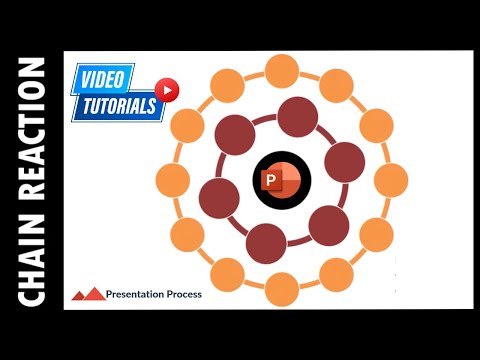
PowerPoint: Unleash Captivating Chain Reaction Animations!
von HubSite 365 über Presentation Process YouTube
PowerPoint Office 365
Key insights
- Step 1: Begin by inserting a cycle graphic into your PowerPoint presentation to form the base of the animation.
- Step 2: Add a second layer to enhance the visual complexity and depth of your animation.
- Step 3: Choose and apply colors to different shapes in your graphic for better visual appeal.
- Step 4: Adjust the placement of shapes carefully to ensure smooth transitions and alignment.
- Step 5: Use the Morph Transition feature in PowerPoint to create seamless animations between slides.
- The tutorial is designed for users with PowerPoint Version: Office 365, ensuring compatibility with modern features like morph transitions.
Introduction to Chain Reaction Animations in PowerPoint
Creating engaging presentations is a crucial skill in today's digital world. One of the most effective ways to captivate an audience is through dynamic animations. Recently, the YouTube channel "Presentation Process" released a tutorial video titled "SECRET to Creating Chain Reaction Animations in PowerPoint." This video provides a step-by-step guide to creating visually appealing chain reaction animations using PowerPoint. In this article, we will explore the key steps outlined in the video and discuss the challenges and tradeoffs associated with creating such animations.Step 1: Insert Cycle Graphic
The tutorial begins with the insertion of a cycle graphic. This is the foundational step for creating a chain reaction animation. By using a cycle graphic, presenters can visually represent a series of interconnected processes or events. This step is crucial as it sets the stage for the subsequent layers and animations. However, choosing the right graphic can be challenging. It requires a balance between complexity and clarity. A graphic that is too complex may confuse the audience, while one that is too simple might fail to capture their interest.Step 2: Create the Second Layer
Once the cycle graphic is in place, the next step is to create a second layer. This involves adding additional shapes or elements that will interact with the initial graphic. The purpose of this layer is to enhance the visual appeal and depth of the animation. However, adding too many elements can clutter the slide and distract from the main message. Therefore, it is important to carefully select and position each element to maintain a clean and organized design.Step 3: Add Shape Colors
Color plays a significant role in making animations more engaging. In this step, the tutorial emphasizes the importance of choosing the right colors for each shape. The colors should complement each other and align with the overall theme of the presentation. However, selecting the right color palette can be a daunting task. It requires an understanding of color theory and how different colors evoke different emotions. Additionally, the colors should be accessible to all audience members, including those with color vision deficiencies.Step 4: Adjust Placement of Shapes
Proper placement of shapes is essential for creating a smooth and cohesive animation. In this step, the tutorial guides viewers on how to adjust the positioning of each shape to ensure that the animation flows seamlessly. This involves aligning shapes and ensuring that they are evenly spaced. However, achieving perfect alignment can be challenging, especially when dealing with complex graphics. It requires patience and attention to detail to ensure that the final animation is visually pleasing.Step 5: Apply Morph Transition
The final step in creating a chain reaction animation is applying the morph transition. This transition creates a fluid movement between slides, enhancing the overall animation effect. The tutorial demonstrates how to use this feature effectively to create a captivating animation. However, overusing transitions can make a presentation appear unprofessional. It is important to use them sparingly and only when they add value to the presentation.Conclusion
In conclusion, creating chain reaction animations in PowerPoint is an effective way to enhance presentations and engage audiences. The tutorial by "Presentation Process" provides a comprehensive guide to achieving this. However, it is important to consider the tradeoffs and challenges associated with each step, from selecting the right graphic and colors to ensuring proper alignment and transition usage. By carefully balancing these factors, presenters can create animations that are both visually appealing and impactful.

Keywords
PowerPoint animations tutorial chain reaction effects create secret guide presentation design tips.