- All of Microsoft
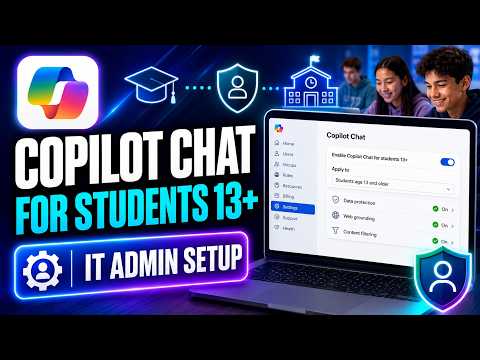
Microsoft Copilot Chat: IT Setup for 13+
Principal Group Product Manager - Microsoft Education
Microsoft IT admin setup to configure Microsoft Copilot Chat for K to twelve using Entra ID and School Data Sync
Key insights
- Tenant type — Classify your organization as K‑12, HED, or Other to tailor Copilot settings.
Use the Microsoft 365 admin center or run the tenant configuration PowerShell as a Global Admin to apply the correct education segment. - AgeGroup — Verify student ages so only users 13+ get Copilot Chat access.
Set or bulk-update the AgeGroup attribute using School Data Sync, CSV uploads, or Microsoft Entra ID to ensure compliance and correct access. - Copilot Control System — Use the Copilot admin controls to deploy, pin, or remove the Copilot app across Microsoft 365, Teams, and Outlook.
Grant Global Admin or AI Admin roles to staff who will manage deployment, assignment scope, and monitoring. - Custom agents — Create and scope agents to provide targeted AI workflows for classes or departments.
Limit data exposure with sensitivity labels and Restricted SharePoint Search so agents respect organization boundaries. - Entra ID — Entra ID handles authentication, age verification, and consent flows.
Configure user attributes, conditional access, and monitoring in Entra to keep student data secure and meet policy needs. - Setup checklist — Follow a clear rollout: set tenant type, confirm AgeGroup values, configure Copilot in the admin center, assign users or groups, and monitor usage.
Keep a troubleshooting plan and consult official Microsoft documentation and community guidance for specific commands and edge cases.
In a recent YouTube video, educator and Microsoft-focused presenter Mike Tholfsen walks IT administrators through configuring Microsoft 365 Copilot Chat for students aged 13 and older. The presentation aims to take admins from tenant setup to the end-user experience, showing practical steps and the latest options for education tenants. Importantly, the video mixes official guidance with the presenter's personal notes and troubleshooting tips, and he clarifies that the opinions are his own. Consequently, viewers should treat the material as a helpful walkthrough rather than formal policy from the vendor.
What the video covers
The video begins by explaining the scope of the feature, noting that Copilot Chat provides web-grounded, AI-driven assistance inside Microsoft productivity apps. The guide targets K–12 and higher education IT teams and focuses on enabling safe access for students who meet the 13+ threshold. In addition, it highlights admin controls that shape who can see the app, which features are available, and how data boundaries are enforced. Therefore, the walkthrough serves both as a setup checklist and as a primer on operational controls.
Next, the presenter shows recent enhancements such as tools for bulk user updates and options for integrating custom agents. He demonstrates how the same app can be surfaced in the Microsoft 365 Copilot app, Teams, Outlook, and other entry points, while emphasizing the need to manage pinning and visibility centrally. Moreover, the video summarizes core capabilities like web citation, image generation, and extensibility through scoped agents. Thus, administrators get a clear sense of functionality before they start making tenant-level changes.
Core setup steps highlighted
Tholfsen outlines a step-by-step path that begins by setting the tenant education segment so the service applies the correct policies. Then he walks through options for updating user attributes in bulk, noting CSV uploads, automated sync tools, and PowerShell scripts as practical choices. He also stresses the need to verify that licensing and feature flags are in place before assigning access to students or staff. Consequently, the recommended sequence reduces surprises during rollout and helps admins map tasks to their existing processes.
During the setup demonstration, the presenter emphasizes simple checks that save time, such as confirming tenant identifiers and testing a small pilot group. He shows how to use familiar admin consoles to choose who receives the app and how to enable or disable specific agents. Additionally, he recommends documenting decisions about scope and monitoring so that change control remains clear. As a result, IT teams can iterate safely while keeping stakeholders informed.
Managing identity and age attributes
A central theme is the importance of accurate user classification, especially the AgeGroup attribute that determines eligibility for the 13+ experience. The video explains options for keeping this data current, including automated sync tools and manual updates in identity services. It also points out that mistakes in age data can lead to denied access or to policy mismatches that require remediation. Therefore, admins should adopt verification processes that balance accuracy with administrative effort.
Furthermore, the presenter covers how authentication relies on Entra ID and how consent settings can affect under-18 scenarios. He suggests baking age checks into onboarding workflows so that profiles reflect the correct classification from day one. In the long term, this reduces support calls and keeps reporting accurate for compliance reviews. Thus, identity hygiene becomes a practical investment rather than a one-off task.
Admin controls, agents, and monitoring
Tholfsen spends time on the admin-side tools such as the Copilot Control System and the admin console where custom agents are managed. He demonstrates how admins can scope agents to groups, decide whether to pin the app, and set usage monitoring thresholds. In addition, he notes the need for clear policies on agent creation and content filters so that student interactions remain within acceptable boundaries. Consequently, thoughtful governance reduces both risk and confusion among educators and learners.
The video also points to operational practices like piloting features, reviewing logs, and setting alerting for abnormal patterns of use. Tholfsen stresses transparency with teachers and parents about what the tools do and how data is handled. This transparency supports trust and helps schools respond quickly when issues appear. Therefore, monitoring is as much about communication as it is about technical control.
Tradeoffs and challenges for school deployments
Finally, the presentation balances benefits with tradeoffs, explaining that increased access to AI comes with added administrative work and privacy considerations. For example, enabling richer features improves learning opportunities but may require closer review of data flows and consent. Moreover, ensuring accurate age and identity data can be time consuming, and automating those updates may introduce its own complexity. As a result, schools must weigh immediacy of access against the overhead of robust governance.
Tholfsen also addresses the challenge of training staff and aligning expectations, noting that teachers need both technical guidance and pedagogical support to use the tool well. He recommends staged rollouts and small pilots so that teams can refine policies and controls before broad deployment. In addition, he highlights the tradeoff between restrictive settings that limit functionality and permissive settings that increase exposure to unexpected outputs. Ultimately, the video presents a pragmatic approach: start small, monitor closely, and expand as confidence grows.
In summary, the YouTube walkthrough by Mike Tholfsen offers a clear, practical roadmap for IT admins preparing to enable Copilot Chat for students 13 and older. The presentation combines setup steps, identity guidance, and governance best practices while candidly discussing operational tradeoffs. Consequently, schools that follow this measured approach can deliver AI-powered productivity with greater safety and fewer surprises. Therefore, administrators should treat the video as a useful companion to official documentation and local policy work.

Keywords
Microsoft Copilot Chat setup for students, Copilot Chat IT admin guide, Copilot for education 13 plus, Microsoft Copilot deployment for schools, Copilot Chat configuration for admins, Student-safe Copilot settings 13+, Microsoft 365 Copilot education setup, Copilot Chat classroom management