- All of Microsoft
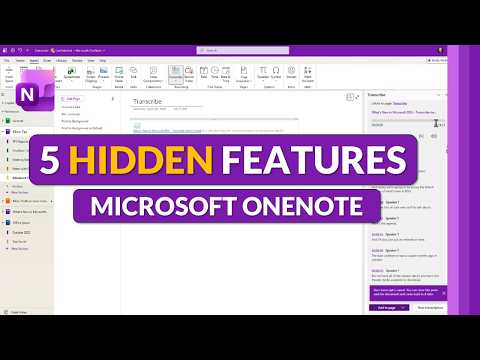
OneNote: 5 Hidden Features You Missed
Principal Group Product Manager - Microsoft Education
As a Microsoft expert, explore OneNote hidden features and tips: transcribe, dock to desktop, forward links, OneTastic
Key insights
- Bracket links ([[Page Name]])
Type [[Page Name]] to create an internal link; OneNote auto-links or creates the target page so you can build connected notes fast. - Print to background
Send PDFs or printouts to a page background so you can annotate on top without moving the original image or layout. - Transcribe & audio sync
Record audio while you type; OneNote timestamps lines so clicking a note plays the audio from that moment, and built-in transcription can turn speech into searchable text. - Dock to Desktop
Dock OneNote to the side of your screen for quick, always‑available note taking without switching apps or losing focus. - OneTastic add‑in
Use OneTastic macros and extras to automate repetitive tasks, add custom tools, and extend OneNote’s built‑in features. - Text extraction (OCR)
Extract editable text from images, screenshots, or handwriting so content becomes searchable and easy to reuse.
Introduction: What the Video Covers
In a recent YouTube video, Mike Tholfsen highlights five lesser-known ways to get more out of OneNote. The clip aims at both long-time users and newcomers, and it walks through features that are easy to miss but can improve daily workflows. As a result, the video offers practical demonstrations rather than high-level theory, which helps viewers decide what to try first. Overall, the presentation balances clear instructions with real-world examples to show immediate value.
Core Hidden Features Explained
First, Tholfsen covers Forward links, a simple method to link pages quickly by typing square brackets that connect notes and create new pages on the fly. This makes building a web of related notes faster and reduces time spent on manual linking, but it also raises maintenance questions when pages are renamed or reorganized. Next, he explains how to Print Pages to Background automatically, which helps when you want to annotate content without hiding the original layout, although it can complicate export formats and increase file size.
Third, the video highlights the Transcribe capability for converting speech in recordings into searchable text, which can save hours of manual note-taking and boost accessibility. However, Tholfsen notes that transcription accuracy depends on audio quality and speaker clarity, and there are privacy and compliance tradeoffs when storing transcribed content in shared notebooks. He also demonstrates Dock to Desktop, a feature that pins OneNote to one side of the screen for quick reference, which improves multitasking but consumes visual space that some users may prefer to allocate to other apps.
Third-Party Tools and Extensions
Finally, Tholfsen discusses OneTastic, a popular third-party add-on that extends OneNote with macros and custom commands to automate repetitive tasks. He shows common macros that tidy pages and add functionality not yet built into the app, and he points out that third-party tools can bridge gaps while Microsoft updates the core product. Yet, using external add-ons introduces tradeoffs; IT teams must weigh the productivity gains against concerns about security, support, and compatibility across devices.
Furthermore, the video situates these add-ons within broader changes to OneNote, mentioning updates like table cell merging and other improvements that reduce the need for external extensions over time. Consequently, users should consider whether an add-on solves a long-term gap or just a temporary pain point. Meanwhile, organizations should test extensions in controlled environments before rolling them out broadly to avoid unexpected behavior during collaboration.
Related Built-In Tools and Best Practices
Beyond the five highlighted items, the video and accompanying notes remind viewers of built-in functions such as audio recording with linked timestamps, version history, image text extraction, and password protection for sections. These features together support diverse use cases, from lecture capture to secure client notes, and they often work best when combined; for example, pairing audio capture with timestamps can cut review time dramatically. However, integrating multiple features requires thought about notebook structure and consistent naming to keep content findable.
In addition, Tholfsen emphasizes practical habits like using consistent page titles and keeping sensitive data in protected sections to balance collaboration with security. He also points out cross-platform differences between OneNote versions, so what works on Windows may look or behave differently on Mac, web, or mobile clients. Therefore, teams should document their preferred workflows and test them on the devices they use most.
Tradeoffs, Challenges, and Recommendations
Adopting hidden features brings clear benefits, yet there are tradeoffs that users and IT leaders must consider. For example, automated transcription speeds up review but may require extra oversight for accuracy and privacy compliance, and docking OneNote improves speed at the cost of screen real estate. Consequently, individual users should weigh convenience against control, while administrators should set policies for data retention and third-party integrations.
Moreover, the video illustrates that some features are ideal for personal productivity while others suit collaborative environments, which means a one-size-fits-all approach rarely works. Therefore, teams should pilot promising features with a small group, gather feedback, and refine guidelines before scaling them up. This iterative approach reduces disruption and helps discover the combinations of features that deliver the most value in context.
Conclusion and Next Steps
Mike Tholfsen’s video is a useful tour of often-overlooked OneNote tools, and it encourages users to try practical tricks that can save time and improve organization. Moving forward, viewers should test one or two features at a time, monitor the tradeoffs, and adapt notebooks to match their needs and device mix. Finally, because OneNote continues to evolve, keeping an eye on updates will help users decide when to adopt built-in improvements versus third-party solutions.
Keywords
OneNote hidden features, OneNote tips and tricks, OneNote productivity hacks, Lesser-known OneNote features, OneNote shortcuts and hacks, OneNote organization tips, OneNote advanced features, OneNote features you missed