- All of Microsoft
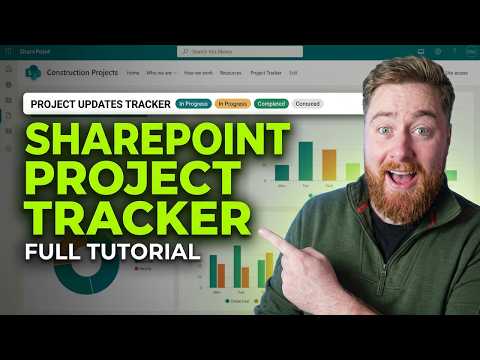
SharePoint Project Updates Tracker Guide
Expert guide to building a SharePoint projects tracker with Microsoft Lists and Power Automate to boost visibility
Key insights
- What it is: A lightweight project hub built with SharePoint, Microsoft Lists and Power Automate that centralizes project logs, status updates and team collaboration on your intranet.
It replaces scattered spreadsheets and email threads with a single project tracker you can publish on a SharePoint site. - Core components: Use a dedicated SharePoint site as the project home and a Microsoft List as the tracker (each row = a project or task).
Add fields for status, start/end dates, contacts and issues, and create views like kanban or Gantt for different audiences. - Build steps: Create the SharePoint site, add a project list, define columns and views, add the list web part to pages, then create Power Automate flows to send update notifications.
Embed the list in a Teams channel for quick access and stakeholder visibility. - Benefits: Centralized visibility for stakeholders, low cost because it uses existing Microsoft 365 features, and easy customization of layouts and fields.
Automation with Power Automate reduces manual updates and boosts timely communication. - Best practices: Start from the Project management site template or a community template to save time, create targeted views for different roles, and test permissions and flows before wide rollout.
Keep fields simple and document how the tracker is used to ensure adoption. - Common use cases: Internal business initiatives, software project management, construction project management, and keeping an issues tracker or project log in one place.
The approach scales from a single team to an intranet-wide project hub.
Dougie Wood [MVP] published a detailed YouTube tutorial demonstrating how to build a project tracker inside a SharePoint intranet, and this article summarizes the video for readers who prefer a concise news-style briefing. The video walks viewers through a step-by-step approach that combines SharePoint, Microsoft Lists, and Power Automate to create a professional project management hub. It targets teams that need a low-cost, integrated way to improve visibility, communication, and basic workflow automation across projects. Overall, the tutorial aims to show a scalable pattern that teams can adapt quickly without buying separate tools.
Overview of the tutorial
In the video, Dougie explains how to set up a dedicated project site that serves as an intranet hub for updates and status reporting. He highlights using the Project Updates Tracker pattern to log project items, surface issues, and publish status updates from a central location. Then, he demonstrates how to create views that fit different audiences, such as stakeholders, project owners, and support teams. The presentation balances practical demonstrations with guidance on why each element matters in real-world teams.
Moreover, the tutorial emphasizes modern SharePoint layouts and navigation to make information easier to find and consume. Dougie illustrates how to embed list web parts on pages and configure views like kanban or filtered lists for focused reporting. He also shows how to add columns for status, dates, and contacts that make the tracker useful beyond a simple spreadsheet. Thus, the video frames the tracker as both a reporting surface and an operational log for daily project activities.
Core components explained
The core technology stack Cherry-picks features from the Microsoft 365 suite to keep complexity low while maximizing integration. At the center sits a SharePoint project site that hosts pages and web parts, while a Microsoft Lists instance stores each project record or task row with custom fields. Then, Power Automate flows send notifications or update related items automatically when key changes occur. Finally, the tracker can be surfaced inside Teams channels so contributors use familiar collaboration tools without switching contexts.
This combination reduces the need for a separate project-management license and leverages tools many organizations already own. However, Dougie also points out that the out-of-the-box options trade advanced scheduling and resource management for simplicity and speed of deployment. In short, teams get a unified place for updates and alerts, but they may need other tools for deep portfolio analysis or complex timelines.
Benefits and tradeoffs
One major advantage is consolidated visibility: teams can replace scattered email threads and spreadsheets with a single site that shows current status and issues. Additionally, the approach costs little extra when organizations already use Microsoft 365, and the content is customizable through SharePoint web parts and list columns. These features help teams align on a common format for updates and reduce manual reporting overhead. As a result, the tracker helps fast-moving teams maintain a simple source of truth without heavy administrative burden.
Nevertheless, the tutorial also makes clear that customization brings tradeoffs in maintenance and governance. More fields, views, or flows increase setup effort and demand ongoing upkeep, especially when teams change processes or scale up. Permission management and data consistency require clear policies, because SharePoint lists can grow complex and inconsistent without disciplined column definitions and naming standards. Therefore, teams must weigh immediate usability against longer-term support and data hygiene needs.
Implementation steps highlighted
Dougie lays out a practical sequence that starts with creating a project site, then building a dedicated list to hold project records, and finally adding columns for essential metadata such as status and dates. He advises creating views tailored to different audiences and embedding lists as web parts on site pages for easy navigation. After that, he demonstrates how to set up a basic Power Automate flow to send notifications when records change, which keeps stakeholders informed in near real time. Each step focuses on quick wins so teams can deliver a usable tracker in days rather than weeks.
He also recommends saving the configuration as a template or documentation so future teams can replicate the pattern consistently. That helps organizations scale the approach to multiple projects while keeping the structure familiar. Importantly, Dougie shows how to test flows and views before rolling the solution into production to avoid noisy alerts or confusing displays. This careful but practical rollout approach reduces disruption and helps users adopt the system more smoothly.
Challenges and practical recommendations
The video candidly covers common challenges such as user adoption, permissions complexity, and handling large lists that may affect performance. To address adoption, Dougie suggests simple training sessions and clear guidance on which fields to update and when, which reduces inconsistent entries and improves data quality. For permissions and governance, he recommends using SharePoint groups and documented roles rather than ad hoc sharing to keep access controlled and auditable. These steps help balance openness with security and operational clarity.
For teams with advanced needs, Dougie points out that integrating specialist tools for scheduling or resource planning may still be necessary, and that the SharePoint tracker works best as a centralized reporting and collaboration layer. He also warns that complex automation requires monitoring to prevent unwanted side effects, and that performance tuning might be needed for very large deployments. Overall, his recommendations prioritize a pragmatic blend of governance, user training, and incremental automation to manage risk while delivering value quickly.
In summary, Dougie Wood’s tutorial offers a clear, practical pattern for teams that want a low-cost, integrated project tracker inside Microsoft 365. By combining SharePoint, Microsoft Lists, and Power Automate, the approach delivers immediate visibility and simple automation while asking teams to plan for governance and maintenance. As a result, organizations can adopt a scalable intranet-based tracker that improves communication without adding heavyweight project-management software. The video serves as a useful starting point for teams ready to trade some advanced features for faster implementation and tighter collaboration.

Keywords
SharePoint project tracker, Project updates tracker SharePoint, SharePoint intranet tutorial, SharePoint project management, Build project tracker in SharePoint, SharePoint task tracker tutorial, Office 365 project tracker, SharePoint updates dashboard