- All of Microsoft
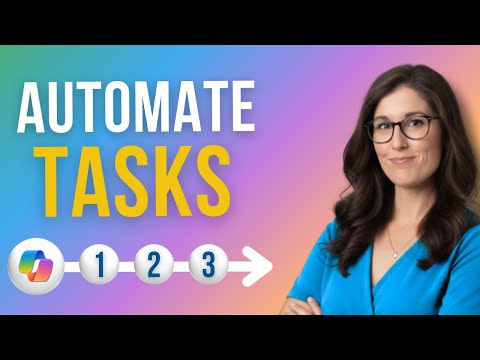
Copilot: Schedule Prompts in 3 Steps
Microsoft expert: schedule Copilot prompts to automate workflows, manage alerts and streamline work with Loop
Key insights
- Scheduled prompts: Microsoft 365 Copilot can run saved prompts automatically on a timer, delivering results in Copilot chat or by email so you get updates without manual effort.
- Three simple steps: create or run the prompt in Copilot, choose the clock icon to "Schedule this prompt" and set timing options, then save and manage the schedule in the Scheduled prompts menu.
- Key settings: set start date and time, pick frequency (daily, weekly, monthly), choose notification delivery, and note each scheduled prompt can run up to 15 times.
- Benefits: automate repetitive tasks, receive timely summaries (email or calendar reviews), streamline workflows, and free time for higher-value work.
- Limits & requirements: tenants can create up to 10 scheduled prompts, each with a 15-run maximum; users need a Microsoft 365 Copilot license and connected experiences enabled, and admins can monitor schedules for compliance.
- Management & best practices: test new prompts, review and refine wording, run or disable schedules from the Scheduled prompts menu, and use recurring prompts for regular digests and meeting prep to keep teams informed.
In a recent YouTube tutorial, Office Skills with Amy demonstrates how to schedule recurring prompts in Microsoft 365 Copilot, aiming to help users automate everyday tasks. The video walks through three simple steps: craft a clear prompt, refine it, and schedule it to run automatically. As a result, the author shows how automation can free time and make routine checks more consistent.
What the Video Covers
The creator begins by explaining where to find Copilot within Microsoft 365 and then runs a practical example to show the flow end-to-end. Next, the tutorial highlights the new clock icon for scheduling and explains the key options such as start time, frequency, and notification preferences. The explanation is concrete, and the speaker emphasizes testing prompts right away to validate results and reduce surprises when a scheduled run executes.
Furthermore, the video points out administrative controls and licensing requirements that matter for teams and organizations. It also discusses how results can appear in Copilot chat or arrive by email, which helps different workers consume outputs in their preferred tools. Overall, the segment balances hands-on steps with a look at settings that affect how and where results are delivered.
How Scheduling Works in Practice
First, the workflow starts by composing a useful prompt or reusing one that already performs well in manual runs. Then, users hover over the result, select the schedule option, and configure recurrence details such as daily, weekly, or monthly frequency and the total number of runs. Finally, the system saves the scheduled job and provides a menu to run it immediately, pause it, or delete it when no longer needed.
Importantly, the feature currently caps the number of different scheduled prompts and total executions per prompt, which affects how you plan automation. As the video explains, you can schedule up to a limited number of prompts and set each to run a fixed number of times rather than indefinitely. Therefore, teams should design schedules with those limits in mind and reserve long-running tasks for other automation tools when necessary.
Practical Uses and Benefits
According to the tutorial, common use cases include daily email digests, calendar checkups before meetings, and recurring status summaries for projects. Consequently, people who manage schedules, teach classes, or run projects can save minutes every day by receiving these tailored summaries automatically. Moreover, the ability to get results in chat or via email gives flexibility so that outputs can fit existing workflows without forcing a new tool into daily use.
Additionally, the creator suggests small experiments to start: schedule a daily brief and then refine the prompt based on the first few runs. This iterative approach reduces the chance of noisy or irrelevant messages and ensures the scheduled output becomes genuinely useful. Over time, the saved time compounds into improved productivity and fewer manual checks.
Tradeoffs and Challenges to Consider
However, adoption brings tradeoffs that the video carefully outlines, including balancing automation with control to avoid unexpected actions or data exposure. While scheduled prompts save time, they can also produce notification clutter if frequency and recipients are not tuned appropriately. Therefore, users must weigh the convenience of automatic updates against the potential for distraction or information overload.
Another challenge lies in governance and access: organizations must ensure the right roles and permissions govern scheduled runs to avoid compliance or privacy risks. Also, the current limits on how many prompts and executions you can schedule may force teams to prioritize which tasks deserve automation. Consequently, planners should test prompts, monitor results, and rotate scheduled tasks when limits are reached.
Management, Security, and Best Practices
The video stresses that administrators can monitor and control scheduled prompts across an organization, which helps enforce security and compliance rules. Therefore, IT teams should review permission settings and connected experiences to ensure scheduled content handles sensitive data appropriately. Additionally, the instructor recommends testing each scheduled prompt and using clear naming so teams can quickly identify and manage active automations.
In summary, Office Skills with Amy presents Microsoft 365 Copilot scheduling as a practical way to make Copilot proactively helpful rather than purely reactive. Yet, the tool requires thoughtful setup, testing, and governance to balance convenience against risks and platform limits. As organizations try this feature, they will need to refine prompts and schedules to fit real workflows while watching for administrative and security implications.

Keywords
schedule prompts Copilot, how to schedule prompts in Copilot, Copilot prompt scheduling, automate prompts with Copilot, set recurring prompts Copilot, Copilot prompts tutorial, Microsoft Copilot schedule prompts, Copilot workflow prompt automation