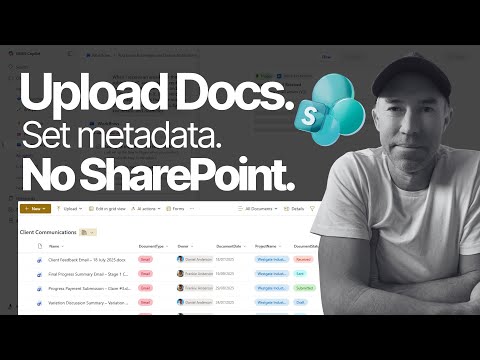
Introduction: Video snapshot
The YouTube tutorial by Daniel Anderson [MVP] shows how to let anyone submit documents to a SharePoint library without giving site access. In just under ten minutes, the video walks viewers through creating a form that captures file uploads and associated metadata automatically. Consequently, the approach cuts out manual tagging, removes the need for email attachments, and reduces version confusion. Overall, the clip promises a practical, quick-win solution for common intake scenarios.
What the tutorial demonstrates
First, the video demonstrates creating a SharePoint form from the library command bar and naming it so a dedicated folder is created automatically. Then, the form pulls in the library’s existing metadata fields so you can choose which to show or hide, set file type restrictions, and apply size limits. In addition, viewers see how to add branding with a logo, pick themes, and set notification behavior for new submissions. Finally, the clip includes timestamps for testing submissions and for reviewing uploaded documents with their captured metadata.
Branching logic and the submission experience
Next, the tutorial introduces branching logic so forms present conditional fields based on user choices, which keeps the experience focused and relevant. For instance, selecting a specific permit type can surface compliance fields only when necessary, while other paths skip straight to upload and submission. As a result, external users receive a simple link, upload a file without signing into SharePoint, complete a few fields, and submit — and the document lands in the library already tagged. This straightforward flow reduces user friction, but it depends on careful design to avoid confusing conditional paths.
How to build and customize the form
The step-by-step portion shows clicking Forms, naming the form, and then editing which library columns appear to the submitter, which makes setup fast for common scenarios. Then, you can refine file constraints, choose submission windows, and configure notifications so intake only happens when people should be able to send files. However, the simplicity of these steps trades off against complex scenarios: document sets or multi-file metadata may still require additional automation or manual work. Therefore, administrators should balance quick setup with plans for edge cases before rolling the form out broadly.
Security, governance and operational tradeoffs
The video emphasizes that external users only reach the form and not the site, which preserves site permissions while allowing intake, and you can block risky file types and limit sizes to reduce exposure. At the same time, easier intake increases the need for governance: you should monitor submissions for spam, maintain retention and audit policies, and ensure incoming documents go to the right library folder for tracking. Moreover, bulk permission editing and new automation rules help administrators manage many items at once, but they also require careful testing to avoid unwanted moves or misclassification. Thus, convenience comes with responsibilities around monitoring, lifecycle rules, and periodic review.
Use cases, AI support, and remaining challenges
The tutorial notes clear use cases such as vendor documentation, permit submissions, new-hire paperwork, and project proposals where external intake simplifies operations and reduces email back-and-forth. In addition, broader platform improvements like expanded bulk upload limits and AI-assisted metadata tagging can speed migrations and improve indexing, yet AI still needs human oversight to ensure accuracy and relevance. Furthermore, conditional logic, document set metadata, and complex approval routing can become difficult to model in a simple form, so teams should expect to iterate and possibly layer in workflows for more advanced needs. Consequently, organizations must weigh the speed of simple forms against the effort to cover complex metadata scenarios.
Practical recommendations
As the video suggests, start small: build a form for a single controlled intake scenario and test it thoroughly with sample submissions to validate metadata capture and notifications. Next, tighten file type and size limits and set submission windows to limit exposure, while also enabling notifications and audit logging so administrators know what arrives and when. Finally, plan for scale by documenting common edge cases, defining retention rules, and considering automation to assign complex document sets or to route items into approval workflows. In short, the approach offers real productivity gains, but sensible governance and staged rollout will make it safe and sustainable.
Last updated: 2025-10-27
