- All of Microsoft
SharePoint: Move Attachments to Library
Microsoft expert: Move Copilot Studio files to SharePoint library with Power Apps and Power Automate for reasoning
Key insights
- Moving attachments to a document library centralizes files so AI agents can find and use them more reliably.
It improves organization and makes agent workflows easier to automate. - OnAddFile pattern: save the latest attachment to a variable with Set(varLatestFile, Last(ShowColumns(DataCardValue3.Attachments, 'Name', 'Value'))).
Use Last() instead of First() to capture the most recent file. - OnSuccess flow: if varLatestFile is not blank, call the flow with CopyFiletoLibrary.Run(SharePointForm1.LastSubmit.ID, SharePointForm1.LastSubmit.SKU, varLatestFile), then clear the variable and reset the form.
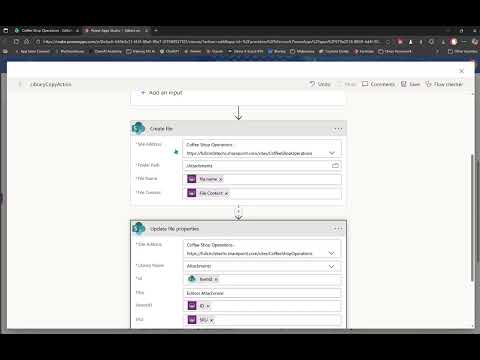
This moves the file from the list item into the library and resets the UI state. - Flow create-file expressions: use FileName = triggerBody()?['file']?['name'] and FileContent = triggerBody()?['file']?['contentBytes'].
These map the incoming attachment into the library file record. - Key operational benefits: better performance for large file sets, easier agent access and indexing, and stronger governance with library permissions.
Libraries scale and support richer security than list attachments. - Practical tips: check file size limits before processing, use the attachment control to validate uploads, and consider adding this flow as a reusable template in Copilot Studio.
These steps reduce errors and speed agent reasoning over files.
Summary of the video
In a recent YouTube video, Audrie Gordon presents Weekly AI Agent Tip #9, which tackles a practical limitation in current AI agent workflows. Specifically, Gordon highlights that, as of November 25, Copilot Studio agents do not reason over attachments that remain tied to list items. Consequently, the video proposes moving those attachments into a document library so agents can access and process files more effectively.
Gordon frames the idea as a working suggestion rather than a finished feature, and she invites feedback and refinement. She also demonstrates a concrete flow using a SharePoint form and a Power Automate run to copy uploaded files into a library, then reset the form variables so the process is repeatable. Overall, the video aims to help organizations improve agent performance and governance by changing where attachments are stored.
What the video demonstrates
The tutorial walks through a small but important pattern: capture the latest attachment, copy it to a library, and clear state after submit. For example, Gordon recommends using an attachment control event such as OnAddFile to set a variable like Set(varLatestFile, Last(ShowColumns(DataCardValue3.Attachments, 'Name', 'Value'))) so the form knows the most recent upload. Then, on successful submit she shows calling a flow such as CopyFiletoLibrary.Run with the form’s LastSubmit ID and the saved file record.
The video also clarifies small but important details, including preferring Last over First when selecting the latest attachment and resetting state after the copy with Set(varLatestFile, Blank()) followed by a form reset. Additionally, Gordon points out relevant Power Automate expressions for the create file action, like using triggerBody()?['file']?['name'] and triggerBody()?['file']?['contentBytes'] to populate filename and content. These steps are shown as a repeatable template that teams could adapt to their environments.
Benefits and intended outcomes
By moving attachments from list items into a document library, the approach aims to improve agent access, searchability, and processing performance. Libraries generally scale better for large volumes of files and provide richer metadata and indexing, which helps agents reason about content and integrate files into automation workflows. Furthermore, libraries support more granular permissions and governance controls than list item attachments, which can simplify compliance and auditing.
Gordon emphasizes that a centralized library also helps multi-agent scenarios where different services must read or manipulate the same files. In addition, standardizing file storage can reduce the risk that agents bypass security checks or miss files because attachments are stored in inconsistent places. Thus, the proposed pattern seeks to support both operational efficiency and enterprise readiness.
Tradeoffs and implementation challenges
Although the technique offers clear benefits, Gordon’s video also makes evident several tradeoffs and challenges teams must consider. For example, copying files into a library introduces extra steps and potential latency between upload and availability; this can matter for time-sensitive automations. Teams must balance immediate accessibility with the gains in indexability and governance that libraries provide.
Technical complexity rises as well, since flows must handle variable state, error handling, file sizes, and naming collisions. Gordon reminds viewers to check documentation on file size limits and to use attachment control validation to avoid sending files that the agent can’t reason over. Moreover, permissions on the target library must be carefully configured so that agents and users have correct access without opening security gaps.
Practical guidance and next steps for teams
Gordon suggests that this pattern could become a template within product tooling, which would lower the barrier for teams to adopt it. Until then, organizations should pilot the flow in a controlled project, monitor agent behavior after files are moved, and tune performance and security settings. Teams should also instrument logging so they can trace when files are copied and when agents successfully consume them.
Finally, adopting this pattern requires cross-team coordination among developers, security, and business owners. While the video provides concrete snippets and a clear workflow, each organization will need to adapt variable names, flow inputs, and library structure to fit existing processes. With that care, the method shown by Audrie Gordon offers a practical way to improve AI agent interactions with file attachments across Microsoft 365 environments.

Keywords
Weekly AI agent tips, move SharePoint list attachments to library, Power Automate move attachments, SharePoint list attachments to document library, automate attachment transfer, AI agent file management, moving list attachments for agents, SharePoint attachment automation