- All of Microsoft
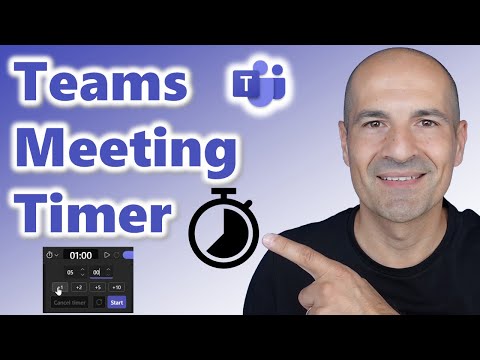
Microsoft Teams: Add a Meeting Timer
Microsoft MVPs, YouTube Creator youtube.com/giulianodeluca, International Speaker, Technical Architect
Microsoft expert: add a timer in Teams to timebox meetings and boost productivity with Microsoft Three Sixty Five apps
Key insights
- Countdown Timer — A built-in Teams feature that shows a visible countdown to all meeting participants.
It changes color and plays an alert at zero, then counts up to show how long the meeting has overrun. - How to add — Join a scheduled meeting, click the More (three dots) menu, choose Timer, pick a duration, then press Start new timer.
This feature is not available in instant calls, webinars, or town halls. - Controls — Anyone in the meeting can Pause, Reset, or Cancel the timer while it runs.
Participants can hide the timer locally without affecting others. - Limitations — The timer works only in scheduled meetings and supports up to 100 minutes per countdown.
Microsoft began rollout in July 2025 with full availability expected by late 2025. - Best practices — Use the timer for strict timeboxing of agenda items and set one person to control it.
Limit presenters through meeting options and tell attendees who manages the timer to avoid accidental edits. - Benefits — The timer improves meeting efficiency and focus by giving clear visual and audio cues.
Because it’s built into Teams, you avoid using third-party apps and the added security or policy risks they bring.
Overview: A practical guide from Giuliano De Luca [MVP]
In a recent YouTube video, Giuliano De Luca [MVP] demonstrates how to add a timer to Microsoft Teams meetings to help participants stay on track. The video walks viewers through the built-in options and shows practical settings for timeboxing discussions, improving meeting focus, and avoiding overruns. Consequently, it targets professionals who want a simple, native way to manage meeting time without relying on third-party tools.
How the built-in timer works
De Luca explains that the new Countdown Timer feature appears in the meeting controls under the More menu (three dots) and can be started in scheduled meetings. Once activated, the timer is visible to everyone, changes color as the end time approaches, plays an alert sound at zero, and then continues to count into overtime so attendees can see how far a meeting has overrun. The tool supports durations up to 100 minutes and offers controls to start, pause, reset, or cancel the countdown, which any participant can use.
Moreover, participants can hide the timer from their own view without stopping it for others, which preserves individual comfort while maintaining a shared time reference. De Luca notes that the feature is available only in scheduled meetings, not in instant calls, webinars, or town halls, and that the rollout began in July 2025 with broader availability expected later in the year. Therefore, admins and users should check rollout status in their tenant if the option is not yet visible.
Practical benefits for meetings
According to the video, the visible countdown helps teams respect agendas and timeboxes, which often leads to sharper discussions and fewer late endings. Because the timer uses both visual cues and an audio chime, it supports different meeting styles: presenters can see remaining time while attendees receive unobtrusive nudges. As a result, teams can reduce wasted minutes and increase accountability without installing external apps that might raise compliance concerns.
Furthermore, the integrated timer reduces setup friction because it uses the existing Teams interface and permissions model, making it easier for organizations to adopt consistently. De Luca highlights that the tool’s simplicity encourages use during daily standups, workshops, or client meetings where timing matters. Consequently, the straightforward design helps people adopt better time discipline with minimal training.
Limitations and operational challenges
Despite its usefulness, the feature has clear limits that teams must weigh. First, it works only in scheduled meetings, which leaves out many ad-hoc interactions where time management can also be problematic. Second, the 100-minute cap may be too short for long workshops or multi-part sessions, forcing organizers to split timers or manually manage longer timelines.
Another tradeoff involves control: any participant can manage the timer, which enhances flexibility but can also create interruptions if someone resets or cancels it unintentionally. From a governance perspective, IT teams will need to balance ease of use against organizational rules about who can control meeting settings. Therefore, administrators should consider communication guidelines or role-based practices to prevent accidental changes during critical meetings.
Tradeoffs, recommended practices, and adoption tips
Balancing convenience, control, and consistency requires deliberate choices. For instance, using the timer in highly structured meetings supports strict agendas, but teams that rely on open-ended brainstorming might find it too rigid; in such cases, the visual timer can be used sparingly or hidden by participants who prefer an uninterrupted flow. Consequently, meeting hosts should decide in advance whether to enable the timer and communicate that choice when sending invites.
De Luca suggests simple practices to get the best results: set realistic durations, announce the timer at the start, and assign a facilitator who can manage the timer if necessary to avoid accidental changes. In addition, organizations should test the feature across different meeting types and gather feedback before rolling it out widely. By weighing the tradeoffs and creating a short usage policy, teams can combine the timer’s benefits with minimal disruption.
Conclusion: A useful native tool with thoughtful limits
Giuliano De Luca’s video presents the Countdown Timer as a practical, low-friction way to bring time discipline into Microsoft Teams meetings. While the feature delivers clear benefits—such as visible countdowns, audio alerts, and overtime tracking—its limitations around scheduled-only availability, a 100-minute maximum, and shared control require careful consideration. Therefore, teams should adopt the timer with a few simple rules and trials to ensure it supports productivity without creating new coordination issues.
Keywords
Microsoft Teams timer, Add timer to Teams meetings, Teams meeting countdown, Set timer in Microsoft Teams, Timer for Teams meetings, Teams timer app, Teams meeting time management, Microsoft Teams meeting timer guide