- All of Microsoft
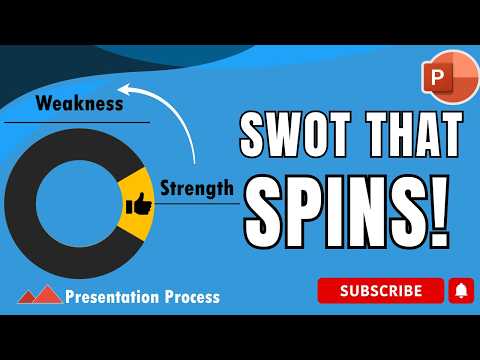
PowerPoint: Easy Infographic Animations
Boost presentations with Microsoft PowerPoint using infographic animations, shapes, icons and custom templates in Office
Key insights
-
This YouTube video shows a clear, step-by-step guide to making infographic animations in PowerPoint for beginners.
It breaks the tutorial into short chapters: adding shapes, creating a spin effect, inserting icons and text, applying custom animations, and building a 4‑part diagram. -
Key built-in tools covered include SmartArt, editable shapes, icons, and the animation pane for timing and layering.
The presenter uses Office 365 features to set entrance, emphasis, exit, and motion path effects. -
The basic workflow is simple: choose a template or blank slide, lay out visuals, apply animation steps, then preview and refine.
The video emphasizes designing in sequence so viewers see information reveal progressively. -
The tutorial highlights the powerful Morph transition for smooth object transformations across slides.
Morph helps animate position, size, color, and shape changes without complex motion paths. -
New 2025 developments include the AI-powered InfoMotion add-in and other automation tools that suggest or generate animation sequences.
These tools speed workflow and help beginners produce polished, consistent animations faster. -
Advanced tips in the video show using animation triggers, custom motion paths, and subtle glow or spin effects to increase clarity and engagement.
The presenter also advises testing timing and exporting as video to preserve animations across devices.
Introduction
The latest tutorial from Presentation Process YouTube walks viewers through creating a polished infographic animation using Microsoft PowerPoint. The video aims squarely at beginners, yet it also offers techniques that intermediate users can adapt. Consequently, it balances simple step-by-step instructions with demonstrations of more advanced features, making the material broadly useful. As a result, the tutorial highlights how familiar PowerPoint tools can produce professional-looking animations without extra software.
Video at a Glance
The video opens with a clear preview and then quickly moves into the basics, such as adding and adjusting shapes, creating a process shape for spin animation, and inserting icons and text. After that foundation, the presenters apply custom animations and assemble a creative four-part diagram. Viewers get a focused walkthrough of slide setup, object placement, and the animation pane, which together form the backbone of the final infographic. Ultimately, the structure keeps the pace brisk and practical for learners who want fast results.
Moreover, the tutorial emphasizes the native strengths of PowerPoint, including SmartArt, built-in shapes, and template choices, while demonstrating how to adjust timing and motion paths. The presenters illustrate how to manage entrance and exit effects and how to use triggers for interactive reveals. By showing each step visually, the video reduces friction for first-time animators and helps them avoid common mistakes. Therefore, beginners can reproduce the example and then customize it for their content.
Techniques Demonstrated
At the heart of the tutorial is the purposeful use of the Morph transition and custom motion paths to create smooth, sequential changes between slides. The presenters show how changing object size, color, and position across slides produces visually appealing transformations when Morph is applied. In addition, they demonstrate basic animation timing and layering so that elements appear in an ordered, comprehensible flow. Thus, the lesson highlights how small adjustments yield large improvements in perceived professionalism.
The video also covers practical hacks such as glow effects, spin animations, and combining icons with text to clarify data points. By integrating these embellishments sparingly, the presenters recommend enhancing emphasis without overwhelming the audience. This balance is important, because too many effects can distract rather than clarify. Consequently, viewers are encouraged to aim for purposeful animation that supports the message.
AI and Add-ins Transforming Workflow
Beyond manual animation, the tutorial and recent industry developments point to growing support from AI and add-ins that automate routine steps. For example, Microsoft Research’s InfoMotion is described by the community as a tool that can analyze static infographics and suggest or apply animations automatically. This automation can cut design time and help users maintain consistency across slides, which is particularly useful for busy professionals. However, automation does not replace creative decisions; rather, it speeds initial layout and provides a starting point for refinement.
At the same time, presenters caution that AI-driven suggestions require oversight to ensure they match the presenter's narrative and accessibility needs. Automated animations may exaggerate motion or impose timing that conflicts with spoken delivery, so manual tuning often remains necessary. Therefore, the best practice combines automated generation with hands-on adjustment, ensuring that animations support comprehension rather than detract from it. In short, AI tools and add-ins are powerful aids when used judiciously.
Tradeoffs and Challenges
One important tradeoff is between speed and control: automation accelerates production but can reduce fine-grained control over timing and intent. Conversely, manual animation offers precision but demands more time and a steeper learning curve. This tension affects choices across teams and solo presenters, especially when deadlines limit the scope for iteration. Consequently, creators must weigh whether they need rapid turnaround or meticulous tailoring for key presentations.
Another challenge is balancing visual flair with clarity and accessibility. While animated infographics can boost engagement, excessive motion can confuse viewers or create accessibility barriers for people with certain cognitive or vestibular sensitivities. Therefore, designers should prefer subtle transitions, clear sequencing, and consider offering a static version for audiences who need it. By addressing these tradeoffs early, presenters can produce animations that enhance understanding without alienating parts of their audience.
Practical Takeaways for Presenters
For those interested in applying the video’s lessons, start with a clear structure: sketch the sequence, use simple shapes and icons, and then layer animations to reveal information logically. Then, leverage the Animation Pane and Morph to create smooth progressions while checking timing against your speaking points. Additionally, experiment with templates and prebuilt slide layouts to reduce design time, but always adjust details to fit your brand and message. This approach helps maintain consistency while allowing creativity where it matters most.
Finally, practice and iteration remain essential: test animations with colleagues, time them with narration, and consider accessibility options such as reduced motion or an alternate static slide deck. By combining stepwise learning from tutorials with selective use of AI add-ins and manual refinement, presenters can produce compelling infographic animations that communicate clearly. Overall, the video by Presentation Process YouTube offers a pragmatic path for beginners to create attractive, effective animated infographics in PowerPoint.

Keywords
PowerPoint infographic animation, infographic animation tutorial PowerPoint, PowerPoint animation for beginners, animated infographics PowerPoint, PowerPoint motion graphics tutorial, how to animate infographics in PowerPoint, easy infographic animations PowerPoint, PowerPoint slide animation tips