Overview
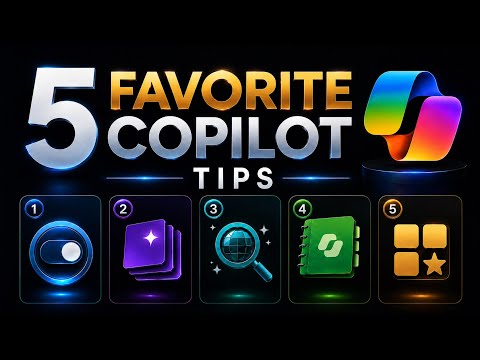
In a concise tutorial video, author Mike Tholfsen walks viewers through five practical ways to get more done with Microsoft Copilot. The clip focuses on real-world actions: switching Copilot modes, working with Copilot Pages, using Researcher, exploring Copilot Notebooks, and tapping the Prompt Gallery. Throughout, Mike frames these tips as personal techniques rather than official guidance, and he notes the video reflects his own experience and preferences. As a result, the piece is useful for both new users and those who already use Copilot daily.
Mode Switcher and Copilot Pages
First, the video highlights the Mode switcher, which allows users to change how Copilot responds depending on the task. For example, switching to a concise or creative mode can speed up drafting or generate new ideas, while a more analytical mode helps with detailed summaries. Next, Mike shows Copilot Pages, a central surface that brings together prompts, files, and outputs in a single workspace so users keep context while they iterate. Together these features can reduce context switching, but they also require users to learn where to find modes and how to shape prompts so outputs match their needs.
Researcher and Copilot Notebooks
The video then covers Researcher, a tool for gathering and summarizing source material, which can save time when preparing reports or presentations. Mike demonstrates how Researcher pulls together relevant items and creates concise summaries, though he also warns that users should verify facts and citations to avoid accidental errors. He follows that with Copilot Notebooks, which let users build longer, iterative workflows—combining notes, computations, and step-by-step prompts in one place. While Notebooks support deeper exploration and experimentation, they take time to set up and may require careful handling of sensitive data depending on organizational rules.
Prompt Gallery and Scheduled Prompts
Another focus is the Prompt Gallery, where templates and example prompts help jump-start common tasks without writing prompts from scratch. This speeds up work for standard activities, yet it can encourage generic outputs unless prompts are adjusted for specific context. Mike also shows how to create scheduled prompts so Copilot runs routine checks and summaries automatically at set times, turning Copilot into a proactive assistant. However, scheduled automation demands upkeep; prompts can drift from reality as priorities and team structures change, so regular review keeps results relevant.
Personalization: Custom Instructions and Memory
Importantly, the tutorial emphasizes personalization through Custom Instructions and memory-like settings that teach Copilot how you work and what you value. By adding role details, preferred tone, and key constraints, users can cut down on rework and get higher-quality first drafts. On the other hand, personalization raises tradeoffs around privacy and accuracy because stored preferences may need periodic updates and careful governance for shared or regulated environments. Therefore, teams should balance personalization gains with clear policies for what Copilot can access and retain.
Adoption Challenges and Tradeoffs
As Mike demonstrates each feature, the broader tradeoffs become clear: automation increases speed but requires human oversight to maintain trust and accuracy. Organizations must weigh convenience against governance, since Copilot's access to documents and communications may conflict with data controls or compliance rules. Training is another cost; users gain value quickly when they learn how to craft effective prompts, but that learning curve can slow early adoption. For most teams, a phased approach—starting with a few high-impact prompts, monitoring outputs, and refining policies—strikes a sensible balance between productivity gains and risk management.
Conclusion
Overall, Mike Tholfsen's video offers a practical tour of five Copilot techniques that can streamline routine work and support deeper projects, and he presents sensible ways to apply these tools in everyday workflows. While the tips promise time savings and better focus, they also require active curation, governance, and training to avoid stale or risky outputs. For readers considering Copilot, the clear takeaway is to experiment deliberately, measure benefits, and maintain oversight so automation improves work without sacrificing accuracy or compliance. Finally, remember that the insights in the video reflect the author's personal view rather than an official stance from any vendor.