- All of Microsoft
- Microsoft 365
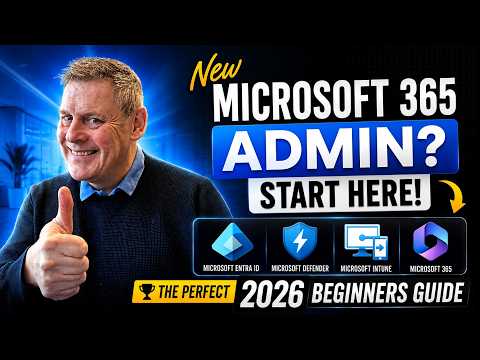
Microsoft 365 Admin: 2026 Quick Start
Microsoft 365 Expert, Author, YouTuber, Speaker & Senior Technology Instructor (MCT)
Microsoft expert: Microsoft three sixty five admin essentials licenses portals users groups roles deployment security
Key insights
- Microsoft 365 admin center: the central web dashboard for managing users, licenses, security settings, billing, and access to service-specific admin centers like Exchange, Teams, SharePoint, and Microsoft Entra.
Use it as your main starting point instead of jumping between separate tools. - Licenses & plans: pick a plan that matches your organization’s size and features, assign licenses when you create users, and run regular audits to remove unused licenses and cut costs.
License optimization reduces waste and keeps billing predictable. - Users, groups & templates: create and manage user accounts, set a user’s data location, and use user templates to speed provisioning.
Understand the difference between Microsoft 365 groups, security groups, and distribution lists, and manage collaboration groups from Outlook when needed. - Roles & access (RBAC): follow least-privilege principles by assigning built-in or custom admin roles instead of Global Admin where possible.
Use role-based access control to delegate tasks to HR, billing, or IT without overexposing admin privileges. - Security & identity: enable MFA and security defaults, sync identity with Microsoft Entra, and apply built-in data protection and compliance tools.
Monitor the Message Center and service health weekly and treat AI features like Copilot as helpful but supervised tools. - Deployment, monitoring & support: deploy Office apps via the admin center or Endpoint Manager, track service health and activity reports, and perform regular license and usage reviews.
Use Microsoft documentation and support channels when you need guided help or to escalate issues.
Andy Malone [MVP] released a practical YouTube video that serves as a 2026 beginner’s guide to administering Microsoft 365. In the clip, he walks viewers through the essentials, including license choices, navigating admin portals, creating users and groups, and the basics of security and software deployment. The video is aimed at people new to the platform or those returning after long gaps, and it emphasizes current priorities for administrators in 2026. Overall, the presentation is practical and focused on real-world admin tasks.
Video overview and structure
Malone organizes the video with clear timecodes that map to core tasks, which helps beginners jump to specific topics like setting up a domain or exploring the various admin centers. He frames the session around the Microsoft 365 admin center and then branches into service-specific consoles such as Exchange, Teams, SharePoint, and Microsoft Entra. Consequently, viewers can see how the central dashboard ties into deeper, service-level controls. This structure makes the video easy to follow and useful as a quick reference.
Moreover, Malone balances step-by-step demonstrations with conceptual explanations, which helps beginners understand why certain actions matter. For example, he pairs the setup of users and licenses with a short discussion about billing and license optimization. As a result, viewers get both procedural know-how and practical context. This two-track approach supports learning and reduces the chance administrators will miss tradeoffs between convenience and cost.
Getting started: licenses, portals, and setup
Malone begins by explaining how to choose the right Microsoft 365 plan and how licenses affect available features. He highlights the difference between business and enterprise plans and explains where to manage subscriptions and invoices within the admin interface. Therefore, new admins can quickly map business needs to licensing choices and avoid common mismatches. This focus also stresses the importance of reviewing licenses regularly to cut waste.
Next, he covers the initial portal navigation and the recommended setup steps, such as adding a custom domain and installing Office apps. He shows how central tasks are accessible from the dashboard while deeper settings live in service-specific admin centers. Thus, beginners learn where to go for day-to-day tasks and where to dive deeper when they need advanced options. This helps prevent confusion that arises from jumping between consoles without a clear plan.
Identity, roles, and security tradeoffs
A key theme in the video is role-based access control and the move toward least-privilege administration. Malone explains the benefits of using granular admin roles so teams only get the permissions they need. However, he also points out that creating many custom roles increases management overhead and can complicate audits. Therefore, administrators must balance precise access control with the need to keep role definitions simple and maintainable.
Security defaults and identity sync are another focus, including guidance on tying on-premises identity systems to the cloud. Malone walks through setting data locations and syncing identities, and he emphasizes regular checks of the Message Center and service health. Meanwhile, he flags AI-related features like Copilot as new areas that require policy thinking and oversight. Administrators must weigh the productivity gains of AI against privacy and compliance requirements.
Managing users, groups, and deployments
The video demonstrates efficient workflows for adding users, applying templates, and managing groups across Microsoft 365. Malone explains differences between Microsoft 365 groups, security groups, and distribution lists and shows how to use each in common scenarios. Consequently, admins learn to match group types to collaboration and access needs, which reduces misconfiguration and confusion. He also covers using templates to speed onboarding, while noting templates require maintenance as needs change.
For software deployment, Malone shows straightforward ways to deliver Office apps and updates through the admin tools. He contrasts centralized deployment with self-service installation, highlighting that centralized control simplifies compliance while self-service can reduce helpdesk load. Therefore, organizations should choose a model that balances governance with user autonomy. Malone’s examples clarify the operational tradeoffs involved in each approach.
Challenges, tradeoffs, and practical next steps
Finally, Malone closes with a realistic view of ongoing admin work: monitoring service health, auditing licenses, and reviewing security settings. He encourages weekly checks of the Message Center and periodic license audits to prevent surprises and unneeded costs. However, he acknowledges that small teams may struggle to do all these tasks frequently, and suggests prioritizing the highest-impact checks first. This practical advice helps teams focus scarce resources where they matter most.
In conclusion, the video offers a clear and balanced primer for new Microsoft 365 administrators in 2026, combining hands-on steps with strategic guidance. It explains core tools and tradeoffs without assuming deep prior knowledge, and it points admins toward sensible routines for security and cost control. For editorial purposes, the clip is a solid starting point for readers who need a roadmap to begin managing Microsoft 365 effectively.
https://hubsite365cdn001img.azureedge.net/SiteAssets/TopicImages/marvin-meyer-SYTO3xs06fU-unsplash.jpgKeywords
Microsoft 365 admin guide 2026, Microsoft 365 admin beginner guide, Microsoft 365 admin center tutorial, M365 admin tutorial for beginners, Microsoft 365 setup for admins 2026, Microsoft 365 admin roles and permissions, Microsoft 365 admin tips and best practices, Microsoft 365 security for admins 2026