- All of Microsoft
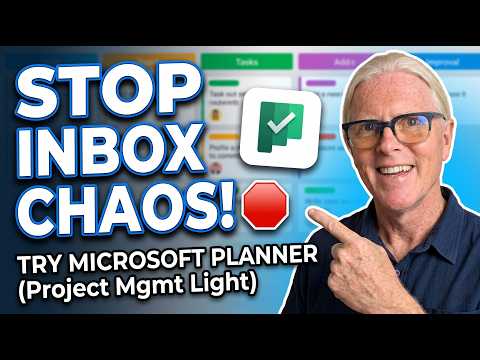
Microsoft Planner: Grid, Board, Calendar
Simplify team tasks with Microsoft Planner board grid calendar buckets clear owners syncing to Teams To Do SharePoint
Key insights
- Microsoft Planner: a built-in task management tool inside Microsoft 365 that helps small teams stay organized and visible. It shows the same tasks across all views so you avoid double entry, but it is not a replacement for advanced project-management software.
- Grid View: a table-like view for fast reviews and bulk edits. See title, status, owner, start/due dates, priority, bucket, labels and progress in one place, and edit many tasks without opening each one.
- Board View: a Kanban-style layout where you drag tasks between columns. Group by bucket, status, priority, owner or labels to visualize workflow, spot bottlenecks and run sprints or standups.
- Calendar/Schedule View: shows tasks by date and helps plan deadlines. Dates edited in one view update everywhere, so moving a due date in Grid instantly appears in the Calendar.
- Buckets and Labels plus Assign ownership: use buckets and labels to organize work and assign clear owners to create accountability. Regularly check for unassigned tasks or missing due dates to avoid gaps.
- Integrations and Limitations: Planner links into Microsoft Teams, Outlook and To Do so you can track tasks where you work. It lacks some advanced project features and certain views (like Timeline or Goals) may need higher licenses, so use Planner for lightweight team work rather than complex projects.
Video summary and context
The YouTube video from Microsoft 365 In Practice explains how teams can manage work inside Microsoft Planner using its main views: Grid, Board, and Calendar. The author frames Planner as a built-in task tool for small teams that need visible, accountable workflows without heavy project software. As a result, the video targets teams moving away from email and spreadsheets toward a more structured approach to everyday tasks.
The presenter demonstrates practical steps such as creating tasks, using buckets and labels, and assigning ownership, and then shows how changes in one view update all others. He also points out common frustrations and when Planner reaches its limits, helping viewers judge whether it fits their needs. Overall, the video aims to help teams adopt Planner effectively while avoiding traps that cause wasted effort.
Grid view: structured task management
According to the video, the Grid View is a tabular layout suited for detailed task editing and bulk updates. Users can edit titles, dates, owners, priorities, buckets, and labels directly in the table, which speeds up administrative work and helps spot missing information. Consequently, the Grid View works well for teams that focus on data completeness and rapid updates rather than visual movement of tasks.
However, the video balances praise with caution: the Grid View can feel dense and overwhelming for teams that rely on visual flow. While it simplifies mass edits, it does not convey process bottlenecks as clearly as a kanban-style board. Therefore, teams should weigh whether they prioritize quick maintenance and auditing or a visual sense of progress when choosing this view as their primary workspace.
Board view: visual workflows and limits
The presenter highlights the Board View for teams that want a visual representation of work in progress, comparing it to a classic kanban board. Tasks appear in columns that can represent buckets, status, or other groupings, and teams drag items between columns to reflect changes. This makes the Board View strong for agile teams, sprint planning, and status meetings because it reveals bottlenecks and next-action gaps quickly.
Yet the video also points out tradeoffs: the Board View emphasizes movement and context but can obscure detailed metadata that the Grid View shows at a glance. Customizations such as additional column types or more complex workflows require creative use of buckets and labels, and some advanced visualizations are only available in premium plans. Thus, teams must decide whether the clarity of a board outweighs the need for richer task data and reporting.
Calendar (Schedule) view: planning by time
The tutorial covers the Calendar or Schedule view as the go-to option for time-based planning, showing tasks by start and due dates. This view helps teams align work with timelines and spot upcoming deadlines, which supports planning and resource balancing. When used alongside Grid and Board, the Calendar view offers a temporal perspective that complements status and data-focused views.
Despite its usefulness, the video warns that Calendar view has constraints: it depends entirely on accurate date fields and can become cluttered when many tasks share dates. It also does not replace full-featured timeline or Gantt tools found in advanced project software, which provide dependencies and detailed sequencing. Therefore, teams with complex schedules and task dependencies should treat Planner’s calendar as a helpful visual aid rather than a project-planning substitute.
Integrations, practical tradeoffs, and common frustrations
The author stresses that Planner integrates with Teams, Outlook, and Microsoft To Do, allowing tasks to flow across interfaces and reducing duplication. This integration supports everyday work by keeping tasks visible where people already communicate, which increases adoption and reduces friction. However, the video also notes licensing differences: advanced views like Timeline or Goals may require premium plans, which affects feature availability across organizations.
Common frustrations in the video include limited reporting, rough handling of large plans, and challenges when teams try to use Planner as a full project management system. The presenter recommends using Planner for operational and team-level task management, while relying on dedicated project tools for complex schedules, dependencies, and advanced resource planning. Consequently, organizations should map needs to tools carefully rather than forcing a single product to cover all cases.
In conclusion, the video by Microsoft 365 In Practice offers a practical walkthrough that helps teams choose the right view and avoid missteps. It balances clear how-to guidance with honest considerations about tradeoffs and limitations, giving teams the context to decide whether Planner meets their goals. For many small teams, the result will be a meaningful upgrade from email and spreadsheets, provided they accept the tool’s boundaries and design their process around its strengths.

Keywords
Microsoft Planner views, Planner grid view, Planner board view, Planner calendar view, Microsoft Planner tutorial, Planner task management tips, Planner views explained, Microsoft 365 Planner guide