- All of Microsoft
Claude Skills: No-Repeat AI Assistant
Make Claude Skills persist tone, repurpose content, automate tasks; mirror workflows in Copilot & Power Automate
Key insights
- Claude Skills: A reusable, self-contained AI workflow defined by a SKILL.md file that stores step-by-step instructions, rules, and references.
It lets you stop repeating prompts and run consistent tasks every time. - Skill Creator: Use the built-in Skill Creator to draft, test, and refine skills with a simple conversation-based interface.
Test thoroughly in the platform, review results, and adjust rules or steps until outputs match your needs. - Capability skills vs Workflow skills: Capability skills provide focused abilities (like summarization), while Workflow skills chain multiple steps into an end-to-end process (like content repurposing).
Choose the type that matches the task complexity and reuse needs. - Connectors and integrations: Skills can connect to local files, email, APIs, and other data sources so the assistant can read real files and act on live data.
This enables practical automation such as generating replies from a rate sheet or turning subtitles into blog posts. - Automation and scheduling: You can run skills on demand or schedule them to run automatically for recurring jobs like reports or content pipelines.
Scheduling and department-level organization help scale repeated tasks across teams without manual input. - Best practices and use cases: Start small, add clear rules and references in the SKILL.md, and iterate after testing; share proven skills across teams for consistency.
Common use cases include content repurposing, automated client replies, and regular report generation.
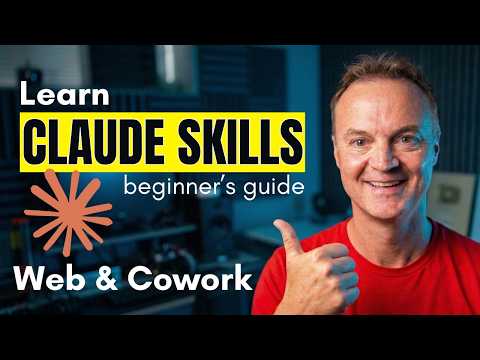
Teacher's Tech published a clear, hands-on YouTube tutorial that walks viewers through building repeatable AI workflows with Claude Skills. In the video, the presenter demonstrates how to create, test, and refine skills on both the web and the desktop app, while explaining practical differences between skill types. Consequently, this report summarizes those demonstrations and highlights strengths, tradeoffs, and challenges that Teams should consider before adopting the approach.
What the Video Demonstrates
First, the video defines a skill as a persistent instruction set that Claude can follow every time a task runs. Then, the presenter uses the Skill Creator to generate skills through a guided conversation, showing how simple prompts become structured workflows. Moreover, the tutorial moves to the desktop app, where Claude can access local files and run more powerful automations in real-world scenarios.
Next, the video includes two full builds that illustrate different use cases: a content repurposer and a pricing reply assistant. Specifically, the content repurposer converts YouTube subtitle files into blog posts, social threads, and newsletters, while the pricing skill reads a rate sheet PDF and drafts client replies. In addition, the presenter shows how to connect Gmail so Claude can read messages and draft responses, and how to schedule tasks to run automatically.
How Claude Skills Work
At the core of the approach is an open, file-based format — commonly represented by a SKILL.md file — which stores steps, rules, and reference documents for a task. Consequently, Claude reads that file to apply a fixed process rather than relying on ad-hoc prompts, which reduces repetition and improves consistency. Furthermore, the video explains how skills can include connectors that link to external data sources so workflows can use live information when needed.
Testing and refinement are important parts of the workflow, and the presenter demonstrates live tests, edits, and re-evaluations to tune output quality. Therefore, teams should expect an iterative phase before skills are reliable enough for production use. In contrast to one-off prompts, these refined skills scale more predictably across repeated runs and different users within an organization.
Practical Demonstrations and Use Cases
The content repurposer is a practical example that shows how a skill can automate routine creative work without losing control over tone or formatting. The video walks through feeding subtitle files into the skill and then generating a blog draft, a short thread, and an email-ready newsletter segment, which demonstrates the skill’s flexibility. As a result, content Teams could save time while preserving consistent brand voice across formats.
Meanwhile, the pricing reply skill highlights a very different use case: document-aware client communication. By ingesting a rate-sheet PDF, the skill drafts professional responses to common pricing questions, and the presenter demonstrates connecting Gmail so replies are drafted directly inside the inbox. However, this capability raises important questions about data access and permission control, which the video notes as considerations when enabling connectors.
Tradeoffs and Challenges
Although skills offer automation and scale, they introduce tradeoffs between convenience and control. For example, scheduling tasks and giving access to local files or email improves productivity, but it also increases the surface area for data exposure if permissions are not carefully managed. Therefore, teams must weigh how much automation they want against the governance policies they can enforce.
Another challenge involves maintenance and robustness. Skills that depend on external connectors or evolving documents require ongoing updates and tests to avoid drift and broken automations. Moreover, while the open format encourages portability, differing implementations across platforms can still cause subtle incompatibilities, so organizations should plan for periodic validation and version control.
Finally, there is a learning curve for building effective skills that balance specificity with flexibility. If a skill is too rigid, it may fail on edge cases; conversely, if it is too permissive, it might produce inconsistent results. Thus, iterative testing, clear rule definitions, and conservative permissions form the best practice for deploying skills reliably.
Takeaways for Teams and Creators
In short, Teacher's Tech offers a pragmatic introduction to building repeatable AI assistants with Claude Co-work and web-based Claude tools. The video emphasizes an iterative approach: create a SKILL.md-style workflow, test it in the interface, refine the rules, and then schedule or connect it to live data sources. Consequently, Teams can gain efficiency while retaining oversight if they adopt careful testing and permission controls.
Ultimately, the tutorial shows that Claude Skills can reduce repetitive work and standardize outputs across teams, yet they require disciplined governance and maintenance to remain safe and reliable. Therefore, organizations experimenting with this model should start small, document expected behaviors, and monitor execution before scaling across departments. In this way, the balance between automation and control becomes achievable and sustainable.

Keywords
Claude Skills tutorial, build AI assistant with Claude, Claude AI assistant guide, never repeat prompts technique, prompt automation for Claude, create custom Claude skills, AI assistant development tutorial, improve productivity with Claude