- All of Microsoft
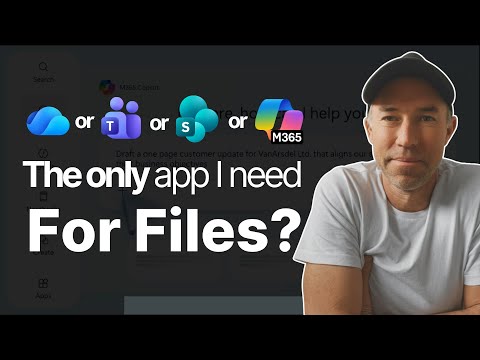
OneDrive: The File Hub You Need Now
A Microsoft MVP 𝗁𝖾𝗅𝗉𝗂𝗇𝗀 develop careers, scale and 𝗀𝗋𝗈𝗐 businesses 𝖻𝗒 𝖾𝗆𝗉𝗈𝗐𝖾𝗋𝗂𝗇𝗀 everyone 𝗍𝗈 𝖺𝖼𝗁𝗂𝖾𝗏𝖾 𝗆𝗈𝗋𝖾 𝗐𝗂𝗍𝗁 𝖬𝗂𝖼𝗋𝗈𝗌𝗈𝖿𝗍 𝟥𝟨𝟧
OneDrive for Business is your file hub for personal, shared, Teams and SharePoint files with Copilot and shortcuts
Key insights
- OneDrive as central hub
OneDrive for Business gathers your personal files, files shared with you, Teams content, and SharePoint libraries in one place.
This central view reduces app switching and speeds up finding documents across Microsoft 365. - Shared tab
The Shared tab separates "shared with you" and "shared by you" so you can find shared links without searching email.
Use filters by person, file type, and recent activity to locate items fast. - Shortcuts vs Sync
Use "Add shortcut to OneDrive" to surface SharePoint or Teams libraries on every device without downloading everything.
Sync downloads files to a single PC and uses local space, while shortcuts follow you across devices and keep files cloud-first. - Copilot integration
Copilot lives inside OneDrive to summarize documents, answer questions, and extract insights from files and meeting recordings without opening them.
Use it to create quick summaries, FAQs, or highlights that speed review and collaboration. - Sync, backup and UI updates
PC Folder Backup (Known Folder Move) now gives clearer choices about keeping files in OneDrive or moving them back locally.
Sync improvements include support for removable macOS volumes, clearer status in File Explorer, and a dedicated OneDrive app for Windows 11 with a modern interface. - Security and account controls
Microsoft will move unlicensed OneDrive accounts to read-only and later archive or delete them, so admins should track licenses and retention rules.
Hybrid device prompts let users add personal and corporate accounts, which improves workflows but requires tenant policies to prevent unintended data exposure.
Overview
The YouTube video by Daniel Anderson [MVP], titled OneDrive: The File Hub You Never Knew You Needed, presents a practical walkthrough of using OneDrive for Business as a central place to manage files in Microsoft 365. Anderson demonstrates how the service surfaces personal files, shared documents, and libraries from Teams and SharePoint, so users stop switching apps to find what they need. Consequently, the video aims to simplify common file management problems and to show how to speed up daily workflows across devices. Overall, the presentation combines hands-on demos with clear tips for organizing and accessing documents more efficiently.
Core Features Demonstrated
Anderson guides viewers through the OneDrive homepage, explaining navigation patterns such as the recent files view and the Shared tab that separates files shared with you from those you shared. He also highlights filtering by type, name, or person, and shows how creating and uploading documents directly into OneDrive keeps work saved in one place. Moreover, the video walks through adding shortcuts to Teams and SharePoint libraries, which places those libraries inside your personal Files view and reduces the need to open multiple apps. This practical approach helps viewers see how small actions can reduce time wasted looking for links or documents scattered in different locations.
In addition, Anderson points out features like quick access pinning and multiple view types that can improve visibility for frequent workspaces. He contrasts the behavior of shortcuts versus full sync, noting that shortcuts follow a user across devices while sync ties data to a single machine. Therefore, the choice between shortcuts and syncing matters for mobility and local storage use. As a result, the video frames the decision as one of convenience versus offline access needs, inviting viewers to tailor their setup to their work style.
Copilot and AI Integration
The video also demonstrates how Copilot integrates with OneDrive, allowing users to summarize documents, extract insights, and ask questions about file content without opening each file. Anderson shows that Copilot can run from a context menu in OneDrive, which can speed up tasks like preparing meeting notes or generating quick summaries for busy teams. Furthermore, he highlights how Copilot handles different file types, including PDFs and presentations, which makes on-demand AI assistance broadly useful. Consequently, this feature reduces friction when extracting information and supports faster decision-making based on file contents.
However, the video also implies tradeoffs when using AI tools on sensitive files, suggesting that organizations should balance convenience with governance and privacy needs. Administrators will need to consider licensing, data access controls, and where AI processing occurs in order to limit exposure of confidential data. In particular, companies should review tenant settings and policies that govern AI interactions with corporate content. Thus, while Copilot adds clear productivity benefits, it raises important considerations for compliance and risk management.
Syncing, Shortcuts, and Access Methods
Anderson explains the practical differences between syncing libraries and adding shortcuts, showing that shortcuts appear on every device where the user accesses OneDrive, whereas syncing downloads content to a specific computer for offline use. He also demonstrates the updated PC Folder Backup controls and how the OneDrive client surface displays sync status and quota information, making it easier to manage local storage. Moreover, he covers how the Shared tab removes the chore of searching inboxes for shared links by collecting shared items in one place. These demonstrations emphasize that thoughtful setup can reduce duplication and confusion across Teams, SharePoint, and personal folders.
At the same time, the video addresses practical challenges such as sync conflicts, bandwidth use, and the need to teach users when to rely on cloud-first access versus local copies. For example, rapid collaboration on large files can generate version conflicts if users rely on local copies without syncing changes promptly. Therefore, administrators should design guidance about when to use shortcuts, when to enable selective sync, and how to pin frequently used libraries to Quick Access. By balancing storage, access speed, and offline needs, teams can adopt a stable pattern that matches their operational realities.
Tradeoffs, Challenges, and Bottom Line
Ultimately, Anderson frames OneDrive as a unified command center for file access across the Microsoft 365 ecosystem, but he also makes clear that adopting it widely requires attention to tradeoffs. For example, while shortcuts improve cross-device access, they rely on good network performance and consistent permission management; meanwhile, syncing improves offline resilience but consumes local disk space and can complicate device management. Administrators must also consider account lifecycle changes, such as moving unlicensed accounts to read-only, and the implications for data retention and compliance.
In conclusion, the video offers a useful, hands-on guide for anyone who wants to reduce the friction of working with files in Microsoft 365, and it points to both practical wins and governance questions that organizations should address. By explaining features, demonstrating workflows, and highlighting potential pitfalls, Daniel Anderson [MVP] helps viewers make informed choices about using OneDrive as their primary file hub. Consequently, teams that pair clear user guidance with appropriate admin controls can gain real productivity benefits while managing the associated risks.

Keywords
OneDrive tips and tricks, OneDrive cloud storage, How to use OneDrive, OneDrive sync issues fix, OneDrive backup and restore, OneDrive for Business features, OneDrive file sharing and collaboration, Secure OneDrive storage