- All of Microsoft
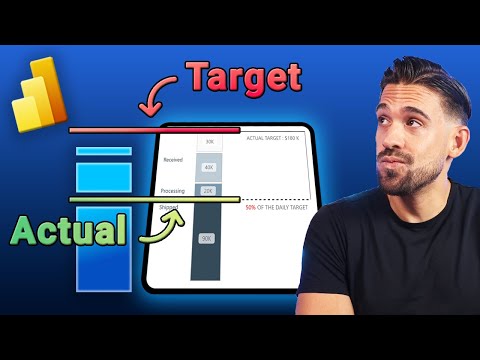
Power BI: Build a KPI Progress Chart
Microsoft Power BI expert guide to building Where are we charts, fast report launches with Power BI Desktop and DAX
Key insights
- Where Are We? chart — A compact Power BI dashboard that gives executives an instant status view of projects, KPIs, or operations.
Use a single page to show current values, trends, and clear color cues so leaders can answer “where are we?” at a glance. - Interactivity & Visio-Power BI integration — Embed Visio diagrams or shape maps to make visuals clickable and filter related data in real time.
On-object interaction lets users click or drag shapes to explore details without leaving the chart. - Data ingestion & Power Query — Pull data from Excel, databases, or APIs and clean it with Power Query before modeling.
Keep source tables tidy and document transformations to make the chart reliable and easy to update. - Modeling & DAX — Build a clear semantic model, create measures with DAX, and use simple filters and hierarchies for fast slicing.
Consider tools like TMDL or visual calculations to reduce overly complex measures and speed maintenance. - Automation & alerts — Add threshold-based alerts or lightweight agents to send updates when KPIs move out of range.
Automate refreshes and schedule exports to keep stakeholders informed with minimal manual work. - Design best practices — Prioritize readability: use clear labels, consistent colors, and one primary question per view.
Test with end users, keep visuals focused, and provide easy export or share options so decision makers can act quickly.
The YouTube video by How to Power BI walks viewers through creating a concise status visual designed to answer the executive question, "Where are we?" The presenter demonstrates how to build a dynamic chart in Power BI that summarizes progress, highlights issues, and supports quick decisions. Consequently, the video emphasizes a practical, step-by-step approach so teams can replicate the visual and adapt it to their own data. Overall, the presentation balances visual design with data modeling to deliver an actionable dashboard for managers.
What the Video Demonstrates
First, the presenter frames the problem as a common executive need: an at-a-glance view of current state across projects or business areas. Then, he shows how to collect and shape data using Power Query so that dates, statuses, and measures align for clear comparison. Next, the video covers visual choices, demonstrating a chart layout that supports direct interaction and fast interpretation. Finally, the author explains how to embed contextual elements so that clicking a visual filters related metrics across the report.
Building the "Where Are We?" Chart
To start building the chart, the video walks through importing sample data, cleaning fields, and creating calculated measures with DAX. The presenter then models relationships to ensure timely aggregation and shows how a small set of well-defined measures can replace dozens of ad-hoc columns. He also highlights the role of layout and color to call attention to exceptions rather than overwhelm viewers with detail. As a result, the report stays concise while remaining interactive.
In addition, the video showcases integration possibilities such as embedding diagram elements that filter other visuals, which improves situational awareness. For instance, embedding a floor or process diagram lets users click an area to see corresponding KPIs, enabling rapid root-cause exploration. However, the presenter cautions that richer interactions require thoughtful design to avoid confusing end users. Therefore, the recommended approach focuses on progressive disclosure: start simple, then add interactivity as users become more comfortable.
Benefits and Tradeoffs
Using a targeted "Where Are We?" chart speeds decision-making because executives can grasp status at a glance, which reduces meeting time and follow-up questions. Moreover, interactive filtering and live visuals promote a data-driven culture by making answers directly accessible rather than buried in spreadsheets. On the other hand, these advantages come with tradeoffs: adding live connections, advanced interactions, or embedded diagrams increases complexity and can hurt performance if not optimized. Consequently, teams must weigh immediacy against maintainability and test visuals with real users before broad rollout.
Another tradeoff involves the balance between automation and control: automating alerts and agent-based updates ensures timely information, yet it can create noise if thresholds trigger too often. Similarly, live data feeds support real-time awareness but can introduce latency and scaling issues when many users access large datasets. Thus, the video suggests setting sensible refresh policies and limiters, which preserve responsiveness while still delivering current insight. In short, the most effective implementations prioritize clarity and reliability over flashy features.
Implementation Challenges
Practical challenges emerge around data quality and semantic modeling, since inconsistent fields or missing dates can distort status indicators. Therefore, the presenter emphasizes robust cleaning steps and well-documented measures so that report owners can update logic without breaking visuals. Additionally, managing permissions and data security becomes crucial when reports surface sensitive operational metrics across departments. As a result, governance practices such as row-level security and clear ownership responsibilities remain essential components of any production rollout.
Performance is another common hurdle, particularly when visual interactions depend on large, live datasets or complex calculations. To mitigate this, the video recommends simplifying measures where possible, leveraging aggregations, and applying incremental refresh strategies. Furthermore, designers should avoid visual clutter and limit cross-filtering complexity so that report actions remain fast and intuitive. Together, these steps help preserve a smooth user experience while scaling reports to more users or larger datasets.
Getting Started and Practical Tips
For teams ready to adopt the approach, the author suggests starting with a single, high-value use case and building a minimal viable chart that answers one clear question. Next, gather feedback from the intended audience and iterate, because small adjustments to wording, color, or thresholds often make massive usability gains. Also, document key measures and transformation steps so colleagues can maintain and extend the model without reverse-engineering logic. Ultimately, a clear development process accelerates adoption and reduces the chance of misunderstanding.
Finally, prioritize training and handoffs: empower report consumers with a short walkthrough and simple actions they can take, such as how to drill into a problem or export a filtered view. Although advanced features add capability, they succeed only when users understand their purpose and limitations. Therefore, invest time in change management and clear guidance to ensure the "Where Are We?" chart becomes a trusted decision tool rather than another report that sits unused.
Conclusion
The video by How to Power BI provides a pragmatic blueprint for creating a compact, interactive status chart that answers "Where are we?" while acknowledging real-world tradeoffs. It balances design, data preparation, and performance considerations so that teams can move from prototype to production with fewer surprises. Consequently, organizations that follow the methods can improve executive clarity and reduce time spent on status updates, while remaining mindful of governance and scalability. Overall, the approach favors simplicity first, then layers in interaction and automation as confidence grows.

Keywords
power bi progress chart, where are we power bi, build progress chart power bi, power bi project status dashboard, power bi percent complete measure, power bi timeline visualization, power bi milestone chart, power bi status tracking visual