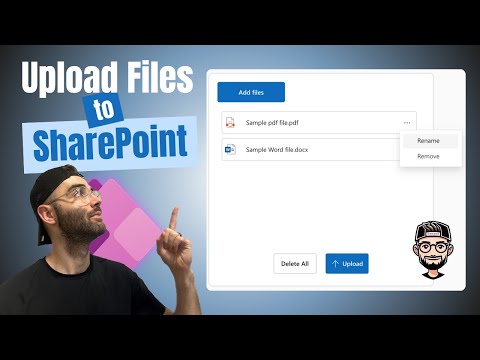
Power Apps: Upload Files to SharePoint
Microsoft pro: Upload from Power Apps to SharePoint with attachment popup rename metadata file icons via Power Automate
Key insights
- Power Apps
The video demonstrates a Canvas app approach for file uploads, using the SharePoint connector to link a chosen site and document library. It shows how to build a user-friendly upload interface and test app sharing with users who have edit rights. - SharePoint Document Library
The tutorial explains selecting the target library and using columns for metadata so files land in the right place. It highlights permission handling and recommends filtering to avoid delegation and performance issues. - Attachment Popup
The guide walks through creating an attachment popup component that accepts files, previews them, and triggers the upload sequence. This component centralizes upload logic and improves the user experience in a Canvas app. - Power Automate
The presenter uses a Power Automate flow to perform the actual file upload and to set metadata when needed. Flows help handle larger files, offload processing, and run post-upload steps like notifications or approvals. - File Type Icons
The tutorial shows how to display SharePoint-style file type icons in a gallery by mapping file extensions to icon images, which improves visual scanning of attachments. Adding icons helps users quickly identify document types in the app. - Metadata & Renaming
The video covers renaming files before upload and populating custom metadata fields so documents are searchable and organized on arrival. It also shows gallery actions to view, delete, and edit file properties after upload.
Overview of the Video
The video by The Analyst Nik explains how to upload files from a Canvas app to a SharePoint Document Library, step by step. It focuses on building an attachment popup component in Power Apps, covering creation, renaming, metadata, and display improvements. The tutorial mixes in practical tips and code snippets to help makers recreate the flow reliably within business apps.
Moreover, the video is clearly structured with timestamped sections that guide viewers through setup, component creation, gallery layout, and integration with automation. Each segment shows the live interface and formulas so viewers can follow along and test as they build. Consequently, the tutorial suits both newcomers and experienced makers who want a practical pattern to reuse.
Creating the Attachment Popup Component
Early in the video, The Analyst Nik demonstrates how to design a reusable attachment popup inside Power Apps that accepts multiple files and prepares them for upload. He shows how to wire UI controls to temporary collections and explains the formulas used to capture file content and metadata. This modular approach promotes reuse because the popup can be added to multiple screens without repeating logic.
While this pattern simplifies development, it introduces a few tradeoffs around complexity and state management. Specifically, storing temporary file bytes in app collections can increase memory use on mobile clients, and you must handle large file sizes carefully. Therefore, the video advises limiting in-app storage and delegating heavy lifting to server-side flows when possible.
Displaying Attachments with a Gallery
Next, the tutorial covers how to present uploaded files in a Gallery, including thumbnails and metadata fields so users can preview and validate uploads before final submission. The gallery uses local collections to show attachments immediately, which improves perceived performance by avoiding round-trips to SharePoint during the collection phase. This immediate feedback helps users catch mistakes early, such as wrong files or missing metadata.
However, local display must sync correctly with the final upload destination to prevent inconsistencies. The video shows patterns to reconcile the local collection with the cloud copy and offers sample checks to confirm upload success. As a result, developers can balance user experience and data consistency by combining instant previews with robust server-side verification.
Power Automate Integration and Tradeoffs
Power Automate plays a central role in the video, where it handles the actual file transfer to SharePoint, renaming logic, and metadata assignment. The flow receives file content and metadata from the app, creates items in the document library, and returns status updates so the app can reflect success or failure. Using a flow reduces client complexity and sidesteps some platform limits, such as the inability to patch large binary content directly from the canvas app.
On the other hand, relying on flows introduces latency and potential licensing considerations for high-volume scenarios. Flows can add per-run overhead, and error handling must account for transient failures or throttling from connectors. Therefore, the video emphasizes monitoring flows and adding retry logic to maintain reliability while being mindful of cost and performance tradeoffs.
Renaming, Metadata, and File Type Icons
The tutorial also explains how to implement renaming functionality so users can set meaningful filenames before upload and how to attach custom metadata fields during the same process. These features improve document management in SharePoint because searchable names and metadata enable better classification and retrieval later. The video includes formulas and flow steps that update the file properties upon creation.
In addition, The Analyst Nik demonstrates showing file type icons in the gallery to make the list of attachments easier to scan visually. He maps file extensions to icon assets so users immediately recognize document types, which improves usability especially when handling many files. Yet, mapping icons requires maintaining the extension-to-icon map and handling unknown types gracefully, so the video recommends fallback icons for edge cases.
Viewing, Editing, and Practical Recommendations
Finally, the video covers viewing, deleting, and editing properties of uploaded files from within the app, showing how to link gallery actions to flow calls for edits and deletes. It highlights permission considerations, noting that users need appropriate SharePoint rights and that apps should avoid exposing full library management if not necessary. As a result, the author suggests limiting permissions and using targeted flows to enforce security boundaries.
To summarize, the tutorial by The Analyst Nik offers a practical, end-to-end pattern for uploading files to a SharePoint document library from a Power Apps canvas app, blending client-side UX with server-side automation. While the approach balances immediacy and robustness, developers should weigh tradeoffs such as client memory, flow latency, and permission design before production rollout. Overall, the video is a useful reference for teams building document-centric business apps and includes actionable tips to handle common challenges.

Keywords
Power Apps file upload to SharePoint, Upload files to SharePoint Document Library, Power Apps SharePoint integration, Save attachments from Power Apps to SharePoint, Power Apps upload file control, Power Automate upload files to SharePoint, Canvas app upload to SharePoint, SharePoint document library Power Apps