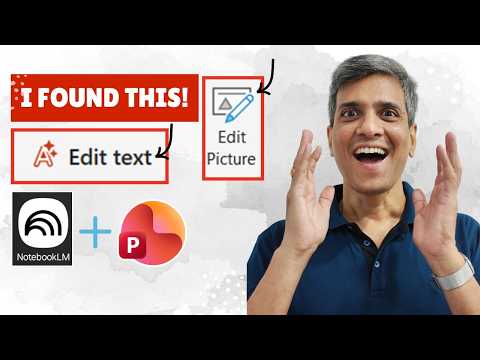
PowerPoint 365: Edit Notebook LM Slides
PowerPoint pro tip makes NotebookLM AI slides editable images, change backgrounds and icons to speed presentations
Key insights
- NotebookLM: The video shows Google's AI note tool now creates slide decks you can edit inside the app and export as editable PowerPoint (.pptx) files.
- PowerPoint 365: Exported decks open in PowerPoint as native, editable objects instead of flat images, so you can change fonts, layouts, and animations directly.
- Edit Text in Image: A hidden PowerPoint 365 feature lets you edit text inside images, swap backgrounds, and alter icons without rebuilding slides from scratch.
- PowerPoint export: Workflow is simple—generate slides in NotebookLM, revise in-app, export to .pptx, then refine in PowerPoint—no PDF conversions or extra tools needed.
- Streamlined workflow: This method saves time, reduces manual fixes, and supports hybrid teams by working with both PowerPoint and Google Slides.
- Advanced image editing: Use built-in PowerPoint tools to remove icons, add custom text, and polish visuals so outputs stay clean and on-brand.
Overview: A Practical Shortcut Revealed
The YouTube video from Presentation Process YouTube demonstrates a little-known feature in PowerPoint 365 that changes how users handle slides generated by AI tools like NotebookLM. The presenters show how to edit text embedded inside images, swap backgrounds, and remove or modify icons without rebuilding slides from scratch. As a result, what used to be a time-consuming manual cleanup becomes a faster, more integrated workflow. Consequently, the technique promises savings for teachers, consultants, and business presenters who rely on AI to produce initial slide decks.
How the Hidden Feature Works
First, the video walks viewers through the sequence: import an AI-generated slide image into PowerPoint, then use the built-in image editing capability to extract and edit text layers directly. Next, the presenters demonstrate changing background fills and selectively deleting or replacing icons while keeping the original layout intact. They also show how to add new text elements that match the slide’s existing style, which keeps consistency across a deck. Thus, the trick reduces the need to recreate slides and preserves the original visual intent from the AI output.
Furthermore, the hosts reference recent updates in NotebookLM that allow exports as editable PowerPoint files, which makes the trick even more useful when you start the process in Google’s AI environment. After exporting a deck as a native .pptx file, opening it in PowerPoint 365 reveals elements you can edit with the same image tools shown in the video. This two-step flow—generate and refine—creates a smoother bridge between AI content creation and professional presentation software. As a result, teams that use both platforms can collaborate more efficiently without extra conversion steps.
Practical Benefits for Everyday Users
The video emphasizes clear time savings, arguing that the method dramatically cuts down manual rework when dealing with image-based slides. In addition, the feature helps non-designers keep slides polished: you can change colors, adjust wording, and remove unwanted logos or icons quickly. For educators preparing lecture decks and consultants assembling client pitches, this means less repetitive formatting and more focus on content quality. Moreover, the presenters point out that maintaining visual consistency becomes easier by editing within the slide rather than overlaying new elements that may misalign.
Also, the approach supports iterative workflows: you can refine a few slides in PowerPoint after AI generation and then apply similar edits across the deck, which preserves branding and tone. Consequently, teams working under tight deadlines will find this especially helpful because it lets them lock in key design choices early and then propagate them. However, the video notes you should still review fonts and spacing after edits to avoid subtle mismatches. Therefore, while the benefit is clear, attention to detail remains important for a polished final result.
Tradeoffs and Technical Challenges
Despite its advantages, the method has tradeoffs that the video acknowledges. For instance, not every element in an image can be cleanly deconstructed; complex graphics or textured backgrounds may resist precise edits and require manual touch-ups. In addition, optical character recognition and reconstruction may introduce small errors in text spacing or font matching, which forces a final pass to ensure accuracy. Thus, editors must balance the time saved against the quality checks still required to meet professional standards.
Another challenge concerns compatibility and access: the feature shown depends on recent builds of PowerPoint 365 and may not appear in older installations or other presentation apps. Moreover, when slides originate from different AI tools and export paths, the import fidelity can vary, which affects how editable the resulting slides actually are. Consequently, organizations should confirm software versions and test the flow on representative slides before committing to it as their standard process. Finally, users should consider licensing and branding policies when removing or altering logos embedded in AI-generated content.
Tips for Reliable Use and Best Practices
The presenters recommend a few practical steps to make the workflow reliable: first, keep a copy of the original images so you can revert if reconstruction fails. Second, standardize fonts and color palettes in PowerPoint templates before you import AI decks to reduce post-edit work. Third, test the edit-and-export flow on a small sample deck to identify common issues such as font substitutions or spacing shifts. By following these steps, teams can adopt the trick while minimizing surprises.
Additionally, the video advises staying current with updates from both platforms, since improvements in NotebookLM exports and Office tools will likely expand capabilities. For advanced users, learning a few image-editing shortcuts inside PowerPoint accelerates cleanup and helps automate repetitive fixes. In short, the technique represents a helpful middle ground: it leverages AI to jumpstart content while relying on familiar Office tools to deliver a presentation-ready product.
Conclusion: A Useful Time-Saver with Some Limits
Overall, the Presentation Process YouTube video makes a persuasive case that this hidden PowerPoint 365 feature can transform how people work with AI-created slides. It combines speed with practical precision, but it also requires cautious review and up-to-date software to perform well. Therefore, teams should pilot the approach, weigh the productivity gains against any manual cleanup, and update their templates and practices accordingly. In the end, the trick offers a realistic way to bridge AI generation and professional presentation delivery without reinventing the wheel.
Keywords
PowerPoint 365 edit Notebook LM slides, edit Notebook LM in PowerPoint 365, Notebook LM PowerPoint integration, PowerPoint 365 secret trick, unlock Notebook LM slides in PowerPoint, direct edit Notebook LM slides, PowerPoint hidden feature for Notebook LM, edit AI notebook slides in PowerPoint