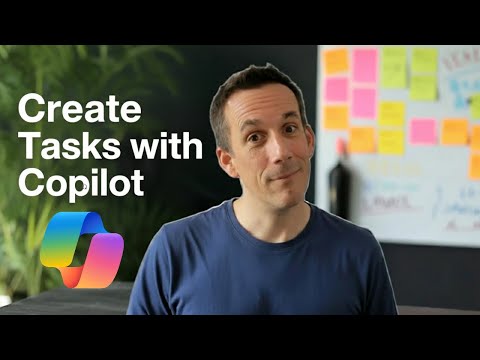
Microsoft Planner: AI Does My Tasks
Power Platform Cloud Solutions Architect @ Microsoft | Microsoft BizApps MVP 2023 | Power Platform | SharePoint | Teams
Create an AI task planner with Copilot Studio using Microsoft Planner and Power Platform to create list and update tasks
Key insights
- Custom Task Planner Agent with Microsoft 365 Copilot: an AI agent that understands natural requests, creates and lists Planner tasks, and updates due dates directly in Microsoft Planner.
Set up the agent in Copilot Studio, connect the Planner tool, then deploy it to your Microsoft 365 environment. - Key capabilities: create tasks from goals or uploaded files, list existing tasks, and update task details like due dates and assignments.
The agent also builds task dependencies and shows them in a timeline for clear sequencing. - Integration and workflow: the agent uses the Power Platform and Planner connectors to operate inside Microsoft 365 apps, and it can surface work in Teams, Whiteboard, Loop, and SharePoint for seamless collaboration.
This keeps project data consistent and editable across tools. - Deployment and testing: create the agent, add the Planner tool, test by creating, listing, and updating tasks, then enable the agent in Microsoft 365 Copilot for users.
Use iterative testing to refine prompts and task behavior before broad rollout. - Benefits: automates routine planning, speeds project kickoff, and produces status reports that improve transparency.
Early previews report notable efficiency gains from automated planning and task assignment. - Security and platform: the agent runs on the Multi-Agent Runtime Service (built on Autogen) and uses sandboxing to protect data; availability requires an appropriate Copilot license and is rolling out in preview phases.
Follow your organization’s compliance rules when enabling the agent.
Video Overview: What Damien Bird Demonstrates
In a recent YouTube demonstration, Damien Bird, a Power Platform Cloud Solution Architect at Microsoft, walks viewers through building a custom task planner agent that connects to Microsoft 365 Copilot. He explains how the agent can understand natural requests, create new tasks, list existing tasks, and update task due dates directly in Microsoft Planner. Accordingly, the video emphasizes practical steps and real-time testing so viewers can replicate the workflow. Overall, the presentation aims to show how AI and the Power Platform can streamline everyday task management.
First, Bird sets expectations by outlining the toolchain and the end goal: an agent that safely interacts with Planner data and fits into a typical Microsoft 365 workspace. Then he progresses to hands-on setup in Copilot Studio, showing each configuration screen and the inputs required to make the agent operational. Consequently, viewers get a clear sense of the sequence needed to move from concept to deployment. In short, the video is instructional and focused on practical outcomes.
Step-by-Step: Building the Planner Agent in Copilot Studio
Bird starts by creating a new agent in Copilot Studio, walking through the initial configuration and naming conventions that help later maintenance. Next, he adds a dedicated Planner tool and configures permissions so the agent can read and write tasks while respecting tenant controls. Then he demonstrates how to test creating tasks, showing the exact prompts and responses that validate the integration. Finally, he adds capabilities to list tasks and update due dates, confirming each action with live feedback.
Throughout the setup, Bird explains common pitfalls such as missing permissions or incorrect API endpoints and how to verify successful authentication. He advises careful naming and versioning so teams can track changes as the agent evolves. Therefore, the video serves as both a tutorial and a troubleshooting guide. As a result, viewers are better prepared to handle the essential configuration steps.
Features Demonstrated and Integration Points
The video highlights core capabilities: task creation from natural language requests, listing existing tasks, and updating task properties like due dates. In addition, Bird shows how the agent’s outputs appear in the Planner interface, making the changes visible to team members in context. He also references the broader ecosystem, explaining how the agent can be deployed into Microsoft 365 Copilot to surface functionality across apps. Thus, the demonstration connects individual features to their collaborative impact.
Moreover, Bird touches on how the approach leverages existing Microsoft services, while noting the role of a multi-agent architecture in more advanced scenarios. For example, separate agents can handle goal parsing, file analysis, or SharePoint integration to keep responsibilities modular. Consequently, modularity improves flexibility but also increases design complexity. Nevertheless, the integrations make it possible to turn ideas into coordinated tasks more quickly.
Tradeoffs and Practical Challenges
While automation removes repetitive work, Bird stresses a key tradeoff: increased automation can reduce direct human oversight unless teams set guardrails. For instance, automatically assigning tasks may speed workflows, but it can also misallocate ownership when role context is missing. Therefore, he recommends combining automated suggestions with explicit human review to balance speed and accuracy. In addition, maintaining transparency about what the agent does helps build user trust.
Security and permissions present another challenge, as the agent requires access to Planner data and must comply with tenant policies. Bird highlights the need to test permission scopes carefully and to monitor audit logs so organizations can detect misuse. Also, operational concerns such as API rate limits, error handling, and ongoing maintenance can arise as usage grows. Ultimately, teams should plan for governance, monitoring, and periodic updates to keep the agent reliable.
Implications for Teams and Next Steps
In conclusion, the video provides a practical blueprint for teams that want to add AI-assisted task management to their Microsoft 365 environment. Furthermore, Bird’s clear step-by-step approach reduces barriers to experimentation while flagging the governance and design issues organizations must consider. Consequently, teams can pilot a planner agent to save time on routine work without abandoning human judgment. Over time, measured adoption and iteration will reveal the true productivity gains.
For those interested in trying the approach, the natural next step is to replicate the demo in a controlled environment, validate permission models, and define a small set of use cases to automate. Then, as confidence grows, organizations can expand capabilities and consider multi-agent patterns where appropriate. In doing so, teams can benefit from faster task creation and clearer project visibility while managing the tradeoffs Bird carefully outlines.

Keywords
AI agent for Microsoft Planner, automate Microsoft Planner tasks, Microsoft Planner AI assistant, Planner task automation with AI, AI task manager for Microsoft Planner, Microsoft Planner automation tool, use AI with Microsoft Planner, boost productivity Microsoft Planner AI