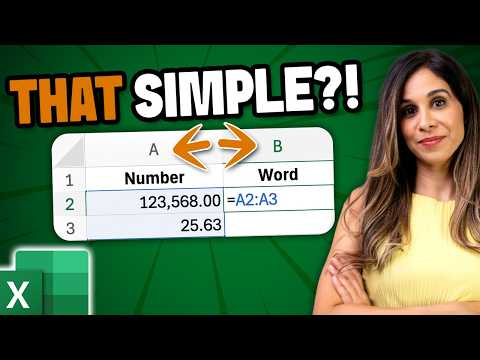
Excel Tip: Convert Words to Numbers Fast
Microsoft Excel COPILOT: convert numbers to words and back, extract prices from text, multilingual invoices, no VBA
Key insights
- Video summary: The video demonstrates a new Excel workflow that converts words to numbers and back inside a spreadsheet.
It shows practical use with the =COPILOT() function and standard formulas. - Primary uses: Create spelled-out amounts for invoices and checks, convert written numbers back to digits, and extract prices from messy comments or free-form text.
These steps streamline billing and data cleanup tasks. - What you’ll learn: Convert numbers to words, turn words to digits, return results in other languages and currencies, and pull numbers from text.
The video also covers writing clear prompts and using reference cells for accuracy. - How it works: Use Excel functions and formula logic or the new AI-assisted =COPILOT() helper.
Older methods relied on VBA or third-party add-ins, while current options favor no-code formulas and AI functions. - Key benefits: The approach is time-saving, reduces conversion errors, and makes number-word tasks accessible to non-programmers.
It also supports currency formatting and multilingual output. - Quick tips: For controlled text, use a reference table with VLOOKUP.
For flexible extraction or multilingual output, use prompt cells to guide COPILOT and test with sample data first.
Overview: A Practical Excel Shortcut from Leila Gharani
In a new YouTube tutorial, educator Leila Gharani [MVP] demonstrates a fast method to convert between words and numbers inside Excel. The video highlights how the new COPILOT() function and related techniques let users spell out amounts for invoices and then convert spelled-out numbers back into digits. Furthermore, Gharani shows how to extract prices from messy text and comments, and how to return results in different languages and currencies. As a result, routine tasks that once required macros or manual checks can now move much faster within spreadsheets.
How the Conversion Works in Practice
Gharani walks viewers through converting numbers to words without using VBA, explaining how simple formulas and the COPILOT() approach can automate that process. She then flips the example, turning spelled-out numbers back to numeric values so accountants and administrators can reconcile documents quickly. In addition, the tutorial covers pulling price values out of free-form text, which is useful when comments or imported notes contain embedded amounts. Consequently, these steps reduce manual copy-and-paste work and lower the chance of transcription errors.
Key Functions and Demonstrations
The video focuses on clear, repeatable techniques that non-programmers can use immediately in their spreadsheets. First, Gharani uses reference cells and explicit prompts to guide the conversions and to keep results consistent across rows. Next, she shows language and currency options so outputs can match regional formats, which is essential for international invoicing. Finally, she demonstrates how to reference cells rather than hard-coded text, which improves maintainability in real workbooks.
- Convert numbers to words in English and other languages using formula-driven prompts.
- Return spelled-out amounts back to digits to ease data reconciliation.
- Extract numeric prices from free-form text and comments for cleaner reporting.
Benefits for Everyday Users
First and foremost, these methods save time by removing manual typing and complex VBA creation for common tasks. Moreover, automating conversions reduces the risk of human error when preparing legal documents, checks, or invoices that require spelled-out totals. In addition, the ability to handle multiple currencies and languages directly in the workbook promotes global collaboration without repeated reformatting. Altogether, the approach supports non-technical users who need reliable results with little setup.
Tradeoffs and Practical Challenges
However, the convenience of instant conversions comes with tradeoffs that users should weigh carefully. For instance, relying on AI-driven or formula-based conversions can obscure how results were derived, so auditors and teams must add clear documentation and checks. Furthermore, language and currency rules vary, and edge cases—such as ambiguous phrasing, typos, or very large numbers—may still require manual review or fallback logic. Therefore, teams should validate outputs on representative samples before fully automating critical workflows.
Balancing Accuracy, Performance, and Privacy
When implementing these tactics, organizations must balance accuracy, speed, and data governance. On the one hand, automated conversions speed up reporting and reduce repetitive work; on the other, they may introduce new failure modes if prompt wording or reference tables are incomplete. Additionally, when using advanced or cloud-connected functions, teams must consider data privacy and compliance, particularly with sensitive financial text. Consequently, adopting a staged rollout with monitoring and clear ownership helps manage these risks.
Best Practices and Tips from the Video
Gharani emphasizes prompt clarity, consistent reference cells, and small test sets to verify behavior before scaling formulas across large sheets. She also recommends documenting the expected input formats and fallback rules so teammates know how to prepare data for reliable parsing. Moreover, using explicit currency labels and localized formats prevents misinterpretation when files move between regions. Following these practical steps improves both reliability and team confidence when automating conversions.
Conclusion: A Useful Addition to Excel Workflows
Overall, the tutorial from Leila Gharani [MVP] presents a useful and accessible set of tricks for converting words and numbers in Excel, and it highlights how modern functions can replace older VBA workarounds. While the approach saves time and reduces routine errors, it also requires governance, validation, and awareness of edge cases to be trusted in production. Therefore, teams should pilot these techniques, document assumptions, and combine automated steps with manual checks where accuracy is critical.

Keywords
excel convert words to numbers, convert numbers to words excel, excel trick text to number conversion, excel spell numbers to words, instant words to numbers excel, convert text to numbers in excel, excel formula words to numbers, quick excel number word conversion