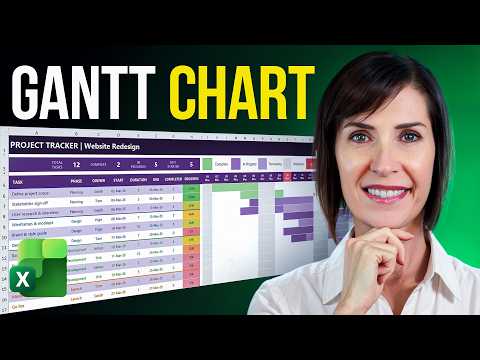
Excel Gantt: Ditch Your Project Tool
Microsoft Excel Gantt chart replaces paid tools with automated dates progress and color coding for project management
Key insights
- This note summarizes a YouTube tutorial that shows how to build a modern, color-coded Gantt chart in Excel that can replace standalone project tools.
The chart runs on three inputs: start date, duration, and progress, and updates automatically. - Excel Gantt charts are cost-effective and easy to share inside Microsoft 365, making them a practical alternative for small teams.
They provide clear visuals and dynamic updates so timelines adjust when dates or progress change. - Start with a simple data table listing tasks, start/end dates, durations, owners, and percent complete, and sort by start date.
Use straightforward formulas and conditional formatting to automate end-date calculations and live progress indicators (for example, using =TODAY()). - To create the chart, insert a stacked bar chart, use start dates as the hidden base and durations as the visible bars, then format the time axis and reverse task order for a standard Gantt view.
Hide the base series to show clean timeline bars. - Add enhancements like milestones, dependencies, and stacked progress bars to show completed versus remaining work.
Conditional formatting and color coding help highlight at-risk tasks and keep stakeholders focused. - Use built-in templates or automation tools to speed setup, but keep the model simple: three inputs and clear owner fields.
Share the file via your cloud workspace for real-time collaboration and single-source status reporting.
Video at a Glance: What Mynda Treacy Demonstrates
The newsroom reviewed a recent YouTube video by Mynda Treacy (MyOnlineTrainingHub) [MVP] that walks viewers through building a modern Excel Gantt chart in Excel from scratch. The video promises a clean, color-coded timeline that updates automatically and shows live progress for each task. Importantly, the presenter emphasizes that the chart needs only three inputs — start date, duration, and progress — to drive the whole visual. Overall, the tutorial targets teams looking to avoid subscription project tools while retaining visual clarity and dynamic updates.
How the Excel Gantt Chart Works
The demo uses a stacked bar approach where one series creates an invisible offset from the axis and another series represents task length, which effectively simulates a bar on a timeline. Then, the video layers a progress indicator and applies conditional colors so completed and remaining portions appear distinct. The presenter also adjusts the date axis and reverses the task order for a conventional Gantt layout that matches project expectations. As a result, the chart looks like a purpose-built timeline while remaining purely cell- and chart-based in Excel.
Practical Benefits and Cost Tradeoffs
First, the tutorial highlights that using Microsoft 365 avoids subscription fees and leverages tools teams already have, including file sharing via Microsoft 365 when available. Moreover, the worksheet approach gives users full customization: they can add owners, dependencies, or different time scales without relying on a vendor's fixed feature set. However, this flexibility comes with tradeoffs because spreadsheets require more manual design work and strong file governance to keep a single source of truth. Therefore, teams must weigh cost savings against the effort of maintaining templates and training contributors.
Balancing Automation, Usability, and Fragility
The video suggests formulas and chart techniques that automate updates when dates or percentages change, which improves accuracy and reduces repetitive editing. Yet automation in Excel can produce fragile results if formulas reference hard-coded ranges or if users insert rows without adjusting named ranges. Additionally, the tutorial points out that while templates and built-in patterns speed setup, complex projects with many dependencies or resource leveling may outgrow a spreadsheet. Consequently, organizations face a balancing act: maximize simplicity for small projects, but plan to migrate to specialized tools like Asana, Monday, or Notion if scale and advanced workflows demand it.
Challenges, Limitations, and Suggested Practices
Mynda Treacy addresses some limitations directly, such as the lack of a dedicated Gantt chart type in Excel and the need to simulate milestones and dependencies visually. She recommends careful table design, consistent input columns, and the use of templates or prompts to reduce errors and speed adoption. For teams, the video implies that governance practices — like version control, locked templates, and clear column definitions — lower fragility and maintain clarity. Ultimately, the presenter offers practical steps while acknowledging that spreadsheets are best suited for simpler timelines or teams that prioritize cost and control over advanced project features.
Verdict and Next Steps for Teams
The video serves as a practical, step-by-step resource for teams that want a visually effective timeline without paying for a separate tool, and it demonstrates real-world tradeoffs in a clear way. For teams with limited budgets or occasional projects, a well-built Excel Gantt chart can replace a paid app, provided there is discipline around template management and user training. Conversely, organizations running many concurrent projects, complex dependencies, or automated resource scheduling may find that dedicated project software better fits their needs. In short, the tutorial offers a robust solution for many use cases and also helps decision-makers understand when to keep spreadsheets and when to scale up to specialized tools.

Keywords
Excel Gantt chart template, Excel project management Gantt, replace project management software with Excel, free Excel Gantt chart download, Excel project tracker Gantt, Excel Gantt chart tutorial, simple Gantt chart in Excel, Excel timeline for project management