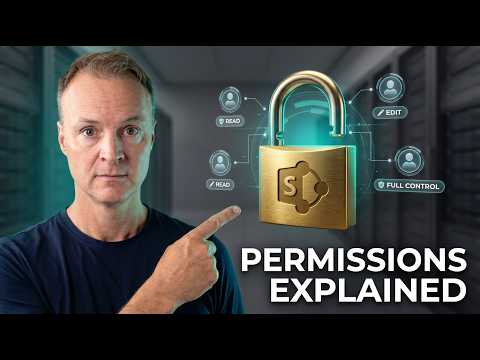
SharePoint Permissions for Beginners
Master SharePoint permissions in Microsoft three sixty five: sites, inheritance, custom groups and file security
Key insights
- Video summary: Based on a 2026 beginner's SharePoint permissions guide, this video explains core concepts and step-by-step actions to manage access across sites and files.
- Permission levels: SharePoint uses levels like Read, Contribute/Edit, Design, and Full Control to set who can view, change, or manage content. Setting the right level prevents accidental edits or deletions.
- Hierarchy and inheritance: Permissions flow from the site level to lists/libraries and then to individual items/folders. Use inheritance for consistent access and choose a Team Site or Communication Site based on collaboration needs.
- Breaking inheritance: Stop inheritance on a list, library, or item to create unique permissions. The system copies parent rights, then you can remove or add users to secure sensitive content. Sharing a single document often triggers this change.
- Use groups, not individuals: Assign access to Microsoft 365 groups like Owners, Members, and Visitors to reduce permission sprawl. Avoid many direct user assignments and prefer group membership for easier management.
- Manage and audit: Open Site permissions > Advanced permission settings to view or edit rights, use the permission checker to test access, and run regular reviews. Best practices: limit unique permissions, schedule audits, and document site owner responsibilities.
Teacher's Tech has released a clear, practical YouTube guide aimed at beginners who need to master SharePoint permissions in 2026. The video walks viewers through site creation, inheritance, custom groups, and targeted security steps while using a fictional scenario called ChronoTours HQ to make complex ideas more relatable. For editorial readers, this article summarizes the main lessons, highlights tradeoffs, and explains the common challenges administrators face when balancing security and collaboration. Overall, the presentation favors simple workflows and repeatable checks that IT teams can adopt quickly.
Core concepts explained
The tutorial starts by defining permissions as the rules that control who can view, edit, or manage content on sites, libraries, lists, and items. It explains the default hierarchical model where access flows from the site down to lists and individual files through a mechanism called inheritance, which helps keep settings consistent. Then, the presenter clarifies common permission levels such as Read, Contribute/Edit, Design, and Full Control, and demonstrates how each maps to everyday tasks like viewing, editing, or managing sites. These straightforward explanations set the stage for hands-on steps later in the video.
Next, the video shows how to check permissions and navigate to advanced settings like Site permissions and the permission pages for lists and items. The instructor emphasizes practical checks, such as reviewing which users or groups have access and testing effective permissions for a specific user. This walk-through makes the abstract concept of inheritance concrete by letting viewers see where rights come from and how they propagate. As a result, beginners can quickly locate permission settings without getting lost in menus.
Practical setup and group strategy
The presenter recommends using Microsoft 365 groups — typically Owners, Members, and Visitors — rather than assigning permissions to individual users. This approach reduces management overhead and lowers the risk of "permission sprawl," where scattered, direct assignments create confusion and security gaps. By assigning groups at the site level and allowing inheritance, teams maintain clarity while enabling broad collaboration. The video shows step-by-step how to add members, create custom SharePoint groups, and change privacy settings to match organizational needs.
However, the guide also explains when groups fall short and you must use unique permissions. For instance, securing a single library or a sensitive document often requires breaking inheritance and setting targeted access rules. The presenter cautions that breaking inheritance creates copies of parent permissions that teams must later maintain, which can increase complexity. Thus, the suggested balance is to favor groups and inheritance until targeted protection is essential, then document and review those exceptions regularly.
Balancing security and collaboration
One major theme is tradeoffs: tighter security often reduces convenience, while broad permissions speed collaboration but raise risk. The video demonstrates these tradeoffs by showing how a site member can edit most content, enabling fast teamwork, while a specific library might be restricted to a smaller group for compliance reasons. The presenter encourages administrators to be deliberate about where they break inheritance and to use sensitivity labels and DLP features within Microsoft 365 for layered protection. This layered approach helps teams keep documents accessible for daily work while protecting high-value assets.
Another tradeoff discussed is the choice between granular control and administrative overhead. Granular permissions give precise control but require ongoing audits and more complex governance. Conversely, keeping permissions coarse and group-based reduces maintenance but may expose sensitive files if groups are misconfigured. To manage these tensions, the tutorial recommends regular reviews, automated audits when possible, and clear site owner responsibilities to avoid drift over time.
Common pitfalls and how to avoid them
The video names several common mistakes, such as assigning permissions directly to individuals, creating too many unique permission scopes, and neglecting regular access reviews. These errors lead to permission sprawl and make it hard to know who can see or edit critical files. To help viewers avoid these traps, the tutorial suggests policies like monthly or quarterly reviews, removing inactive accounts, and documenting unique permissions so teams can trace why exceptions exist. This pragmatic advice helps reduce long-term risk while keeping day-to-day work smooth.
Finally, the tutorial shows practical checks that administrators should run, including reviewing effective permissions for a user and testing sharing links. The presenter also covers how custom permission levels work and when to use them, which can be useful for sites with special workflows. By combining checklists, examples, and governance tips, the video gives a usable roadmap for teams to secure SharePoint without paralyzing collaboration. Consequently, beginners gain both the skills to act and the awareness of the ongoing work that permission management requires.

Keywords
SharePoint permissions guide, SharePoint permission levels, How to set permissions in SharePoint, SharePoint permissions for beginners, SharePoint access control tutorial, SharePoint user permissions explained, Manage SharePoint site permissions, SharePoint security best practices