SharePoint Button Web Part Gets UX Boost
M365 Adoption Lead | 2X Microsoft MVP |Copilot | SharePoint Online | Microsoft Teams |Microsoft 365| at CloudEdge
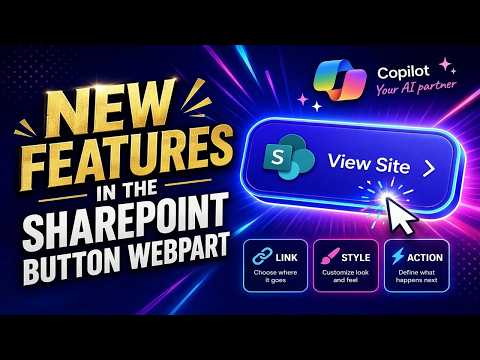
SharePoint Button web part gets icons hover effects and border controls to boost Microsoft intranet and Teams UX
Key insights
- Button web part — A simple building block on modern SharePoint pages that creates a labeled button linking to a target.
Use it for clear calls-to-action like "Start Request" or "Open Dashboard"; it navigates only and does not run automation. - New visual features — You can now add icons to buttons and enable subtle hover effects (lighten/darken) for immediate visual feedback.
A demo video shows these updates in action and how they boost recognition and engagement. - Advanced border properties — Full control over shape (rounded vs. square), weight (thickness), style (solid, dashed, etc.), and color.
Use borders to align buttons with your brand and page hierarchy. - Theme-driven styling — Buttons follow the site theme accent color and respect modern page layout and responsiveness.
This keeps buttons visually consistent across SharePoint and avoids custom styling conflicts. - Support and deployment — Available in SharePoint in Microsoft 365 and in SharePoint Server Subscription Edition when the environment has the Version 22H2 feature update and the appropriate release-ring configuration.
Confirm your release ring before planning a rollout. - Practical tips — Keep configuration simple: set a clear label and link, add an icon only when it improves clarity, and use borders plus theme colors for brand alignment.
Small UX changes like these can noticeably increase adoption and page usability.
Ami Diamond [MVP], a male SharePoint expert, released a step-by-step YouTube video that demonstrates a recent user experience upgrade to the Button web part in SharePoint. In this news-style summary, we outline what the video shows, explain the design implications, and explore practical tradeoffs for intranet teams. Consequently, the report aims to help page authors and designers decide how and when to adopt these new controls.
What the video demonstrates
In the recording, Ami walks viewers through three visible improvements: the ability to add icons to buttons, subtle hover effects that lighten or darken the control, and expanded border properties including shape, weight, style, and color. He shows how these options make calls-to-action easier to scan and more consistent with site branding. Moreover, his step-by-step pacing highlights how quickly page authors can apply the changes without custom development.
Throughout the demo, Ami emphasizes practical examples such as actions labeled “Start Request,” “Submit Form,” or “Open Dashboard” to show clear use cases for intranets and portals. He also points out the visual feedback users get from hover states, which can reduce misclicks and improve perceived responsiveness. As a result, the video serves both as a tutorial and as a design rationale for adoption.
Design and UX implications
The enhancement aligns the Button web part more closely with modern page design by linking button color to the site theme and by offering refined styling options. Consequently, organizations can maintain visual consistency across pages without resorting to custom CSS. In addition, the icon and hover capabilities increase recognition speed and give pages a more interactive feel.
However, the update also highlights a familiar tradeoff: adding styling options improves flexibility but can complicate governance. If authors overuse icons or vary border weights excessively, pages risk losing a cohesive look. Therefore, design systems and templates remain important to balance creative freedom with a consistent corporate identity.
Implementation and compatibility considerations
As Ami notes, the Button control is intended for modern pages in Microsoft 365 and is supported in SharePoint Server Subscription Edition when feature updates and release rings meet specific requirements. Administrators should verify their environment’s update level before expecting parity with the cloud experience. In practice, this means testing the new options first in a staging site or early-release ring where possible.
Additionally, the web part is deliberately lightweight: it provides navigation and visual emphasis, not automation. It does not replace workflows, multi-step forms, or scripts. Thus, teams should treat it as a polished link launcher rather than a substitute for business logic or integration work.
Tradeoffs and challenges
Adopting the enhanced Button web part brings clear benefits, yet teams must weigh those gains against potential downsides such as design drift and accessibility gaps. For instance, adding icons improves scannability, but icons must be paired with readable labels and keyboard support to remain accessible. Consequently, authors should test contrast, focus order, and screen-reader behavior when they apply decorative elements.
Performance and maintenance present another tradeoff: richer visuals slightly increase rendering complexity, especially on heavily customized pages or slow networks. Therefore, governance policies that define approved styles, icon sets, and use cases help keep pages predictable and performant. In short, the challenge is to unlock new design capabilities while preventing fragmentation across a large intranet.
Practical advice for page authors
Ami’s video is useful for authors who want fast wins: try adding icons to the most frequently used buttons first, and use hover effects sparingly to draw attention to critical actions. Test changes on desktop and mobile to confirm that border shapes and weights scale well. Also, align button styles with your theme palette so that new buttons feel native rather than tacked on.
Finally, measure the impact after rolling out changes by tracking click rates and user feedback, and then iterate. Because the Button remains a navigation tool, it is best paired with monitoring and governance so that small UX improvements yield wider adoption and clearer user journeys. In this way, Ami Diamond’s demonstration offers a practical route to enhance SharePoint pages without heavy engineering.
Keywords
SharePoint Button Web Part, Button Web Part UX, SharePoint UX Upgrade, Modern SharePoint Button, Customize SharePoint Button, SharePoint Web Part Design, SharePoint Online Web Parts, Accessible SharePoint Buttons