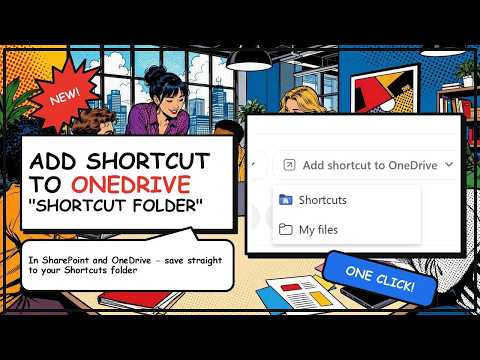
SharePoint: Add OneDrive Shortcut
M365 Adoption Lead | 2X Microsoft MVP |Copilot | SharePoint Online | Microsoft Teams |Microsoft 365| at CloudEdge
Streamline SharePoint shortcuts into OneDrive shortcut folder for cleaner OneDrive and easier File Explorer navigation
Key insights
- Add shortcut to OneDrive: This feature creates a OneDrive pointer to a SharePoint folder or library so users can find shared content in their My files.
It is not the same as full Sync; the shortcut links to the source instead of copying files locally. - New placement options: You can Add to My Files, let Microsoft place shortcuts in a Dedicated Shortcut Folder, or Choose another location inside OneDrive.
These choices help keep shortcuts organized and reduce the need to move items after creating them. - How to add a shortcut: Open OneDrive on the web, go to Shared, select the folder or library, then pick Add shortcut to My files (or the equivalent label shown).
The shortcut appears with a link icon and you can move it to subfolders for project or department grouping. - Key benefits: Better organization and easier navigation in File Explorer and Teams, Cross-device availability across web, mobile, desktop, and the OneDrive sync client, and No duplication because the shortcut points to the original content.
If the sync client runs, shortcut content can also be available offline. - Limits and requirements: Users generally need edit permissions to add a shortcut and the shortcut stays linked to the source so changes update automatically.
Remember that this is a managed pointer, not a replacement for full local sync when you need offline copies. - Practical tips: If you don’t see the option, use the OneDrive/SharePoint web interface and check account type or permissions.
Consider using the Dedicated Shortcut Folder for teams with many shortcuts and watch the short demonstration video for step-by-step guidance from the source.
Ami Diamond [MVP], a male Microsoft MVP, published a short YouTube video demonstrating a small but useful update to SharePoint and OneDrive that many organizations will notice quickly. In the clip, he walks viewers through updated choices when creating a shortcut from SharePoint or OneDrive, and he shows the effect in both the web interface and the desktop File Explorer. Consequently, the video aims to clarify how the new options can improve organization and reduce manual steps for users who manage many shared locations.
What the video demonstrates
First, Ami highlights three clear placement options that appear when you add a shortcut: Add shortcut to My files, Add to a dedicated shortcut folder, and the ability to choose another location. He shows how selecting the dedicated shortcut folder lets Microsoft place all shortcuts into one tidy location, while choosing another location lets users place the shortcut into any subfolder inside OneDrive. Moreover, the video compares the web and desktop experiences so viewers can see how the choice surfaces across platforms.
Throughout the demonstration, Ami uses step-by-step clicks so viewers can follow along easily, and he emphasizes the small visual cue that identifies a shortcut inside OneDrive. He also points out differences in wording between personal and work accounts, noting that some interfaces display the action as Add shortcut to My files instead of Add shortcut to OneDrive. Therefore, his walkthrough helps reduce confusion by showing real screens rather than abstract descriptions.
How the feature works in practice
Ami clearly explains that a shortcut is a pointer, not a full copy, and he contrasts that behavior with the OneDrive Sync feature to avoid conflation. He demonstrates the typical flow by opening OneDrive on the web, selecting a shared SharePoint folder, and then choosing the shortcut option so it appears inside the user’s My files. As a result, the folder becomes accessible from OneDrive web, Teams, and File Explorer without duplicating content or changing the original SharePoint library.
Additionally, the video notes requirements and limits, such as the need for edit permissions to add some shortcuts and the fact that shortcuts reflect the source content rather than creating independent copies. Ami shows that once a shortcut exists, changes to files in SharePoint are visible through the shortcut, which helps maintain a single source of truth. However, he also clarifies that users who need offline access to all files still need the full sync capability of the OneDrive client.
Benefits and tradeoffs
Ami argues that the update improves organization because shortcuts can be channeled into a single folder or placed inside specific project subfolders, and this helps teams find shared content more quickly. Moreover, by showing the shortcut in File Explorer, the video highlights cross-device consistency that reduces clicks and mental overhead for frequent collaborators. Consequently, organizations with lots of shared folders stand to gain clearer structure and less manual reorganization.
On the other hand, Ami does not shy away from tradeoffs: shortcuts do not replace full sync, and they may confuse users who expect local copies to behave like synchronized libraries. He warns that administrators must balance the desire for neat centralization against the need for local availability and performance, especially for teams that work offline or with very large datasets. Therefore, deciding when to use shortcuts versus sync requires assessing collaboration patterns, storage needs, and user expectations.
Administrative and governance considerations
The video also touches on governance, where Ami suggests that IT teams should set clear guidance on when to recommend Add shortcut to OneDrive and when to use full sync or shared libraries. He notes that admins can reduce support calls by explaining UI label differences and by documenting the distinction between shortcuts and synchronized libraries. Moreover, aligning tenant policies and educating users about permissions can prevent mistaken assumptions about access and availability.
In addition, Ami points out that using a dedicated shortcut folder helps centralize pointers for audits and training, which can simplify lifecycle management for shared resources. However, he warns that an overreliance on shortcuts without good naming and access control can create another layer of clutter if users indiscriminately add many links. Thus, governance must balance convenience with clarity to avoid creating a second organizational problem.
Practical tips and final takeaways
To conclude, Ami offers practical tips such as choosing the dedicated shortcut folder for broad teams and using the choose-another-location option when projects require nested organization. He recommends testing the behavior with a small group to see how shortcuts surface across web, desktop, and mobile before rolling the change out widely. Consequently, administrators and power users can make informed decisions that align with both performance and discoverability goals.
Overall, the video provides a concise, actionable guide to a modest but meaningful change in how Microsoft 365 handles shared content. By demonstrating real scenarios and explaining tradeoffs clearly, Ami Diamond [MVP] helps viewers weigh ease of access against the need for local synchronization and governance. Therefore, teams that manage many shared folders should consider the new shortcut placement options as a practical way to streamline access while planning policies to avoid unintended complexity.

Keywords
SharePoint add shortcut to OneDrive, add shortcut to OneDrive from SharePoint, SharePoint Online add to OneDrive, OneDrive shortcut folder, add SharePoint to OneDrive, OneDrive for Business shortcut, sync SharePoint to OneDrive, add shortcut to OneDrive