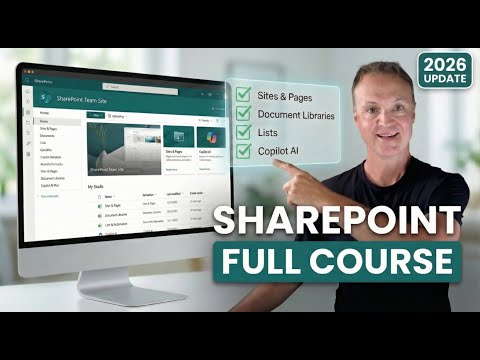
SharePoint 2026: Beginner Site Guide
Microsoft expert guide to building modern SharePoint sites with Lists, Metadata, Microsoft Copilot, Teams and governance
Key insights
- Start your site quickly by creating a Communication Site or Team site, give it a clear name and URL, add owners and members, and apply branding like logo, theme, and menu for a consistent look.
- Organize files without folders by using Metadata, custom columns and saved views in a Document Library; rely on Version History and the recycle bin to recover changes and deleted files.
- Replace spreadsheets with SharePoint Lists for structured data—build forms, views and automations (for example, a "Travel Request" list) to track requests, approvals and status more reliably than Excel.
- Separate large or different content types into Multiple Libraries, for example distinct Media and Documents libraries, to simplify metadata, search, storage and permissions management.
- Design attractive pages using Web parts (hero, news, quick links, files); create news posts and destination pages to keep content fresh and guide users to important information.
- Secure and scale your site with role-based access (Owners/Members/Visitors), follow Governance rules, connect to Teams when needed, and use Copilot/Agent features to generate content and answer site questions quickly.
Introduction
This article summarizes a YouTube tutorial by Teacher's Tech titled "SharePoint 2026: Full Beginner's Guide to Site Building," which walks viewers through creating a live Communication site. The host builds a fictitious project called ChronoTours, a Time Travel Agency, to show practical steps instead of only clicking buttons. Consequently, the video mixes hands-on demos with explanations about modern SharePoint features like Communication Site templates and Microsoft Copilot integrations. As a result, beginners can see both the mechanics and the reasoning behind design choices.
Scope and Core Lessons
First, the video covers the basics: creating a site, adjusting look and navigation, adding members, and setting permissions for Owners, Members, and Visitors. Next, it contrasts the traditional folder approach with using Metadata and Views to manage documents more effectively, showing examples of when folders cause limits. Then, the tutorial demonstrates Lists as living spreadsheets, includes why multiple Document Libraries can help separate media from documents, and explains how web parts power attractive pages. Finally, it walks through governance topics, Teams integration from a site, and using Copilot to generate content quickly.
Building the ChronoTours Site
The guide begins by creating a new site from the SharePoint start page, choosing a Communication Site for broader announcements and visual storytelling. After naming the site and setting privacy, the author adds owners and members, which also ties the site to a Microsoft 365 group for smoother collaboration. Then, the tutorial configures site information, theme, logo, and navigation so the site feels like a branded intranet hub for the imaginary travel agency. This step-by-step approach helps beginners understand how each choice affects user access and the site’s appearance.
Lists, Libraries, and Practical Workflows
Next, the video builds a "Travel Request" List that replaces spreadsheet-based forms and illustrates how lists support forms, views, and more robust tracking than Excel. Simultaneously, the presenter creates document libraries with version history enabled, adds custom columns, and shows changing views and sorting to suit different audiences. In addition, the tutorial explains when to separate media into its own library to avoid performance or organizational problems, especially for images and large files. Therefore, viewers gain a clear picture of how libraries and lists work together in a real project.
Metadata vs Folders: Tradeoffs and Challenges
The video emphasizes moving away from nested folders toward strategic use of Metadata, because metadata enables flexible views, better search, and consistent tagging across files. However, the presenter also acknowledges tradeoffs: metadata requires planning, training, and initial setup, so teams must invest time to define fields and maintain consistency. Moreover, while metadata improves findability, it can complicate simple user habits, and governance must enforce taxonomy and column usage to avoid chaos. Thus, the guide balances the benefits of structured data against the practical cost of changing user behavior.
Design, Pages, and Content Creation
Design receives attention through examples of hero sections, news posts, and destination guide pages built with flexible web parts, showing how layout choices guide visitors to key content. The presenter demonstrates adding and editing pages, adjusting the menu, and configuring site branding so that the site feels coherent and professional. Additionally, Microsoft Copilot is used to generate sample content quickly, which highlights the speed benefits when writing descriptions or news items. Yet, the video notes that AI output still needs human review to ensure tone, accuracy, and compliance with policies.
Automation, Agents, and Practical Limits
The tutorial also explains how Lists integrate with agents and automation to answer questions and speed repetitive tasks, making workflows more efficient than static spreadsheets. At the same time, it warns viewers about typical challenges like permissions complexities, validation rules, and the overhead of maintaining automated flows over the long term. Furthermore, the presenter shows version history and recycle bin recovery as essential safeguards for content integrity and accidental deletions. Consequently, the video balances enthusiasm for automation with clear cautions about sustainable maintenance.
Governance, Permissions, and Teams Integration
Governance is a recurring theme, with the host outlining Owners, Members, and Visitors roles and demonstrating how to set practical permissions for a real project site. He also shows how to create a Microsoft Teams instance directly from a SharePoint site, which streamlines collaboration but increases the need for coordination across toolsets. The video argues that governance policies, hub site architecture, and clear naming conventions help maintain order as sites scale across an organization. Ultimately, the guide encourages admins to plan permissions and lifecycle rules before rolling out sites widely.
Conclusion and Practical Takeaways
Overall, Teacher's Tech provides a thorough, approachable primer for anyone new to modern SharePoint site building in 2026, blending practical demos with strategic advice. The video stresses planning—defining metadata, choosing libraries, and establishing governance—while showing concrete steps to implement those plans. As a result, beginners receive a clear map of tradeoffs between ease of use and long-term manageability, plus hands-on demonstrations to build confidence. For those starting with SharePoint, the video offers a balanced mix of how-to guidance and warnings about common pitfalls.

Keywords
SharePoint 2026 tutorial, SharePoint site building for beginners, how to build a SharePoint site 2026, SharePoint Online 2026 beginner guide, SharePoint modern site design 2026, SharePoint pages and web parts tutorial 2026, SharePoint permissions setup guide 2026, SharePoint site templates and best practices 2026