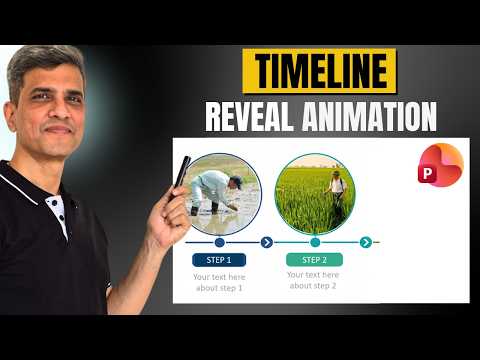
PowerPoint Timeline: 2 Simple Reveals
PowerPoint timeline reveal tips in Microsoft Office to make roadmaps and presentations pop with simple animations
Key insights
- Quick summary: This YouTube tutorial teaches two simple, no-add-in methods to reveal timeline content step by step — Cover & Reveal and Blur to Clear.
Both techniques work well for timelines, roadmaps, process diagrams and project plans. - Set up the slide: draw a long horizontal line as the timeline axis, add vertical markers and group each marker with its label, and place shapes or icons for events.
Use clear spacing so each element can animate independently. - Cover & Reveal technique: apply the Wipe effect to the horizontal line set to reveal from left to right and start it With Previous.
Then animate markers (wipe or float) and text to appear slightly after the line so the audience follows the sequence. - Blur to Clear technique: begin with blurred images or shapes and transition them to sharp, visible state while using a Zoom or fade on event markers to make milestones pop.
This creates focus and guides attention to each event in order. - Control timing with the Animation Pane: set precise delays, durations and start triggers, test the order, and use small offsets so text appears after markers.
Preview in Slide Show mode to confirm smooth, readable pacing. - Benefits and quick tips: animated reveals boost audience focus, enforce a clear narrative order, and add polish without extra tools.
Group related items, avoid clutter, and consider the Morph transition for even smoother movement when needed.
Overview of the Video
The YouTube video by Presentation Process YouTube demonstrates two simple yet effective PowerPoint timeline reveal techniques that help presenters keep audiences focused. In the clip, the presenters explain why static timelines often fail and show step-by-step methods to animate timelines so they appear to build themselves. Consequently, viewers learn practical ways to apply these effects to timelines, roadmaps, process diagrams, and project plans without relying on advanced add-ins.
Moreover, the video timestamps highlight a quick path through the content, starting with a common presentation mistake and then showing the two reveal methods, before pointing to a follow-up on the Morph transition. As a result, the tutorial suits both busy professionals who want a fast fix and designers looking to refine their slide choreography. The tutorial emphasizes clarity and simplicity while demonstrating how small motion choices increase perceived professionalism.
The Two Reveal Techniques
First, the video covers the Cover & Reveal technique that uses a growing horizontal line and timed reveals for markers and labels. Essentially, the line uses a Wipe animation set "From Left," so time feels like it is moving forward, while event markers and text appear after the line reaches each point. This sequence gives the timeline a clear narrative order and prevents the audience from scanning ahead and missing the intended message.
Second, the presenters show a Blur to Clear effect that brings attention to a single item by shifting visual focus from blurred content to a sharp image or label. In practice, creators duplicate an element, apply a soft blur to the copy, and then animate the clear copy to replace it, which simulates gradual focus. Consequently, this method draws the eye and emphasizes transitions between milestones, particularly when you want to highlight complex or detailed events.
Step-by-Step Implementation
To build these timelines, the video stresses three building blocks: shapes, animations, and timing. First, create the visual skeleton—a horizontal axis with vertical markers and grouped labels—so you can animate group elements together and keep alignment consistent. Next, use the Animation Pane to set Wipe for the main axis and complementary effects like Zoom or Fade for markers and text, adjusting start options to "With Previous" or "After Previous" for smooth sequencing.
Furthermore, the presenters recommend setting short durations and previewing frequently, because small timing tweaks make a big difference in perceived smoothness. They also note that grouping related items simplifies editing and avoids accidental misalignment when you move or copy elements between slides. Finally, preview the slide show on the target hardware to confirm performance and to check whether animation timing needs further adjustment.
Tradeoffs and Practical Challenges
While these techniques boost engagement, they also introduce tradeoffs between impact and complexity. On one hand, more animations can focus attention and create professional polish; on the other hand, they require setup time, careful sequencing, and testing to avoid distracting or overloading viewers. Therefore, presenters must balance the desire for visual flair with the need for clear communication.
Compatibility and accessibility also pose practical challenges. Older versions of PowerPoint or exported formats such as PDF may not preserve the exact animations, and heavy motion can affect viewers who are sensitive to movement. Moreover, rendering animations on low-powered machines or during web conferencing can cause stutter, so presenters need to test across devices and opt for simpler moves when reliability is critical.
Recommendations and Best Practices
For reliable results, the video suggests prioritizing sequencing and timing over elaborate effects, and to keep animation durations short to maintain pace. In addition, grouping objects and using consistent animation styles across slides reduce cognitive load and save time when you edit. Consequently, you get professional-looking results without excessive complexity.
Finally, the presenters point to the Morph transition as a useful alternative when you want smoother shape or position changes with less manual timing work, but they remind users that Morph requires more recent PowerPoint versions. In short, choose the method that fits your audience, technical constraints, and time budget, and always rehearse the slide show to ensure the animation supports rather than distracts from your message.

Keywords
PowerPoint timeline animation, PowerPoint timeline tutorial, timeline reveal effect PowerPoint, PowerPoint reveal animation, easy PowerPoint animations, animate timeline in PowerPoint, PowerPoint timeline effects, PowerPoint animation tutorial