PowerPoint: Make Video Slides Clear
Master PowerPoint in Microsoft Office Three Sixty Five to craft clear video slides with templates and animation effects
Key insights
- Video summary: A Presentation Process tutorial demonstrates how to turn static slides into clear, video-like sequences using PowerPoint animations and transitions.
It walks viewers step-by-step so they can reproduce animated tabs, icons, and layered reveals without external video software. - Core animation types: Use entrance, emphasis, exit, and motion paths to control how elements appear, draw attention, and move across the slide.
These categories help you pace information and guide audience focus with simple, repeatable effects. - Morph and transitions: Apply the Morph transition to auto-animate changes between duplicated slides for smooth, video-style motion.
Combine Morph with timed transitions and slide zooms to create layered, professional-looking sequences. - Practical workflow: Insert shapes, text, or images, then open the Animation Pane to set start triggers, duration, and delays for each effect.
Preview frequently and use the Animation Painter to copy effects across elements for consistent timing and polish. - Pro tips: Build complex motion by stacking elements, adding subtle shadows or gradients, and using custom motion paths for precision.
Duplicate slides and use "with previous" timing as a fallback when Morph isn’t available to keep animations smooth. - Best practices: Reveal content progressively and limit styles to one or two per deck to avoid overload.
Sync animations with your narration and export the presentation as a video when you need a shareable, playback-ready file.
Video Snapshot
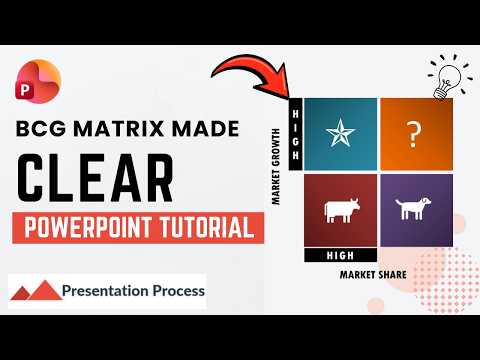
The YouTube tutorial from Presentation Process YouTube walks viewers through building presentation slides that behave more like short videos. First, the hosts preview the finished effect and then break the process into clear stages, including adding quadrants, labels and icons before applying custom animation. Consequently, the video targets users who want to lift static slides into smooth, staged visuals without leaving PowerPoint.
Moreover, the episode timestamps make the structure easy to follow because each section focuses on a distinct task, ranging from layout setup to animation fine-tuning. The hosts mix practical demos with short explanations so both beginners and intermediate users can reproduce the results. As a result, viewers can pause and practice each step in real time.
Techniques Demonstrated
The tutorial emphasizes core features such as the Animation Pane, Motion Paths, and the Morph transition to create fluid movement between slides. For example, the presenters show how to duplicate slides and tweak object positions so that the Morph transition produces seamless motion; they also demonstrate using entrance, emphasis and exit effects to sequence content. Additionally, the lesson includes practical tips like using transparent PNG images for cleaner overlays and combining shadows and gradients for depth.
Further, the video demonstrates timing control by adjusting start triggers, duration and delay settings so animated elements match narration or slide timing. The presenters also recommend copying animation settings across elements to maintain visual consistency, which they achieve with tools such as the Animation Painter. Consequently, the workflow they show helps users reliably reproduce the same behavior across multiple slides.
Benefits of Video-Style Slides
Transitioning slides into video-style sequences helps viewers absorb information in stages, which reduces cognitive load and improves clarity. By revealing content progressively, presenters can direct attention where it matters most and link visual changes to spoken points, thereby strengthening storytelling. In addition, exporting the animated deck as a video creates a shareable asset that plays consistently on platforms that do not support PowerPoint interactivity.
Furthermore, the approach demands no external animation software, which saves time and lowers the learning curve for many users who already rely on PowerPoint. It also preserves editable slide elements, so teams can update content quickly without re-rendering a video. Thus, organizations can iterate faster while keeping design quality high.
Tradeoffs and Design Choices
However, the polished look comes with tradeoffs that presenters must weigh carefully. Adding many layered animations increases file size and can strain older machines, which may slow editing and playback; therefore, simplicity often beats excess when compatibility matters. Also, elaborate animations can distract audiences if they are not tightly tied to the message, so designers must balance flair against clarity.
Another important choice involves accessibility and compatibility. While features like Morph create smooth effects, they rely on specific PowerPoint versions and may not behave the same on other platforms or viewers. Consequently, creators should consider fallback designs such as duplicated slides or simplified transitions to preserve meaning across environments.
Technical Challenges and Workarounds
The video acknowledges technical constraints and offers practical workarounds that reduce friction during production. For example, when Morph is unavailable, duplicating slides and staggered entrance animations recreate a similar effect, although this method increases slide count. Likewise, exporting to video resolves playback differences but removes interactivity, so teams must choose whether to preserve click-driven navigation or deliver a fixed video file.
Performance issues also appear when heavy graphics or many simultaneous motion paths run on older systems, which the presenters address by recommending optimized image formats and limiting concurrent animations. They suggest testing on target hardware and exporting short clips early to verify timing, thereby avoiding last-minute surprises before a presentation.
Practical Recommendations
Based on the tutorial, keep animation styles consistent and limit decks to one or two core motion patterns to maintain professionalism and reduce cognitive overhead. In addition, test playback on the devices that audiences will use and create fallback slides for environments that lack advanced transitions, which ensures reliable delivery under different conditions.
Finally, the video encourages viewers to practice pacing and to align animated reveals with their narration; this discipline strengthens engagement and prevents animations from feeling decorative rather than functional. In short, by balancing creativity with technical limits and audience needs, presenters can turn simple slides into clear, video-like storytelling tools that work in real settings.
Keywords
PowerPoint animation tips, PowerPoint animation for video slides, animated transitions for PowerPoint videos, make PowerPoint slides clear and engaging, best PowerPoint animation effects, how to animate slides for video, motion and easing in PowerPoint, cinematic PowerPoint video slides