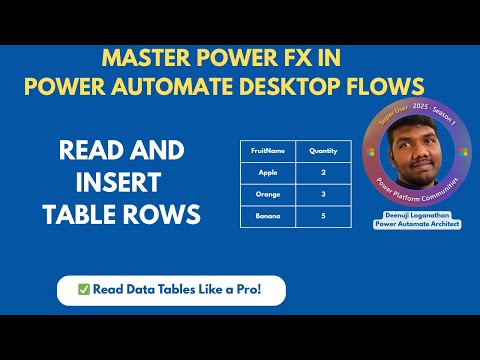
Power FX Tips for Power Automate Desktop: How to Read & Insert Data Tables
Power FX Power Automate Desktop Data Table RPA Power Platform Index() For Each CountRows() .NET VB.NET
Key insights
- Power Fx is a low-code, Excel-like formula language now available in Power Automate Desktop (PAD), allowing users to write automation logic with familiar syntax for easier and more accurate workflows.
- You can use Power Fx to read and insert data table rows in PAD. This includes extracting values with functions like Index(), looping through tables using For Each, counting rows with CountRows(), and dynamically adding new entries.
- The tutorial demonstrates both basic and advanced techniques, including how to handle common issues with Power Fx. It also shows how to use a .NET script (VB.NET) as an alternative when Power Fx cannot insert rows.
- Advantages of Power Fx: Its intuitive syntax speeds up automation creation, supports complex logic and reusable functions, and ensures consistency across the Microsoft Power Platform by enabling shared expressions between PAD and Power Apps.
- Recent updates: The 2025 Wave 1 release brings deeper integration of Power Fx in PAD, adds natural language commands through Copilot, introduces public preview features from August 2025, and improves UI performance with options like Dark Mode.
- This evolution makes PAD more accessible for all users—whether you are a developer or new to automation—by simplifying data manipulation tasks and supporting advanced scenarios without heavy coding.
Power Fx Revolutionizes Data Table Manipulation in Power Automate Desktop
In a recent step-by-step tutorial, Deenuji Loganathan—also known as Automate with Deenu—delved into the practical use of Power Fx within Power Automate Desktop (PAD). The video, aimed at both beginners and seasoned RPA developers, highlights how this low-code, Excel-inspired language now empowers users to read and insert data table rows more efficiently. As Microsoft continues expanding Power Fx capabilities, mastering these tools has become essential for anyone leveraging the Power Platform for automation.
The integration of Power Fx into PAD marks a significant milestone, bringing new levels of flexibility and efficiency to desktop automation. However, it also introduces a set of challenges and tradeoffs that must be considered for optimal results.
Understanding Power Fx in Power Automate Desktop
Power Fx is a low-code formula language designed to mimic the familiarity and simplicity of Excel syntax. By allowing expressions that start with an equals sign, Power Fx lowers the entry barrier for users with spreadsheet experience. This feature is especially valuable for citizen developers who may not have a traditional programming background but are comfortable with formulas and logic flows.
In Power Automate Desktop, Power Fx enables users to create, manage, and transform automation logic without writing complex code. This approach not only reduces errors but also speeds up development, making it easier to maintain and scale automation projects over time.
Reading and Inserting Data Table Rows: Practical Demonstration
Deenuji’s video tutorial provides real-world demonstrations of how to read and insert data table rows using Power Fx. He explains how functions like Index() and For Each can be used to extract and manipulate data efficiently. Additionally, viewers learn to leverage CountRows() and implement looping mechanisms for batch processing.
A key highlight of the tutorial is the hands-on demonstration of inserting rows into a data table using Power Fx. This process, previously cumbersome with traditional scripting, is now streamlined and more intuitive. However, Deenuji also discusses common pitfalls—such as formula limitations or compatibility issues—and suggests fallback options like using VB.NET scripts when Power Fx alone does not suffice.
Advantages and Tradeoffs of Power Fx Integration
The main advantage of Power Fx is its intuitive, Excel-like syntax, which reduces the learning curve for new users. This accessibility accelerates development and encourages broader adoption across business units. Furthermore, the consistency of Power Fx expressions across Power Apps and PAD enhances reusability and standardization, making automation logic easier to share and maintain.
However, there are tradeoffs to consider. While Power Fx simplifies many tasks, it may not yet cover every advanced scenario, particularly when dealing with highly customized or legacy data sources. In such cases, blending Power Fx with traditional scripting or .NET code becomes necessary, which can complicate maintenance and increase the skill requirements for some projects.
Recent Updates and Future Directions
Microsoft’s 2025 Wave 1 release brings further enhancements to Power Automate Desktop, including deeper Power Fx integration and the introduction of Copilot. This new feature enables users to create automations by typing natural language instructions or Power Fx formulas, further democratizing process automation.
Other improvements, such as a refined user interface, Dark Mode, and enhanced security, complement these language updates. As Power Fx continues to evolve, users are encouraged to stay updated on best practices and new features to maximize their automation potential.
Conclusion: A New Era for Desktop Automation
The addition of Power Fx to Power Automate Desktop marks a transformative shift in how users handle data table operations, from reading to inserting rows. This low-code, formula-based approach not only boosts productivity but also fosters a more inclusive environment for both technical and non-technical users.
As AI-assisted features and natural language processing become more integrated, the balance between simplicity and advanced capability will remain a central challenge. Nevertheless, Power Fx’s ongoing development positions PAD as a leading platform for efficient, scalable, and accessible automation solutions in 2025 and beyond.

Keywords
Power FX Power Automate Desktop Data Table Rows Read Insert Automation Microsoft Power Platform Low Code Development