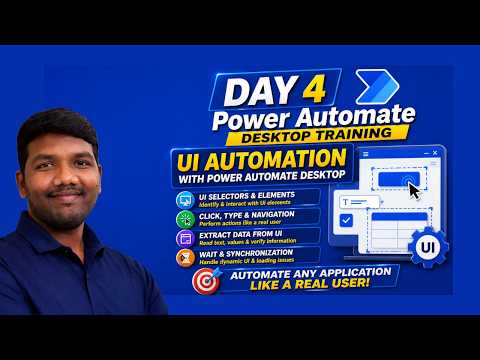
Power Automate: UI Automation Deep Dive
Microsoft expert guide to Power Automate Desktop UI automation on Power Platform with RPA tips for robust selectors
Key insights
- UI Automation
Automates clicks, typing, and data extraction in desktop apps and browsers to mimic human actions.
Use it when APIs or connectors are not available, such as SAP GUI or legacy systems. - Power Automate Desktop
Build desktop flows with a low-code recorder and prebuilt actions like "UI element in window" and send keys.
Record interactions, adjust variables, and test locally before connecting to the cloud. - Selectors
Create reliable selectors by choosing stable attributes, using anchors or relative selectors, and avoiding brittle full paths.
Add waits, retries, and explicit timeouts to handle slow or changing screens. - Machine Runtime Environment
Install the runtime on target machines and register them with Power Automate so cloud flows can trigger desktop flows securely.
Use gateways or machine groups for hybrid and scale-out scenarios. - Error handling
Design flows to catch errors, log details, take screenshots, and retry or clean up before failing.
Use conditional checks and alerts to keep automations stable in production. - Hybrid integration
Combine desktop flows with cloud actions to build end-to-end processes like Excel processing plus cloud approvals.
This approach reduces manual work, speeds processing, and scales with unattended runs.
The YouTube video "Power Automate RPA Full Course – Part 4 | UI Automation Deep Dive" by Automate with Deenu offers a focused walkthrough of real-time desktop automation techniques using Power Automate. In the video, the presenter demonstrates how to automate desktop applications with practical examples, showing reliable selectors, click/type/wait patterns, and error handling strategies. Consequently, the session serves both beginners and professionals who want to build stable end-to-end UI automations while integrating desktop flows with cloud triggers. Overall, this article summarizes the key lessons, tradeoffs, and challenges discussed in the video to help readers evaluate and adopt the techniques in their own projects.
Overview of UI Automation Concepts
The video defines UI automation as automating interactions with desktop apps, browsers, and legacy systems by mimicking human actions such as clicks and typing. It emphasizes the role of Power Automate Desktop in recording UI actions and the need to connect local machines to the cloud using a gateway or runtime. In addition, the author explains how cloud flows can trigger desktop flows to form hybrid automations that span cloud services and on-premises applications. This clear framing helps viewers understand where UI automation fits in the wider RPA landscape.
Moreover, the video highlights practical building blocks like the Machine Runtime Environment, element pickers, and input/output parameters for desktop flows. By walking through an example "RPA demo" cloud flow, the presenter shows essential steps: install the runtime, link the machine, build the desktop flow, and configure cloud triggers. As a result, users learn the end-to-end path from development to unattended execution. The pace remains suitable for those new to the platform while still offering useful reminders for experienced practitioners.
Techniques Demonstrated in the Tutorial
The video demonstrates key techniques including reliable selectors, precise UI element targeting, and the use of click/type/wait actions to control UI flows. Viewers see approaches for handling dynamic screens such as using variables and regular expressions to extract changing content, which reduces hard-coded dependencies. Also, the session covers error handling patterns like retries, timeouts, and graceful fallbacks to keep automations resilient. By showing these methods in real-world desktop scenarios, the tutorial translates abstract concepts into repeatable steps.
Additionally, the presenter explains how to combine desktop actions with cloud logic to automate processes such as invoice handling or SAP GUI tasks. The video stresses the importance of testing across different screen resolutions and user sessions because UI elements can change position or attributes. Therefore, adopting robust selectors and explicit wait conditions helps avoid brittle automations. These hands-on demos underline how small adjustments in selectors and timing can greatly improve reliability.
Tradeoffs and Practical Challenges
The tutorial also discusses tradeoffs that developers must balance when designing UI automations. For example, highly specific selectors can make a flow fast and precise, but they tend to break when UI layouts change; conversely, broader selectors are more tolerant but can select the wrong element. Thus, teams must balance precision with maintainability and prepare for ongoing selector updates as applications evolve. This tension between speed and stability is central to long-term automation reliability.
Other challenges include credential management, machine availability, and environment differences that affect unattended runs. Setting up gateways and the Machine Runtime Environment adds deployment complexity, while hybrid flows require careful input/output mapping and security controls. Moreover, handling dynamic content, pop-ups, and unexpected dialogs requires layered error handling and monitoring. The video recommends building small, testable flows first to reduce the risk of failures in production.
Best Practices and Recommendations
To increase success, the speaker advises following best practices such as modular design, clear variable naming, and logging for troubleshooting. He also suggests using retries and timeouts where appropriate, plus version control and documentation to manage changes over time. In addition, frequent testing across target environments and using shared libraries for common selectors reduce duplicate effort and maintenance burden. These habits help scale automation while keeping operational overhead manageable.
Finally, the video encourages learners to start with simple desktop tasks and progressively add complexity, while monitoring runs and collecting metrics to drive improvements. By combining low-code actions with thoughtful error handling and environment planning, teams can achieve robust end-to-end automations that complement API-based integrations. Ultimately, Automate with Deenu’s deep dive works well as a practical roadmap for engineers and business users aiming to implement stable RPA solutions with Power Automate.

Keywords
Power Automate RPA tutorial, Power Automate UI automation, Power Automate full course, Power Automate Desktop tutorial, UI automation deep dive Power Automate, RPA with Power Automate, Power Automate RPA training, Power Automate UI flows tutorial